The desktop clock application for multiple time zones🕒🌍🕕

In addition, it also includes features:
- Timer
- Countdown timer
- Epoch time and date-time convertor
mclocks doesn't need an internet connection — everything runs 100% locally.
From https://github.com/bayashi/mclocks/releases
For Windows, you can get the installer .msi file, or .exe the executable file.
For macOS, you can get .dmg file to install.
(The shortcut keys in this document are for Windows OS. If you are using macOS, please interpret them accordingly, replacing keys such as Ctrl with Ctrl + Command and Alt with Option where appropriate.)
For Linux, you can get .deb, .rpm or .AppImage file to install.
The config.json file allows you to configure the clocks according to your preferences.
The config.json file should be located in the following directories:
- Windows:
C:\Users\{USER}\AppData\Roaming\com.bayashi.mclocks\ - Mac:
/Users/{USER}/Library/Application Support/com.bayashi.mclocks/ - Linux:
/home/{USER}/.config/com.bayashi.mclocks/
When you start mclocks, then press Ctrl + o to edit your config.json file.
The directory of the config.json file has been changed to com.bayashi.mclocks from just mclocks after version 0.2.9.
And after version 0.2.13, old config.json file is automatically migrated into new directory if the new config file doesn't exist.
The config.json file should be formatted as JSON, as shown like below.
{
  "clocks": [
    { "name": "UTC", "timezone": "UTC" }
  ],
  "format": "MM-DD ddd HH:mm",
  "locale": "en",
  "color": "#fff",
  "font": "Courier, monospace",
  "size": 14,
  "margin": "1.65em",
  "forefront": false
}
The clocks field is an array of objects, each containing name and timezone properties. Both should be String. By default, both are UTC.
nameis a label that will be displayed for the clock.- For selecting time zones, please refer to this list of time zones.
Here is an example of a clocks array for three time zones.
{
  "clocks": [
    { "name": "Tokyo", "timezone": "Asia/Tokyo" },
    { "name": "UTC", "timezone": "UTC" },
    { "name": "SF", "timezone": "America/Los_Angeles" }
  ],
  "format": "MM-DD ddd HH:mm",
  ...snip...
}
string: MM-DD ddd HH:mm
The format field is a date-time format string used to display the clock. To create a custom date-time format, please refer to this formatting guide.
string: ""
The format2 field is same as format. These are switched each other by Ctrl + f key. The format2 is optional field.
string: en
The locale field determines the language settings for displaying the date-time. You can find a list of supported locales here.
string: #fff
The color field defines the color of the date-time text. You can use named colors, RGB hex values, RGB values (e.g., RGB(255, 0, 0)), or any valid CSS color value.
string: Courier, monospace
The font is a font name to display date-time. It should be monospaced font. If you would set non-fixed-width font, then your mclocks may have an undesirable wobbling effect.
number | string: 14
The size is a size of charactor for date-time, in pixel. It can also be specified as a string that includes a unit (e.g., "125%", "1.5em").
string: 1.65em
The margin field determines the space between clocks
bool: false
If the forefront field is set to true, the mclocks application will always be displayed on top of other application windows.
By setting up the config as shown below for the clock, it will be displayed as a countdown clock to a given target date-time.
"clocks": [
	{
		"countdown": "WAC Tokyo D-%D %h:%m:%s",
		"target": "2025-09-13",
		"timezone": "Asia/Tokyo"
	}
],
Above countdown clock will be displayed like below:
WAC Tokyo D-159 12:34:56
Indicating 159 days, 12 hours, 34 minutes, and 56 seconds left until September 13, 2025.
The countdown fieled text accepts below template verbs:
%TG: Target date-time string%D: Remaining day count to target date-time%H: Remaining time as hour to target date-time%h: An hour(hh) of remaining time (hh:mm:ss)%M: Remaining time as minute to target date-time%m: A minute(mm) of remaining time (hh:mm:ss)%S: Remaining time as second to target date-time%s: A second(ss) of remaining time (hh:mm:ss)

Click mclocks app window, then push Ctrl + 1 key, then start 1-minute timer. Push Ctrl + Alt + 1 key, start 10-minute timer. Other number keys work as well. Starting timers up to 5.
Ctrl + p to pause / re-start the timers.
Ctrl + 0 to delete the oldest timer. Ctrl + Alt + 0 to delete the newest timer.
NOTE: Countdown clock and simple timer will send notification by default when the timer is complete. If you don't need notifications, set withoutNotification: true in config.json.

Click mclocks app window, then push Ctrl + e key, then toggle to display Epoch time.
Click mclocks app window, then paste a date-time or Epoch time, then a dialog appears to display conversion results. And it's able to copy the results to the clipboard. If you don't want to copy, then press [No] to just close the dialog.
When pasting with Ctrl + v, the value (Epoch time) is treated as seconds. If you use Ctrl + Alt + v, it's treated as milliseconds, and with Ctrl + Alt + Shift + V, it's treated as microseconds, and with Ctrl + Alt + Shift + N + V, it's treated as nanoseconds and converted accordingly.
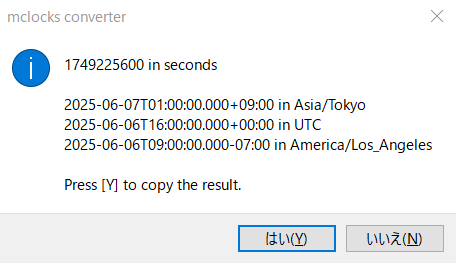
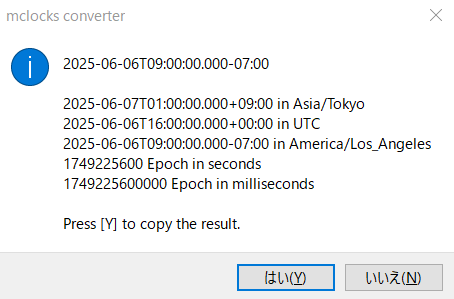
When pasted date-time values do not include timezone information, they are treated as local timezone by default. To handle them as a specific timezone, set the timezone in the convtz option.
"convtz": "UTC"
Click mclocks app window, then use the following keyboard shortcuts to process clipboard text and open it in an editor:
Ctrl + i: Quotes each line of clipboard text with double quotes and appends a comma to the end (except the last line)Ctrl + Shift + i: Quotes each line of clipboard text with single quotes and appends a comma to the end (except the last line)
Empty lines are preserved as-is in all operations.
(This Convert Text Feature has nothing to do with clocks or time, but software developers might find it handy! 😊)
| Shortcut | Description |
|---|---|
Ctrl + o |
Open config.json file in editor |
Ctrl + f |
Switch between format and format2 (if format2 is defined in config.json) |
Ctrl + e or Ctrl + u |
Toggle to display Epoch time |
| Shortcut | Description |
|---|---|
Ctrl + 1 to Ctrl + 9 |
Start timer (1 minute × number key) |
Ctrl + Alt + 1 to Ctrl + Alt + 9 |
Start timer (10 minutes × number key) |
Ctrl + p |
Pause / resume all timers |
Ctrl + 0 |
Delete the oldest timer (leftmost) |
Ctrl + Alt + 0 |
Delete the newest timer (rightmost) |
| Shortcut | Description |
|---|---|
Ctrl + c |
Copy current mclocks text to clipboard |
Ctrl + v |
Convert clipboard content (Epoch time as seconds, or date-time) |
Ctrl + Alt + v |
Convert clipboard content (Epoch time as milliseconds) |
Ctrl + Alt + Shift + V |
Convert clipboard content (Epoch time as microseconds) |
Ctrl + Alt + Shift + N + V |
Convert clipboard content (Epoch time as nanoseconds) |
| Shortcut | Description |
|---|---|
Ctrl + i |
Quote each line of clipboard text with double quotes, append comma to the end (except the last line), and open in editor |
Ctrl + Shift + i |
Quote each line of clipboard text with single quotes, append comma to the end (except the last line), and open in editor |
Dai Okabayashi: https://github.com/bayashi