Convert to iOSOpenDev Project
To convert an existing non-iOSOpenDev project to an iOSOpenDev project, there are three (3) areas of focus:
1. Build Settings: iOSOpenDev specific build settings.
2. Project Navigator: folders and a file for building the Debian package.
3. Build Phases: build phases to compile the target and build the Debian package.
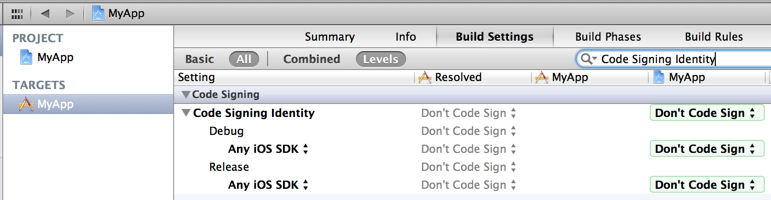
- Code Signing Identity: Don’t Sign Code
- iOSOpenDevPath: /opt/iOSOpenDev
- iOSOpenDevBuildPackageOnAnyBuild: NO
- iOSOpenDevCopyOnBuild: NO
- iOSOpenDevDevice:
- iOSOpenDevInstallOnAnyBuild: NO
- iOSOpenDevInstallOnProfiling: YES
- iOSOpenDevRespringOnInstall: YES
- iOSOpenDevUsePackageVersionPList: NO
What the Build Settings should look like in Xcode:
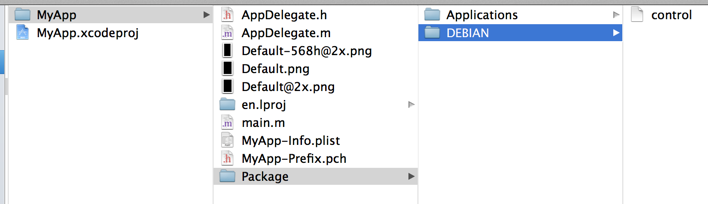
1. Create a Package directory in the target’s directory.
2. Create a DEBIAN directory in the Package directory.
3. Create a control file in the DEBIAN directory.
4. Create a Applications directory in the Package directory.
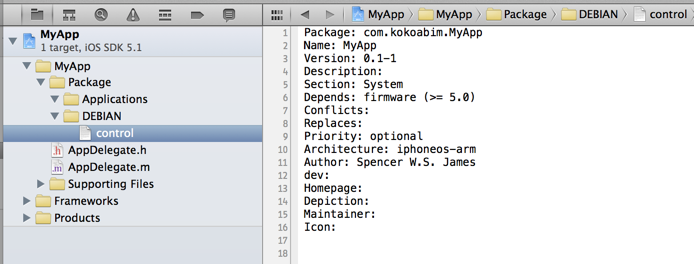
5. Drag-and-drop the Package directory from Finder to under the target’s Project Navigator group in Xcode.
6. Copy-and-paste the following text into the control file:
Package: com.yourcompany.MyApp
Name: MyApp
Version: 0.1-1
Description:
Section: System
Depends: firmware (>= 5.0)
Conflicts:
Replaces:
Priority: optional
Architecture: iphoneos-arm
Author: Your Name
dev:
Homepage:
Depiction:
Maintainer:
Icon:
7. Make sure that two (2) extra blank lines are at the end of the control file.
What the filesystem should look like in Finder:
What the Project Navigator and content of the control file should look like in Xcode:
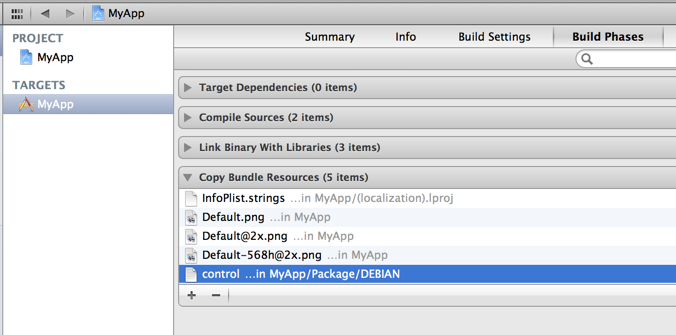
1. Remove the control file from the target’s Copy Bundle Resources Build Phase list.
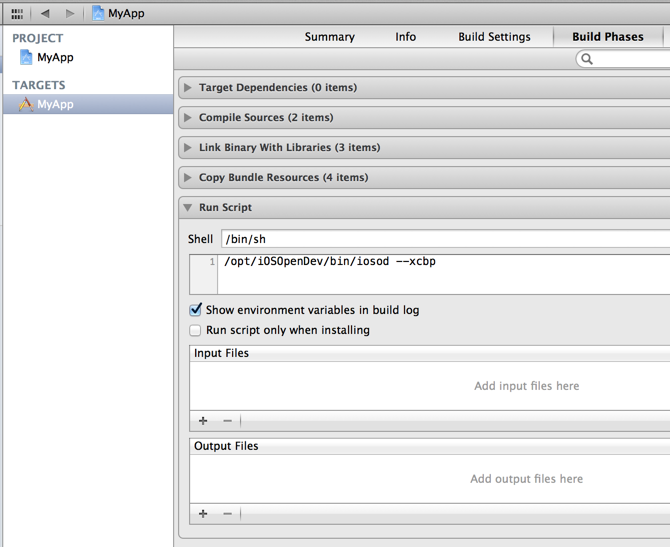
2. Add a new Run Script Build Phase for the target that runs:
/opt/iOSOpenDev/bin/iosod --xcbpWhat the Copy Bundle Resources Build Phase list should look like in Xcode while selecting the control file. Afterwards, click on the minus (-) symbol below:
What the Run Script Build Phase should look like in Xcode: