A powerful, on-device OCR (Optical Character Recognition) app for Android, powered by PaddleOCR and built with PaddleLite v2.10. Run text detection, classification, and recognition entirely on-device — no internet required.
- 6 flexible recognition modes — from full detection + classification + recognition pipelines down to individual model runs
- Real-time camera capture — point and shoot to extract text instantly
- Gallery image support — select any image from your photo library
- Fully customizable settings — tune model parameters, CPU thread count, and detection thresholds to match your device
- On-device inference — all processing happens locally using PaddleLite, ensuring speed and privacy
- Upgraded inference library to PaddleLite v2.10
- Added 6 recognition modes:
- Detection + Classification + Recognition (default)
- Detection + Recognition
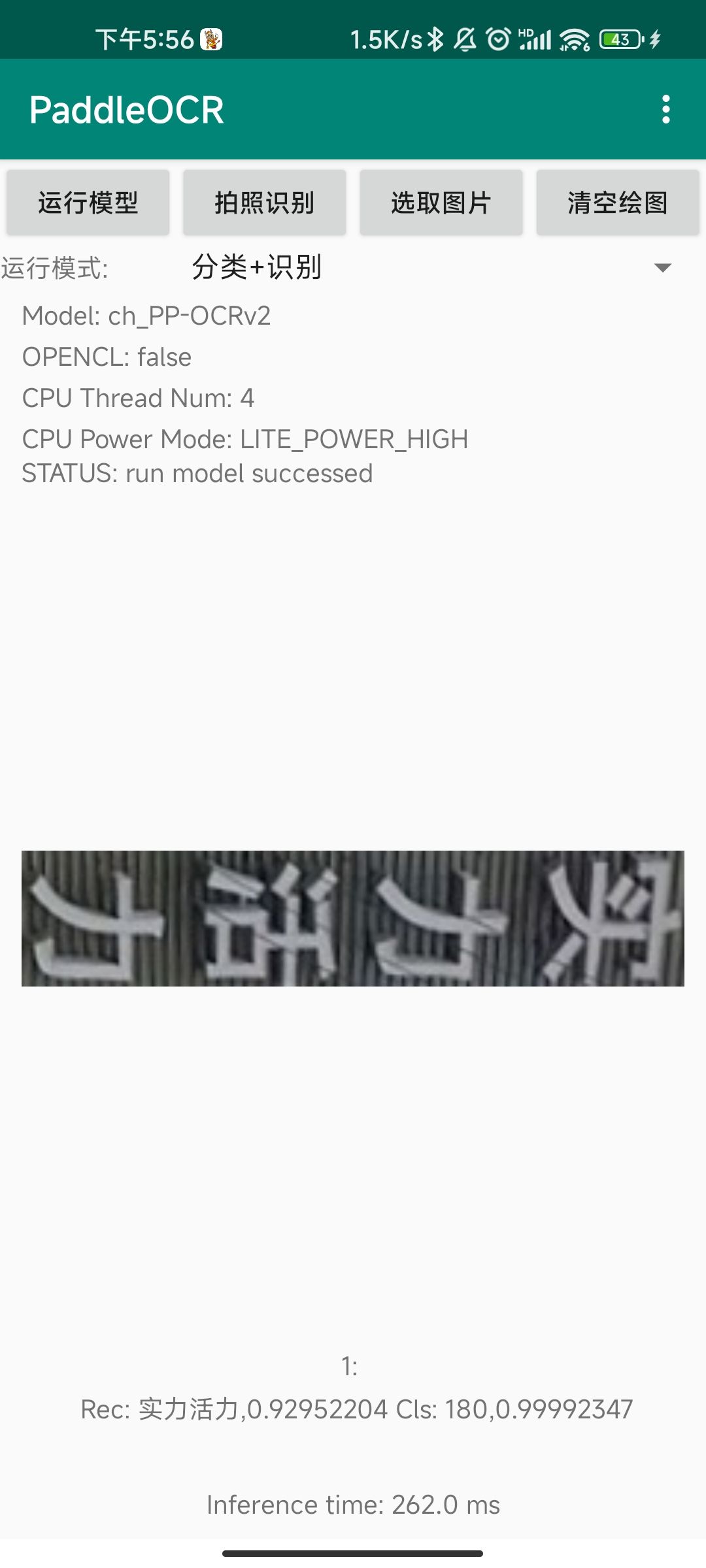
- Classification + Recognition
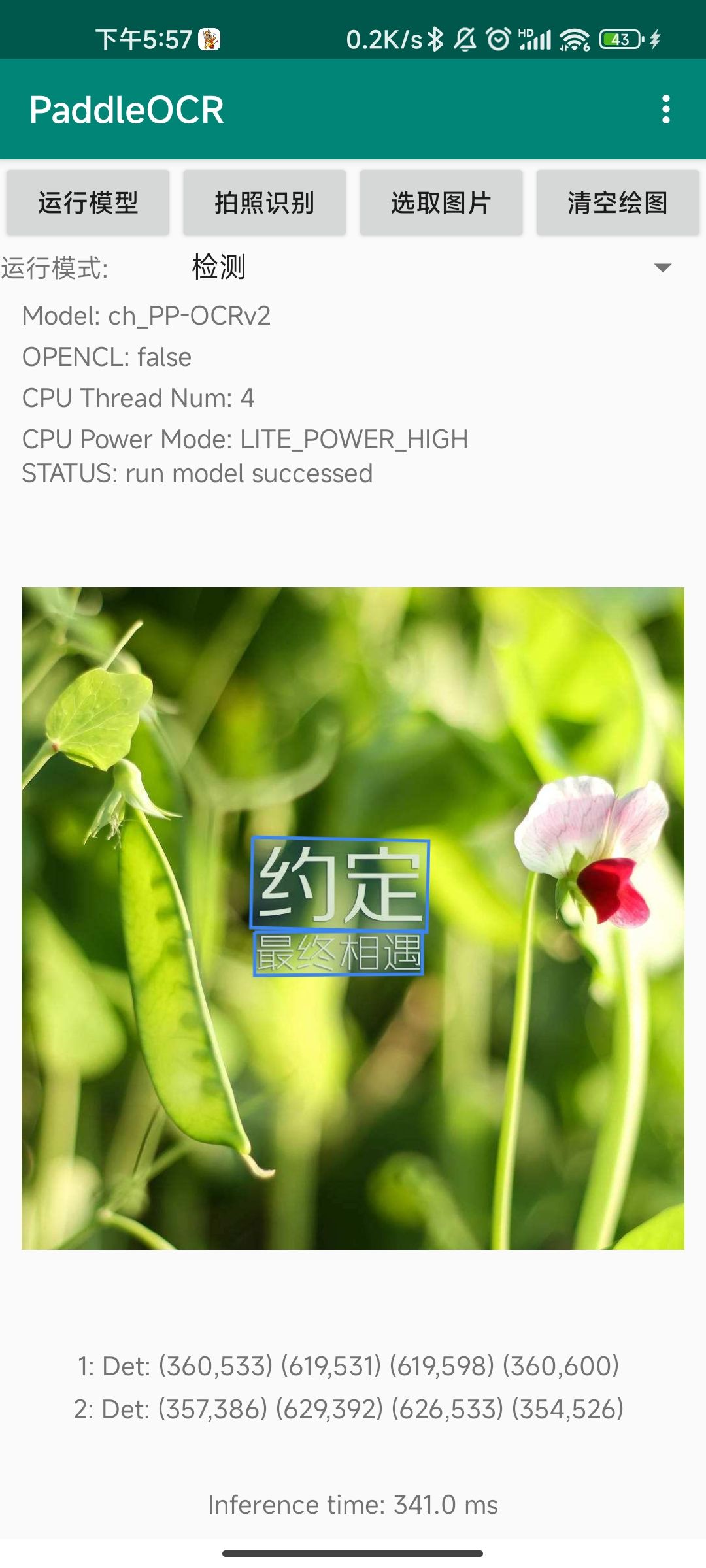
- Detection only
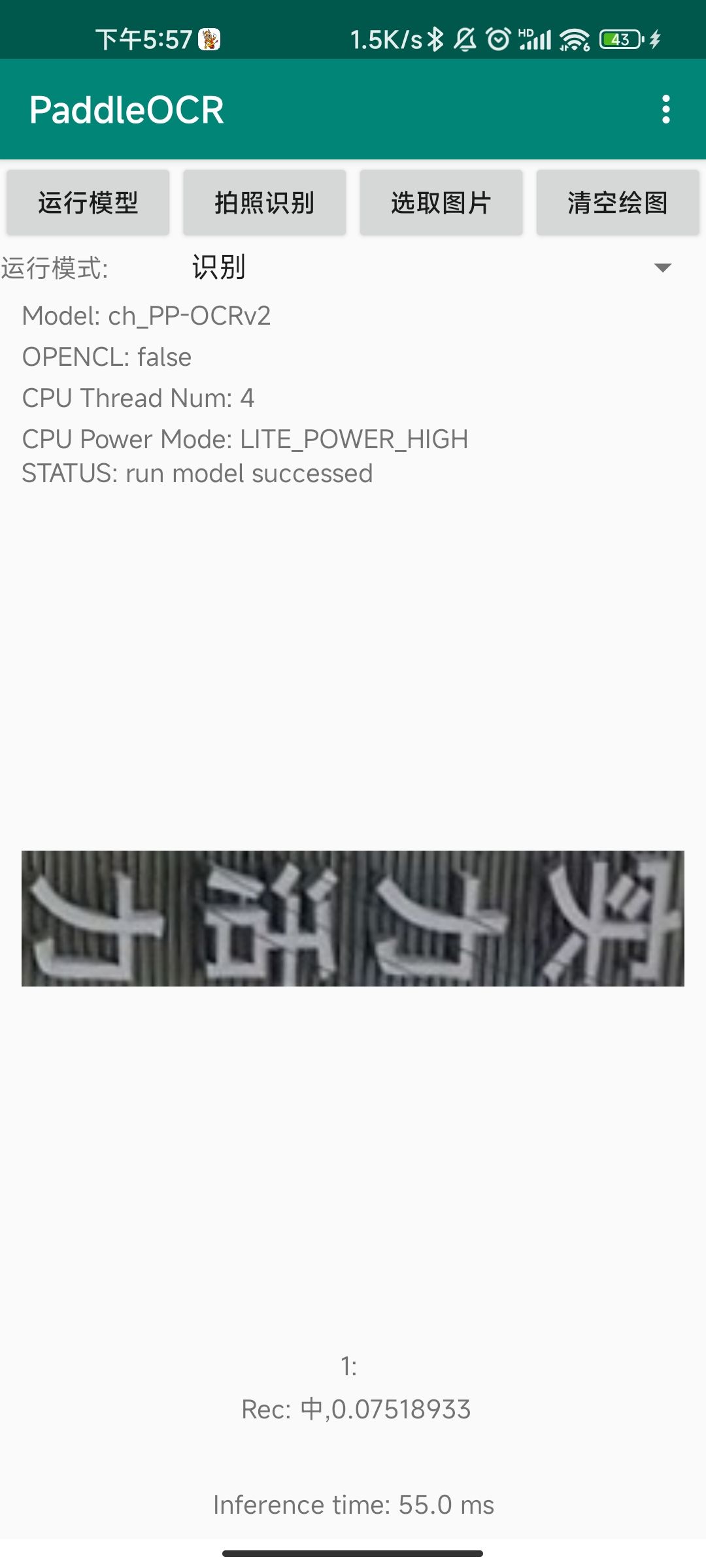
- Recognition only
- Classification only
- Android Studio — Download and install from the official site.
- An Android device with USB Debugging enabled.
To enable:Settings → Developer Options → Enable USB Debugging - NDK configured — Follow the Android Studio NDK setup guide if you haven't already. You can use the latest NDK version or one matching the PaddleLite version.
- Open Android Studio and go to File → New → Import Project...
- Select the project folder and follow the on-screen prompts.
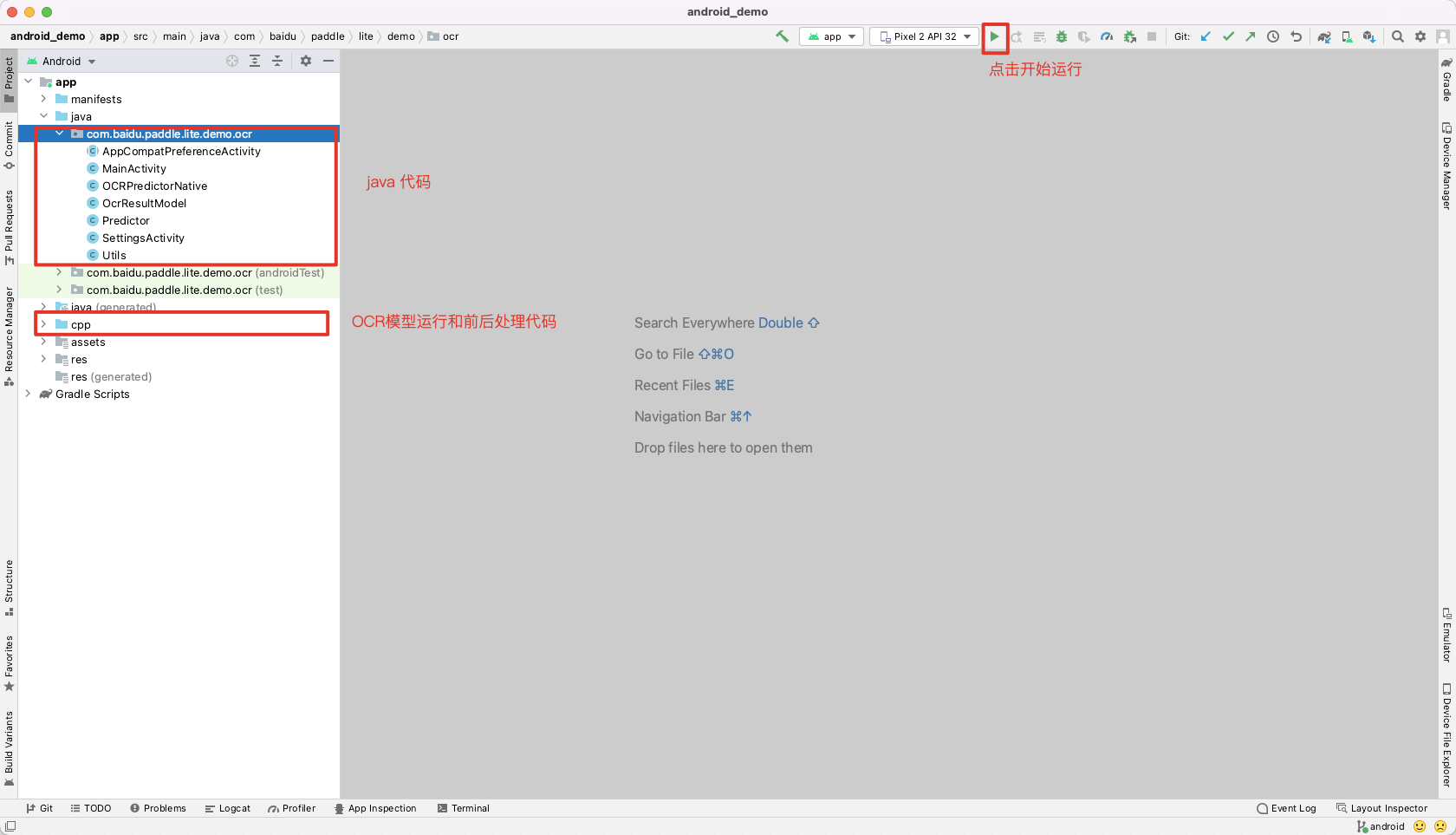
Once imported, you'll see the project structure in the IDE:
- Connect your Android device via USB.
- Click the Run button in the Android Studio toolbar.
- If prompted on your device to allow installation via USB, tap Allow.
After installation, the app icon will appear on your home screen:
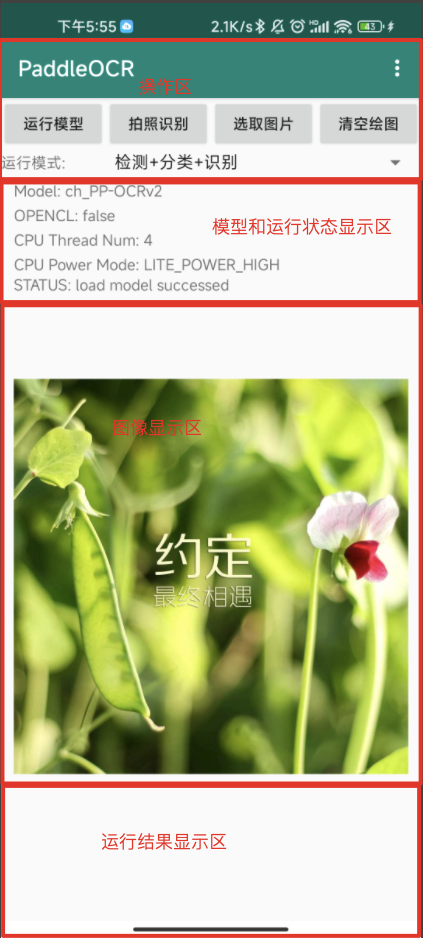
The home screen has the following controls:
| Control | Description |
|---|---|
| Run Model | Runs OCR using the currently selected mode |
| Take Photo | Opens the camera — capture an image, then tap Run Model |
| Choose Image | Opens the photo gallery — pick an image, then tap Run Model |
| Clear Drawing | Removes bounding boxes drawn on the current image |
| Mode Dropdown | Select one of 6 recognition modes (default: Detection + Classification + Recognition) |
| Menu (⋮) | Access settings to configure models and built-in test images |
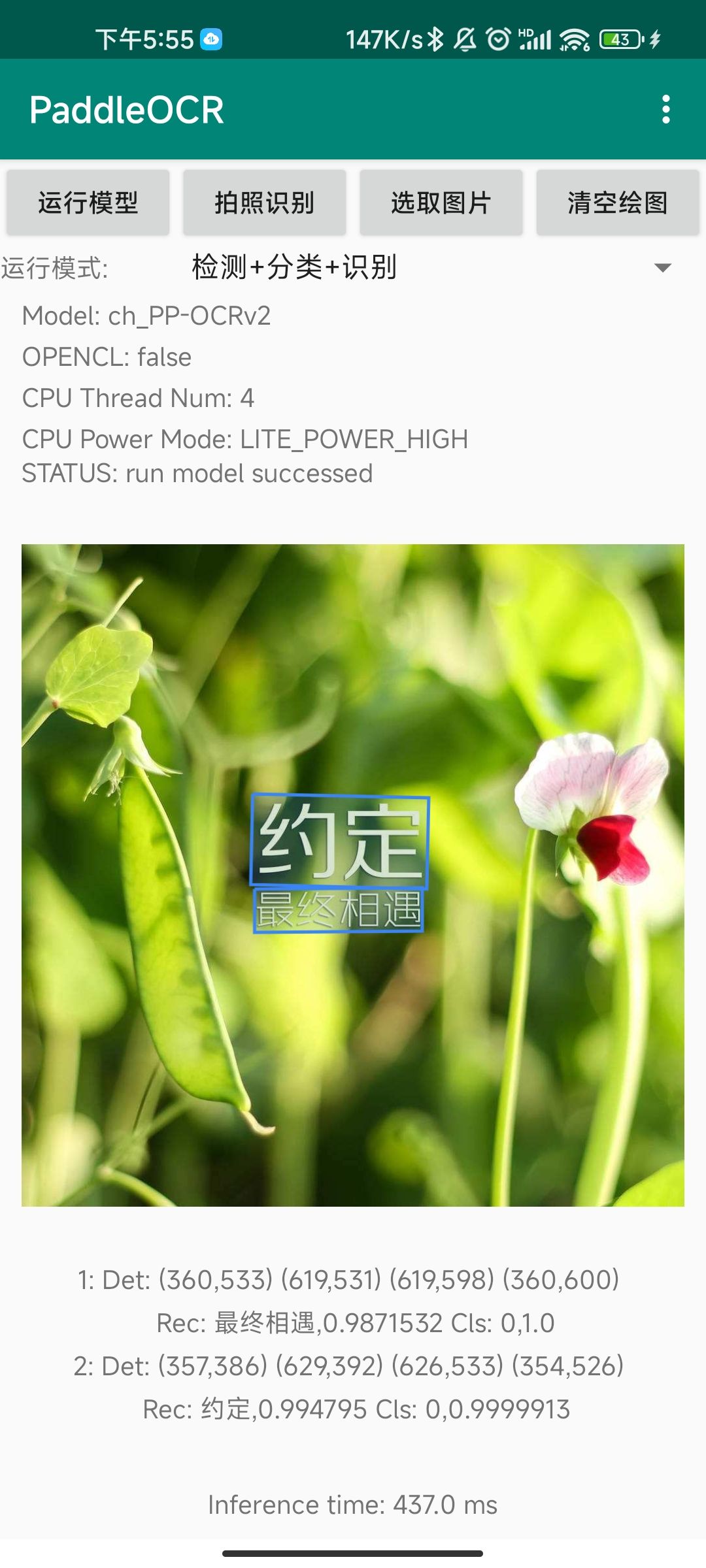
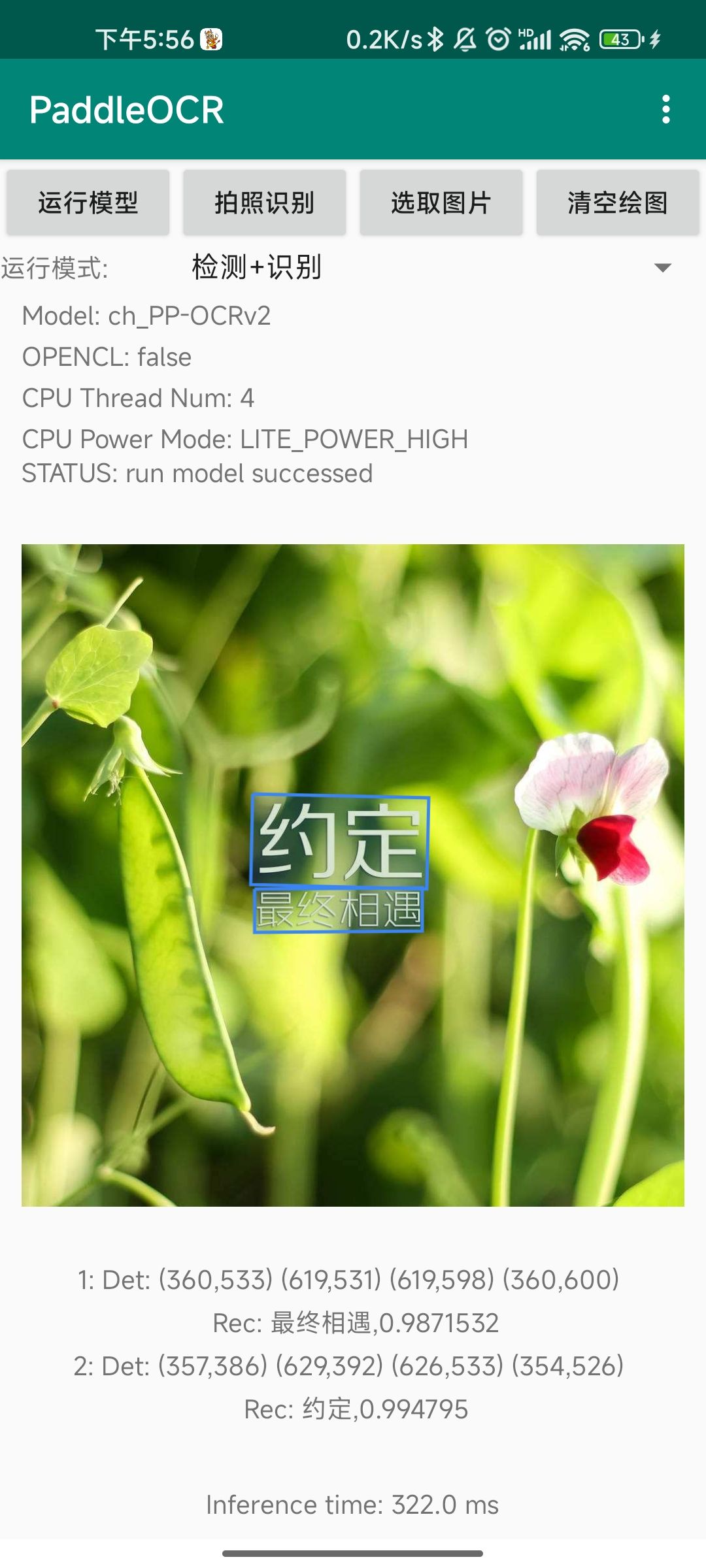
After running in Detection + Classification + Recognition mode:
Results are displayed in the format:
[Index]: Det: (x1,y1)(x2,y2)(x3,y3)(x4,y4) Rec: <text>, <confidence> Cls: <label>, <score>
A STATUS: run model succeeded message confirms successful inference.
Select your mode from the dropdown. All 6 modes are shown below:
| Detection + Classification + Recognition | Detection + Recognition | Classification + Recognition |
|---|---|---|
 |
 |
 |
| Detection only | Recognition only | Classification only |
|---|---|---|
 |
 |
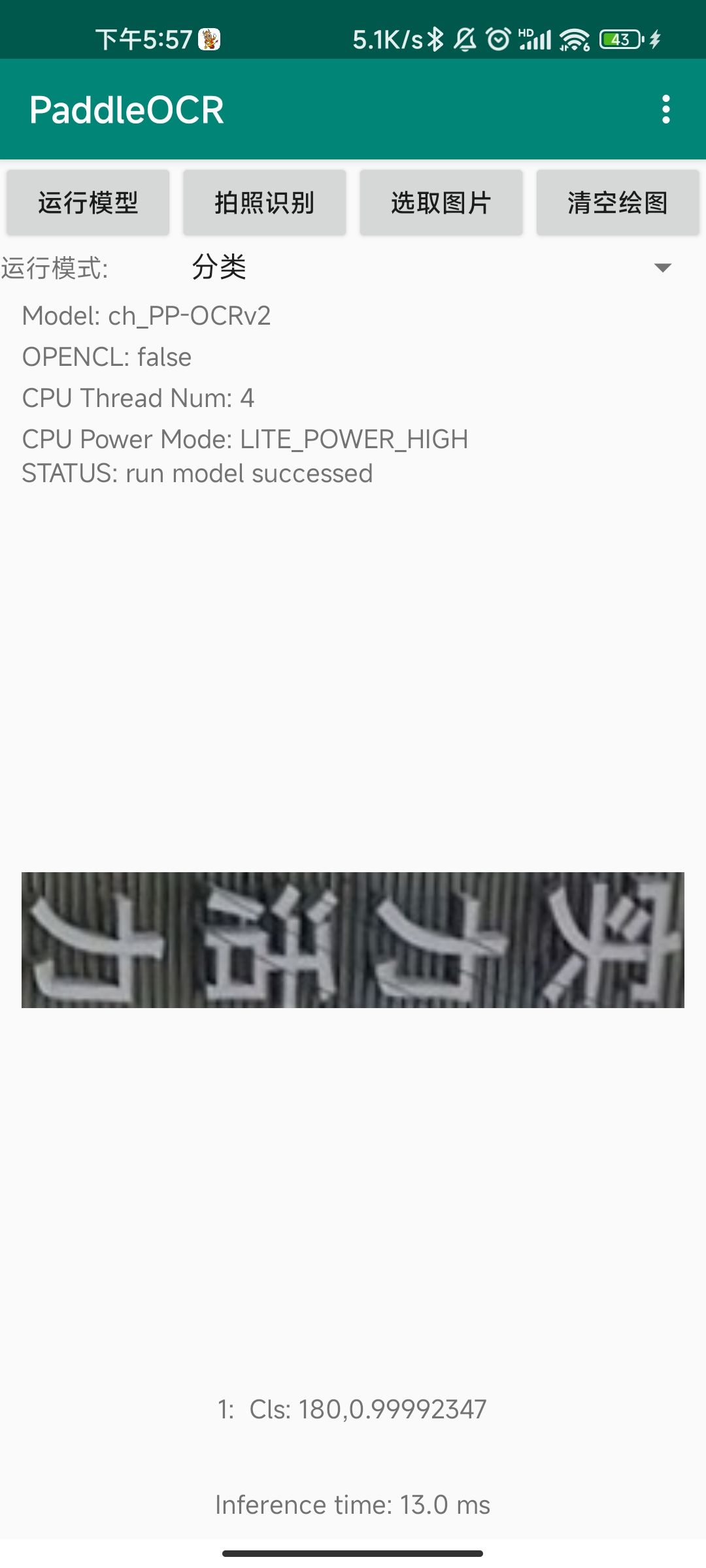 |
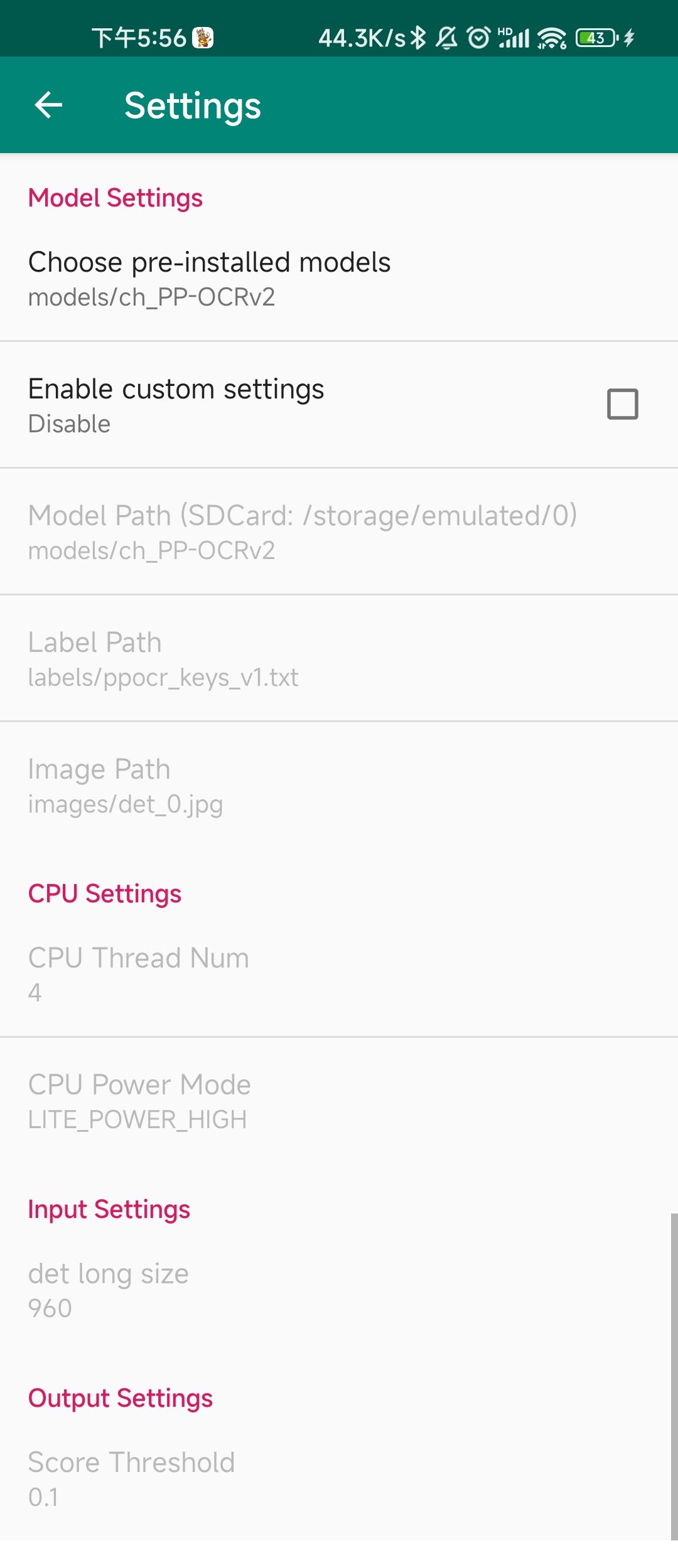
Access the settings menu via the ⋮ icon. The following options are available:
General Settings
Enable Custom Settings— Must be checked to edit any settings belowModel Path— Path to the model files (default recommended)Label Path— Dictionary file used by the recognition modelImage Path— Name of the built-in test image
Runtime Settings (Changing these will automatically reload the model)
CPU Thread Num— Number of CPU threads used for inferenceCPU Power Mode— Power/performance mode (controls big/little core usage)
Input Settings
Det Long Size— Long-edge size for the DB detection model's input. Images exceeding this are resized proportionally; smaller images are left unchanged.
Output Settings
Score Threshold— Confidence cutoff for DB post-processing. Bounding boxes with scores below this value are filtered out.
- Real-time OCR demo with live camera feed: Paddle-Lite-Demo on GitHub
- PaddleLite documentation and community: Paddle-Lite GitHub
- PaddleOCR main repository: PaddleOCR GitHub
This project follows the license terms of PaddleOCR.