2. Deskewing
To preview the deskewed output of a single timepoint and channel, choose the layer under the box img data, enter the timepoint and channel of interest and click Preview. You can see the status of the processing in the terminal.
Once finished, you will see a deskewed image and the corresponding maximum intensity projection as two layers.
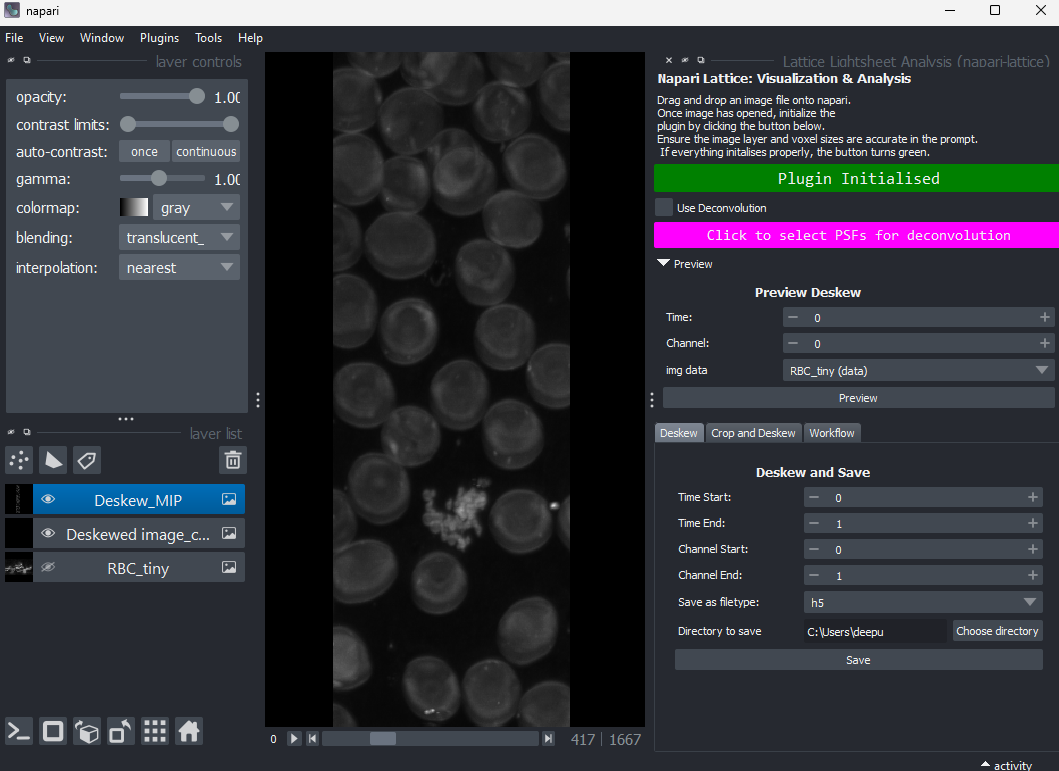
To deskew and save a range of timepoints and channels, select the Deskew tab. Choose the channel and time ranges,
save directory and click Save. You can also select to save as tif or h5.
Check Home for notes on file formats