#Pointer prototype application
##Running the application locally:
Dependencies:
-NodeJS
-NPM
Clone the repo and go into the root folder of the project and issue the following CLI command:
npm install
This will install the dependencies defined in package.json
and then
grunt
You can also see the application running on http://david.noterik.com:3000 and http://david.noterik.com:3000/trackpad
##Architecture
![Image of Yaktocat] (https://raw.githubusercontent.com/DavidAmmeraal/pointer/master/doc/demo-data-flow.png)
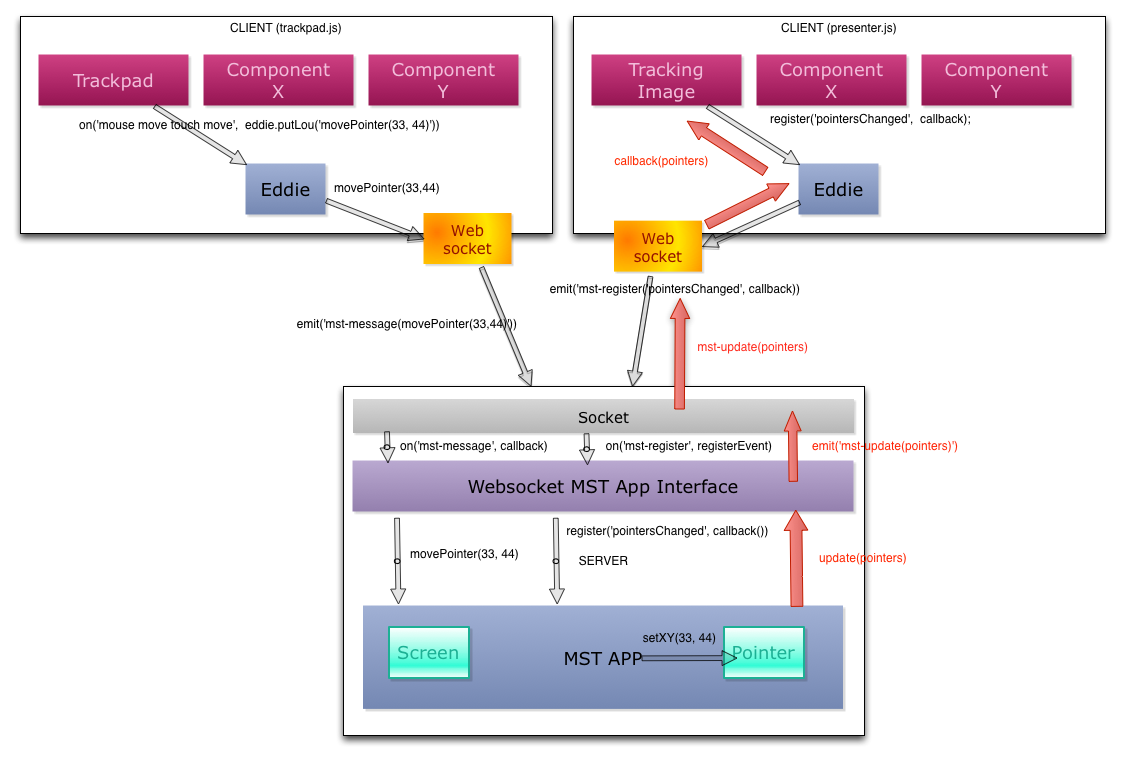
###Architecture Description
The infrastructure and the actual application logic are completely seperated. The MST App has several domain models which represent the application state. The application can trigger events when the internal state of the application changes. A client can register to these events and receive updates along with the data that has been changed, or the client can request the new data itsself. What the client does with the data is completely seperated.
The application basically consists of the following components:
-A Multiscreen Application with several interfaces to communicate with it. (Lou)
-An Application Server (in this case NodeJS) that exposes it to the outside world. (Lou)
-The client application that allows a user to interact with the Multiscreen Application state. (Eddie)
####Multiscreen Application
The Multiscreen Application in this example only implement the following models:
-Screen[] (Something to structure the other models over the client screens, some models have a relationship to the client, so is required)
-Pointer[] (A simple object with an x,y coordinate along with the screen that created this pointer)
The Multiscreen Application (multiscreen/mst-app.js) exposes:
Functions:
-createScreen() to create a screen when a client connects, returns the ID so the client can know it's screenID.
-destroyScreen() to destroy a screen when the client disconnects.
-register(eventName, callback) to allow the client to register to events. Returns a callback id, so a client can unsubscribe.
-unregister(callbackId) allows a user to unregister from events.
-movePointer(screenId, coords) to change the coordinates of a pointer for a screen.
Events:
-'pointersChanged': When the state of the pointers have changed.
####Application Server
The Application Server allows the MST Application to expose it's functions and events to the outside world. In case of this demo, the only way to interact with the application is through Websockets. The initial loading of the layout and scripts etc is done through HTTP.
Any javascripts the client needs are bundled into a single optimized javascript file with Browserify, so you don't need to worry about inserting script tags in a partical order to the client. Browserify checks the client javascript and figures out it's dependencies and exposes a single javascript file that has everything the client needs.
The Application Server is configured inside app.js, it creates a HTTP server and a Websocket server. When this app.js file is loaded into NodeJS the application will start listing on port 3000. The application exposes two routes for the different screens on the application, these are configured in:
#####Views
The views are contained inside
/views
All the pages are rendered using handlebars, but you can very easily changed this in app.js by changing this:
app.set('view engine', 'handlebars');into
app.set('view engine', 'mustache');The views are rendered inside a layout, the layout contains stuff that's the same for every view, like the tag etc, and where the actual body of the HTML is located. You can find the default layout here:
/views/layouts/main.handlebars
#####Routes
routes/index.js
Like this:
//This is for the presenter screen.
router.get(['/', '/presenter'], function(req, res) {
  res.render('index', { title: 'Spatial Spotting', scripts: ['/js/presenter.js']});
});

//This is for the trackpad
router.get('/trackpad', function(req, res){
  res.render('trackpad', { title: 'Trackpad', scripts: ['/js/trackpad.js']});
});
What this does is when a user connects to the URL localhost:3000, it will render the view inside
views/index.handlebars
inside the default layout (/views/layouts/main.handlebars)
When a user connects to the URL localhost:3000/trackpad it will render this view:
views/trackpad.handlebars
inside the default layout.
#####Communication to MST Application
The MST application and the Application Server are loosely coupled through a Websocket interface. Doing it with Websockets was the easiest way to get it work quickly, but you could also imagine that the application can do it through a Comet method (current MST) or by exposing a JSON API.
In this case the Websocket Interface allows a client to send messages directly over HTTP without having to worry about all the overhead HTTP causes. The websocket can receive the following messages:
'mst-load-screen': Either recovers the existing screen, or creates a new one. If successfull the websocket will return a message of the type 'mst-screen-loaded' along with the ID of the screen that was recovered or created.
'mst-message': This serves as a proxy to calling functions directly on the MST App. A client can send a message like this:
socket.emit('mst-message', {
  screenId: 'xxxx-xxxxx-xxxx-xxxx-xxxx',
  method: 'movePointers', args: { x: 42, y: 12 }
});
And the Websocket Interface will forward this message as a method call the Multiscreen Application.
'mst-register': Allows a client to register to an event. A client can register like this:
socket.emit('mst-register', {
  screenId: 'xxxx-xxxxx-xxxx-xxxx-xxxx',
  event: 'pointersChanged'
});

socket.on('mst-update', function(data){
  console.log(data)
  /**
   * OUTPUT =
   * {
   *    event: 'pointersChanged',
   *    data: [
   *       {
   *            screenId: 141d-f233-affd4-42efs,
   *            x: 43,
   *            y: 12
   *       },
   *       {
   *            screenId: adsf-632k-asd4-gads,
   *            x: 43,
   *            y: 12
   *       }
   *    ]
   *
   */
});
This will register a new listener to the pointersChanged event for this screen. When the event is triggered the server will send a 'mst-update' message to the client with the new data.
'mst-unregister': Forwards to the unregister() function on the MST App. The client will no longer receive updates for this event.
####Client
The client in this demo is very simple. It consists of a client main javascript (depending on what screentype is loaded either: client/presenter.js or client/trackpad.js)and eddie.js.
#####Eddie.js
Eddie allows the client to communicate with the MST Application (that is actually hidden behind an Application Server). It can communicate either through HTTP or Websocket, it will detect if the browser supports websockets, and if so, it will use that, otherwise it should fall back to HTTP (in the case of this demo, only websockets are supported).
Eddie.js exposes the following the functions to communicate with the MST App:
putLou(msg): To send a message to the server, used for calling methods on the MST App like this:
eddie.putLou({
  method: 'movePointer',
  args: [24, 65]
})
register(event, callback): Allows a client to register to events that are triggered by the MST App. Can be used like this:
eddie.register('pointersChanged', function(data){
  console.log(data)
  /**
   * OUTPUT =
   * {
   *    event: 'pointersChanged',
   *    data: [
   *       {
   *            screenId: 141d-f233-affd4-42efs,
   *            x: 43,
   *            y: 12
   *       },
   *       {
   *            screenId: adsf-632k-asd4-gads,
   *            x: 43,
   *            y: 12
   *       }
   *    ]
   *
   */
});
#####Client Main Javascript
This contains the main logic for the client. In the case of this demo, there are two different kinds of clients:
-Presenter = /client/presenter.js (where the image is shown with the pointers over it) -Trackpad = /client/trackpad.js (Where the image is also show, but the user can point on the image through mouse or touch events)
These javascripts can include dependencies using the CommonJS notation like this:
var Eddie = require('./eddie');The server then uses browserify to concatenate the file and all it's dependencies into a single optimized javascript file contained in /public/js/[presenter.js, trackpad.js].
You can see the client application logic inside the client/presenter.js and client/trackpad.js, I think it's pretty self explanatory.