

Tiny ESP8266-based remote control with 128x64 OLED for Proxmox, which can detect existing VMs on the PXE host and retrieve their power and lock status. This remote control allows you to detect failed VMs and start them or shut them down again if necessary. Access everything without having to open an app on your phone or a pxe web interface on your desktop PC.
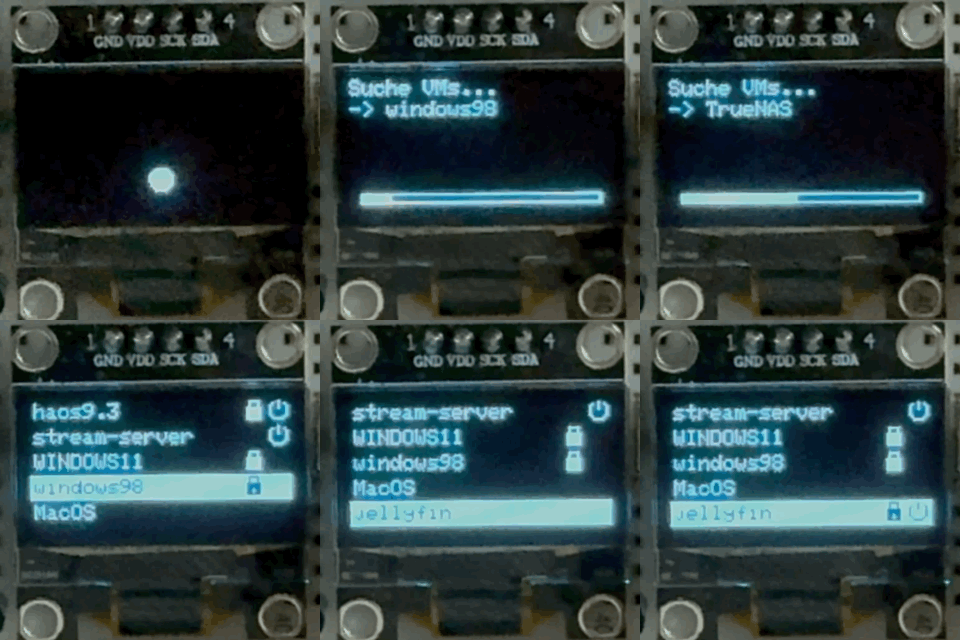

The ESP module connects to the Proxmox host via HTTP request through the API and queries a series of predefined IDs. If an ID returns a result, it is added to the list. After this start-up process, the list is displayed. At short intervals, each VM is queried again “in the background” to retrieve the current status (this process may interrupt user input). If you hold down the power button, VMs can be marked as locked (lock icon) and the VM is also tagged as “locked” to save this setting. This is helpful to prevent important VMs from being shut down unintentionally. After a short period of inactivity, the display goes into "sleep mode" and turns off and API requests are paused until a button is pressed.
- ESP8266
- 128x64 OLED Display
- 3 push buttons (at least 2)
- wires to wire everything up (e.g. 11 jump wires)
- breadboard (400 points)
-
open esp8266_PXE_Remote.ino in ardurino ide
-
search and set these variables:
- ssid (wifi name)
- password (wifi password)
- proxmoxHost (your pxe dns hostname, often identical to the Proxmox internal instance name)
- nodeName (Proxmox internal instance name, often identical to the DNS hostname)
- token (Here is a HowTo to get the API key: https://github.com/CREW8/ESP8266-Proxmox-API)
- totalVMs (set to the highest vm id, It is assumed that the IDs start at 100)
-
add and install esp8266 board manager http://arduino.esp8266.com/stable/package_esp8266com_index.json (HowTo: https://github.com/esp8266/Arduino?tab=readme-ov-file#installing-with-boards-manager)
-
add these librarys in ardurino ide:
-
wire your esp8266 up:
ESP -> OLED
ESP OLED 3V3 VDD 5V GND D1 SCK D1 SDA ESP -> Button Up (optional)
ESP Button D5 Top 5V Bottom ESP -> Button Down
ESP Button D6 Top 5V Bottom ESP -> Button Power / Lock
ESP Button D7 Top 5V Bottom -
connect your esp8266 via usb, select your esp8266 com port and upload
- select your vm with up and down buttons
- hard stop or start with power/lock button
- lock vm by press & hold power/lock button to avoid unwanted power actions
- wake display after timeout with up or down button
- Display sleep mode: adjust sleepTimeout to your needs
- predefine the VM list to reduce startup time
- add a red led thats lights up on power state changes (and remove the oled display?) ...