Selenium tutorial
- Install Java and validate that Java is installed by going to "C://ProgramFiles/Java"
- Java 8+
- setup Environment variables - JAVA_HOME (path to JRE)
- Install IDE of choice (IJ or Eclipse)
- Setup Maven project
- Install dependencies Maven repository
- driver - as mentioned on driver setting
- dropdown
   WebElement name = driver.findElement(By.id("ID"));
   Select dropdown =  new Select(name);
-
src/data.properties
     // data.properties
   browser=chrome
  url="rahulshettyacademy.com"
     // class
   public static void main(String[] args) throws IOException {
     Properties prop = new Properties();
     FileInputStream fis = new FileInputStream("C:\\Users\\inani\\OneDrive\\Desktop\\Selenium\\src\\data.properties");
     prop.load(fis);
     System.out.println(prop.getProperty("browser"));

   //set property locally
   prop.setProperty("browser", "firefox");

   // set property back into file
   prop.setProperty("browser", "firefox");

    FileOutputStream  fos = new FileOutputStream("C:\\Users\\inani\\OneDrive\\Desktop\\Selenium\\src\\data.properties");
    prop.store(fos, null);
 }
-
Chrome driver
- Download chromedriver for current version of Chrome
- Link for download
 System.setProperty("webdriver.chrome.driver", "C:\\Program Files\\Drivers\\chromedriver.exe");
 WebDriver driver = new ChromeDriver();
-
Firefox driver
- Download geckodriver for current version of Firefox
- Link for download
     System.setProperty("webdriver.gecko.driver", "C:\\Program Files\\Drivers\\geckodriver.exe");
     Webdriver driver = new FirefoxDriver();
-
Edge driver
- Download msedgedriver for current version of Edge
- Link for download
     System.setProperty("webdriver.edge.driver", "C:\\Program Files\\Drivers\\msedgedriver.exe");
     WebDriver driver = new EdgeDriver();
- get() - by default waits for page to load
- navigate().to("URL") - navigate while in script
   driver.navigate().to("https://rahulshettyacademy");
   // browser back and forward
   driver.navigate().back();
   driver.navigate().forward();
- getCurrentUrl()
- close() and quit()
- Close and quit are doing seeminglz the same thing but there are certain differences.
- close() method closes only the originally opened window by selenium
- quit() method closes ALL opened windows that are created by Selenium
- sendKeys() - type into filed
- click()
- getText()
- manage() - configurations
   // max, min, fullscreen
   driver.manage().window().maximize();
   driver.manage().deleteAllCookies() // or delete cookie with name, delete only one cookie...
- keyDown(Keys.KEY) - Simulate pressing the key
- .switchTo().defaultContent(); - to switch to default content on page
- selectByIndex()
- selectByValue() - what is the exact value of option
- selectByVisibleText() - what we see as users
- getFirstSelectedOption()
- isSelected() - returns true or false
-
snippet for listing all elements of list and clicking on one particular
   List<WebElement> options = driver.findElements(By.cssSelector(".ui-menu-item a"));

     for (WebElement option :options){
         if(option.getText().equalsIgnoreCase("India")){
             option.click();
             break;
         }
     }
-
Static dropdown selection
       WebElement staticDropdown = driver.findElement(By.id("exampleFormControlSelect1"));
        Select dropdown = new Select(staticDropdown);
- above()
- below()
- toLeftOf()
- toRightOf()
import static org.openqa.selenium.support.locators.RelativeLocator.*;

driver.findElement(with(By.tagName("label")).above(nameEditBox));driver.findElement(By.id("inputUsername"));driver.findElement(By.className("inputUsername"));driver.findElement(By.cssSelector(".inputUsername"));
driver.findElement(By.cssSelector("#inputUsername"));
driver.findElement(By.cssSelector("#inputUsername:nth-child(5)"));
//contains text - =*driver.findElement(By.linkText("Forgot your password?"));- Install SelectorsHub plugin Download link
- //tagname[@attribute='value'][index]
- div > p -> //div/p
- bytext - //button[text()='Log Out']
- sibling to sibling -> //header/div/button/following-sibling::TAGNAME[INDEX]
- child to parent (reverse)-> //header/div/button/parent::TAGNAME[INDEX].
- second occurance of xpath -> (xpath)[2]
- parent to child -> //xpath SPACE //xpath
driver.findElement(By.cssSelector(".inputUsername")); // contextClick() - right click
Actions a = new Actions(driver);
a.moveToElement(element).contextClick().build().perform();
a.moveToElement(element).click().keyDown(Keys.SHIFT).sendKeys("hello").doubleClick().build().perform();
a.dragAndDrop(element, elementDestination).build().perform();-
switching to child windows and back
   //        how many windows is opened in Selenium - get all of them and set them in collection Set
       Set<String> windows = driver.getWindowHandles(); //[parentId, childId]
        Iterator<String> it = windows.iterator();
        String parentId = it.next(); // [0] index
        String childId = it.next(); //[1] index, for all additional we can add more variables and type       it.next();
//        we need to switch to child window
        driver.switchTo().window(childId);
-
invoking child windows
   driver.switchTo().newWindow(WindowType.TAB);
   driver.switchTo().newWindow(WindowType.WINDOW);
 driver.switchTo().frame(driver.findElement(By.cssSelector("")));
driver.switchTo().frame(0); //by index- Assert.assertEquals(actual, expected);
- .assertFalse, .assertTrue
- SOFT ASSERTIONS - test continues after failing until finished.
    SoftAssert soft = new SoftAssert();
    soft.assertTrue(responseCode < 400, "The link with text" + link.getText() + " is broken with code " + responseCode);
    // after all code executed, outside all loops
    soft.assertAll();
-
ALERT switching and methods
   driver.switchTo().alert();
   // .accept(), .getText(), .dismiss()
-
Synchronization in Selenium
-
Implicit Wait - set globally - wait for X seconds before failing test. If content is loaded before X seconds test continues - it does not wait for X seconds to pass first
driver.manage().timeouts().implicitlyWait(Duration.ofSeconds(2))
-
Explicit Wait - target specific element or scenario and set wait period
   WebDriverWait w = new WebDriverWait(driver,Duration.ofSeconds(5));
   w.until(ExpectedConditions.visibilityOfElementLocated(By.cssSelector("span.promo-info")));
- Thread.sleep - part of Java, no actions during that time - explicit - it will wait for exactly X seconds
- Fluent wait - keeps repeatedly finding of element at regular intervals of time until the object gets found. Webdriver Wait keeps finding element for every millisecond until object gets found. Link for information
-
Implicit Wait - set globally - wait for X seconds before failing test. If content is loaded before X seconds test continues - it does not wait for X seconds to pass first
-
Change/Limit SCOPE of driver
WebElement footerDriver = driver.findElement(By.id("gf-BIG"));
// use footerDriver as regular driver- SSL Certificate hack
        ChromeOptions options = new ChromeOptions();
        // FirefoxOptions options = new FirefoxOptions();
        options.setAcceptInsecureCerts(true);

        System.setProperty("webdriver.chrome.driver", "C:\\Program Files\\Drivers\\chromedriver.exe");
WebDriver driver = new ChromeDriver(options); - Screenshots in Selenium
        File src = ((TakesScreenshot) driver).getScreenshotAs(OutputType.FILE);
        Files.copy(src,new File("C:/Users/Ina/Desktop/screenshots/screenshot.png"));

        // partial screenshots of WebElements
 File file =  nameField.getScreenshotAs(OutputType.FILE);

        FileUtils.copyFile(file, new File("C:/Users/inani/OneDrive/Desktop/logo.png"));

// importujemo klase:
import org.apache.commons.io.FileUtils;
import java.io.File;
import org.openqa.selenium.OutputType;- Scan all links and check if there are any broken ones
        List<WebElement> links = driver.findElements(By.cssSelector("li[class='gf-li'] a"));
        SoftAssert soft = new SoftAssert();
        for (WebElement link : links) {

            String url = link.getAttribute("href");
            HttpURLConnection conn = (HttpURLConnection) new URL(url).openConnection();
            conn.setRequestMethod("HEAD");
            conn.connect();
            int responseCode = conn.getResponseCode();
            soft.assertTrue(responseCode < 400, "The link with text" + link.getText() + " is broken with code " + responseCode);

        }
soft.assertAll();-
Get height and width of element
nameField.getRect().getDimension().getWidth()
Smart proxy server that makes running tests in parallel on multiple machines
- Documentation
- Download JAR - Selenium Server(Grid)
- To start hub -
bash java -jar selenium-server-<version>.jar hub - Check webdrivers -
bash java -jar selenium-server-4.1.2.jar node --detect-drivers true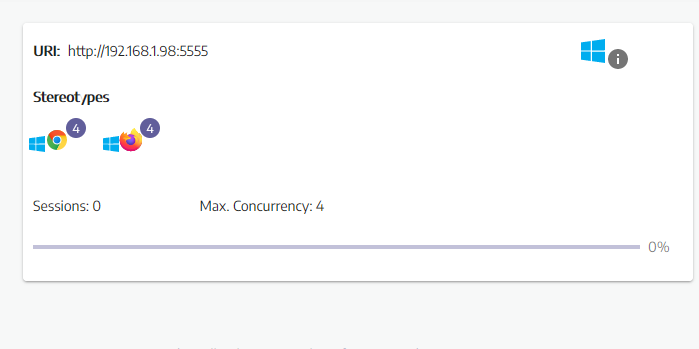
- Link
- Selenium methods wrap CDP protocols to grant access to Chrome DevTools directly from automated tests