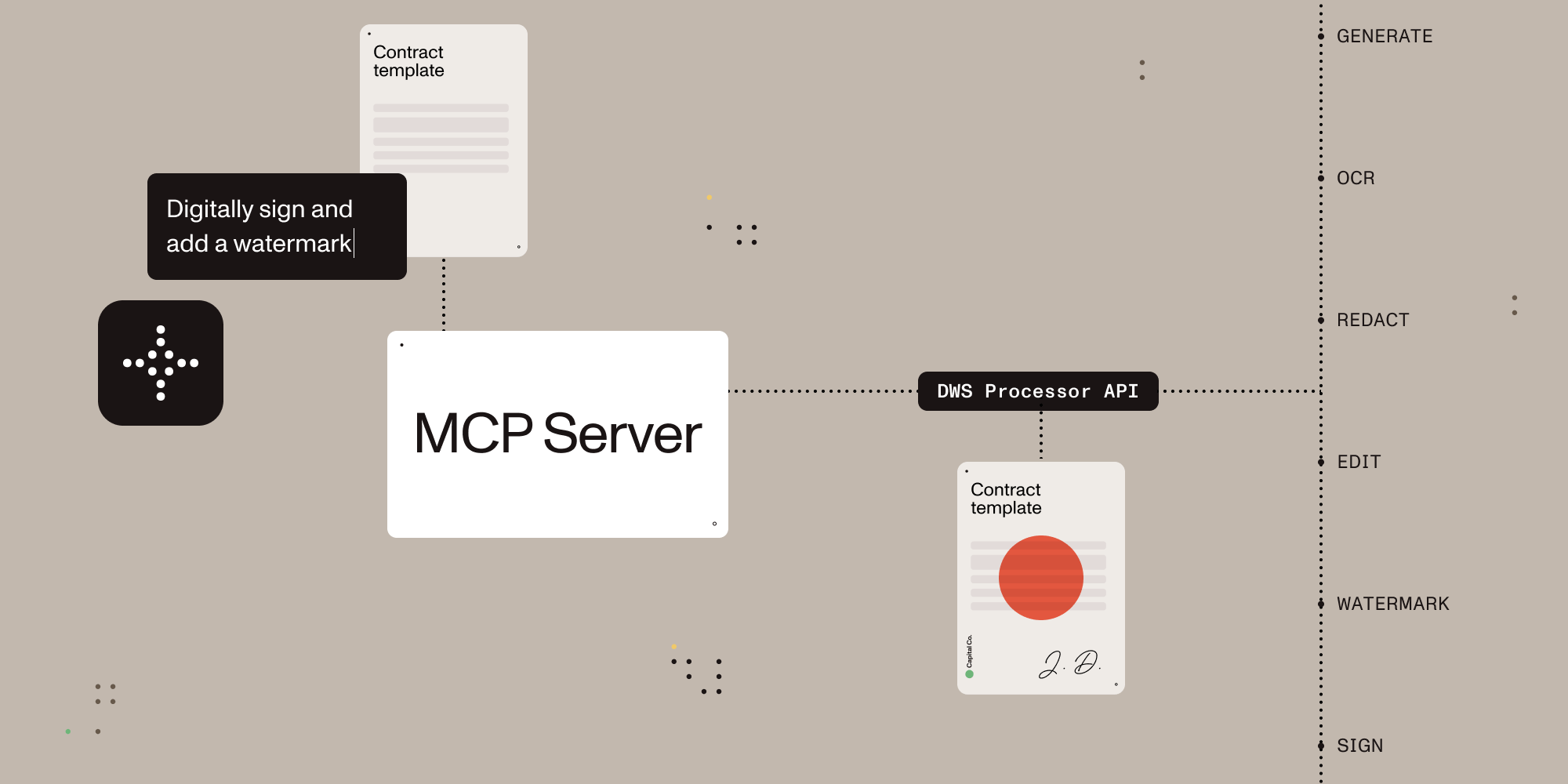

Give AI agents the power to process, sign, and transform documents.
A Model Context Protocol (MCP) server that connects AI assistants to the Nutrient Document Web Service (DWS) Processor API — enabling document creation, editing, conversion, digital signing, OCR, redaction, and more through natural language.
Once configured, you (or your AI agent) can process documents through natural language:
You: "Merge report-q1.pdf and report-q2.pdf into a single document" AI: "Done! I've merged both reports into combined-report.pdf (24 pages total)."
You: "Redact all social security numbers and email addresses from application.pdf" AI: "I found and redacted 5 SSNs and 3 email addresses. The redacted version is saved as application-redacted.pdf."
You: "Digitally sign this contract with a visible signature on page 3" AI: "I've applied a PAdES-compliant digital signature to contract.pdf. The signed document is saved as contract-signed.pdf."
You: "Convert this PDF to markdown" AI: "Here's the markdown content extracted from your document..."
You: "OCR this scanned document in German and extract the text" AI: "I've processed the scan with German OCR. Here's the extracted text..."
Sign up for free at nutrient.io/api.
Choose your platform and add the configuration:
Claude Desktop
Open Settings → Developer → Edit Config, then add:
macOS: ~/Library/Application Support/Claude/claude_desktop_config.json
Windows: %APPDATA%\Claude\claude_desktop_config.json
Cursor
Create .cursor/mcp.json in your project root:
{
"mcpServers": {
"nutrient-dws": {
"command": "npx",
"args": ["-y", "@nutrient-sdk/dws-mcp-server"],
"env": {
"NUTRIENT_DWS_API_KEY": "YOUR_API_KEY_HERE",
"SANDBOX_PATH": "/your/project/documents",
// "C:\\your\\project\\documents" for Windows
},
},
},
}Windsurf
Add to ~/.codeium/windsurf/mcp_config.json:
{
  "mcpServers": {
    "nutrient-dws": {
      "command": "npx",
      "args": ["-y", "@nutrient-sdk/dws-mcp-server"],
      "env": {
        "NUTRIENT_DWS_API_KEY": "YOUR_API_KEY_HERE",
        "SANDBOX_PATH": "/your/sandbox/directory",
        // "C:\\your\\sandbox\\directory" for Windows
      },
    },
  },
}VS Code (GitHub Copilot)
Add to .vscode/settings.json in your project:
{
"mcp": {
"servers": {
"nutrient-dws": {
"command": "npx",
"args": ["-y", "@nutrient-sdk/dws-mcp-server"],
"env": {
"NUTRIENT_DWS_API_KEY": "YOUR_API_KEY_HERE",
"SANDBOX_PATH": "${workspaceFolder}"
}
}
}
}
}Other MCP Clients
Any MCP-compatible client can connect using stdio transport:
NUTRIENT_DWS_API_KEY=your_key SANDBOX_PATH=/your/path npx @nutrient-sdk/dws-mcp-serverRestart the application to pick up the new MCP server configuration.
Drop documents into your sandbox directory and start giving instructions!
| Tool | Description |
|---|---|
| document_processor | All-in-one document processing: merge PDFs, convert formats, apply OCR, watermark, rotate, redact, flatten annotations, extract text/tables/key-value pairs, and more |
| document_signer | Digitally sign PDFs with PAdES-compliant CMS or CAdES signatures, with customizable visible/invisible signature appearances |
| sandbox_file_tree | Browse files in the sandbox directory (when sandbox mode is enabled) |
| directory_tree | Browse directory contents (when sandbox mode is disabled) |
| Feature | Description |
|---|---|
| Document Creation | Merge PDFs, Office docs (DOCX, XLSX, PPTX), and images into a single document |
| Format Conversion | PDF ↔ DOCX, images (PNG, JPEG, WebP), PDF/A, PDF/UA, HTML, Markdown |
| Editing | Watermark (text/image), rotate pages, flatten annotations |
| Security | Redact sensitive data (SSNs, credit cards, emails, etc.), password protection, permission control |
| Data Extraction | Extract text, tables, or key-value pairs as structured JSON |
| OCR | Multi-language optical character recognition for scanned documents |
| Optimization | Compress and linearize PDFs without quality loss |
| Annotations | Import XFDF annotations, flatten annotations |
| Digital Signing | PAdES-compliant CMS and CAdES digital signatures (via document_signer tool) |
This MCP server works with any platform that supports the Model Context Protocol:
- Claude Desktop — Direct MCP integration
- Cursor — AI-powered IDE with MCP support
- Windsurf — AI-powered IDE with MCP support
- VS Code + Copilot — GitHub Copilot MCP integration
- LangChain / LangGraph — Via MCP tool adapters
- OpenAI Agents SDK — Via MCP server integration
- Custom agents — Any MCP-compatible system
AI can read and understand documents — but most tools stop there. Nutrient gives AI agents the ability to actually manipulate documents: merge, redact, sign, watermark, convert formats, extract structured data, and more.
- Beyond PDF reading — Not just text extraction. Full document creation, editing, and transformation.
- Production-grade — Trusted by thousands of companies for mission-critical document processing.
- Standards-compliant — PAdES digital signatures, PDF/A archiving, PDF/UA accessibility.
- Cloud-native — No infrastructure to manage. Send documents to the API, get results back.
- Comprehensive redaction — Built-in presets for SSNs, credit cards, phone numbers, emails, dates, and more.
- Multi-format — Process PDFs, Office documents, images, HTML, and Markdown.
The server supports sandbox mode that restricts file operations to a specific directory. Set the SANDBOX_PATH environment variable to enable it:
export SANDBOX_PATH=/path/to/sandbox/directory
npx @nutrient-sdk/dws-mcp-serverWhen sandbox mode is enabled:
- Relative paths resolve relative to the sandbox directory
- All input file paths are validated to ensure they reside in the sandbox
- Processed files are saved within the sandbox
Note: If no sandbox directory is specified, the server operates without file path restrictions. Sandbox mode is strongly recommended for security.
Processed files are saved to a location determined by the AI. To guide output placement, use natural language (e.g., "save the result to output/result.pdf") or create an output directory in your sandbox.
The server authenticates to the Nutrient DWS API (https://api.nutrient.io) using one of:
| Method | When | Config |
|---|---|---|
| API key | NUTRIENT_DWS_API_KEY is set |
Static key passed as Bearer token to DWS API |
| OAuth browser flow | No API key set | Opens browser for Nutrient OAuth consent, caches token locally |
When no API key is configured, the server opens a browser-based OAuth flow on the first tool call (similar to gh auth login). Tokens are cached at $XDG_CONFIG_HOME/nutrient/credentials.json or ~/.config/nutrient/credentials.json and refreshed automatically.
| Variable | Required | Description |
|---|---|---|
NUTRIENT_DWS_API_KEY |
No* | Nutrient DWS API key (get one free) |
SANDBOX_PATH |
Recommended | Directory to restrict file operations to |
CLIENT_ID |
No | OAuth client ID. Skips DCR and enables token refresh when set |
DWS_API_BASE_URL |
No | DWS API base URL (default: https://api.nutrient.io) |
LOG_LEVEL |
No | Winston logger level (info default). Logs are written to MCP_LOG_FILE in stdio mode |
MCP_LOG_FILE |
No | Override log file path (default: system temp directory) |
* If omitted, the server uses an OAuth browser flow to authenticate with the Nutrient API.
When using the OAuth browser flow, access tokens and refresh tokens are cached in plaintext at $XDG_CONFIG_HOME/nutrient/credentials.json or ~/.config/nutrient/credentials.json (permissions 0600). This file contains credentials equivalent to your API key. Do not commit it to version control or include it in shared backups.
If OAuth authentication stops working, delete the cached token file to start fresh:
rm "${XDG_CONFIG_HOME:-$HOME/.config}/nutrient/credentials.json"The server will automatically register a new client and open the browser for consent on the next tool call.
Server not appearing in Claude Desktop?
- Ensure Node.js 18+ is installed (
node --version) - Check the config file path is correct for your OS
- Restart Claude Desktop completely (check Task Manager/Activity Monitor)
Browser doesn't open for OAuth login?
- This happens in headless or remote environments (SSH, Docker, CI). Set
NUTRIENT_DWS_API_KEYinstead — the server skips the browser flow when an API key is configured. - On macOS, ensure a default browser is set in System Settings → Desktop & Dock → Default web browser.
"Token exchange failed" or "OAuth authorization failed"?
- Delete
${XDG_CONFIG_HOME:-$HOME/.config}/nutrient/credentials.jsonand try again. - If using a custom
AUTH_SERVER_URL, verify the server is reachable and its/oauth/tokenendpoint is working.
"Dynamic client registration failed"?
- If using a custom
AUTH_SERVER_URL, verify it is reachable. - Ensure the custom auth server supports RFC 7591 Dynamic Client Registration at its
/oauth/registerendpoint.
"API key invalid" errors?
- Verify your API key at dashboard.nutrient.io
- Ensure the key is set correctly in the
envsection (no extra spaces)
Token expired but refresh fails?
- The server automatically refreshes expired tokens using the cached refresh token. If refresh fails (e.g., the refresh token was revoked), delete
${XDG_CONFIG_HOME:-$HOME/.config}/nutrient/credentials.json— the server will re-authenticate via the browser on the next call.
Files not found?
- Check that
SANDBOX_PATHpoints to an existing directory - Ensure your documents are inside the sandbox directory
- Use the
sandbox_file_treetool to verify visible files
Please see the contribution guidelines in CONTRIBUTING.md.
MIT License — see LICENSE for details.
{
  "mcpServers": {
    "nutrient-dws": {
      "command": "npx",
      "args": ["-y", "@nutrient-sdk/dws-mcp-server"],
      "env": {
        "NUTRIENT_DWS_API_KEY": "YOUR_API_KEY_HERE",
        "SANDBOX_PATH": "/your/sandbox/directory",
        // "C:\\your\\sandbox\\directory" for Windows
      },
    },
  },
}