


In this tutorial, you'll create a simple Emotion Game using MakeCode Arcade with Python. You'll learn about:
- Variables:
Nonevariable types to initiage an empty variableSpritevariables for character imagesIntegervariables for scoreStringvariables for emotions
- Conditionals (
if,elif,else) to change game logic - Functions (
def) to organize your code
In this game, pressing Up when the emotion is "happy" gives you a point. Otherwise, you lose a point. The emotion changes in a loop between "happy", "sad", and "angry."
We will use a pre-made background that matches our game. From the toolkit, Click on Scene and click and drag the Set Background Image to img
scene.set_background_image()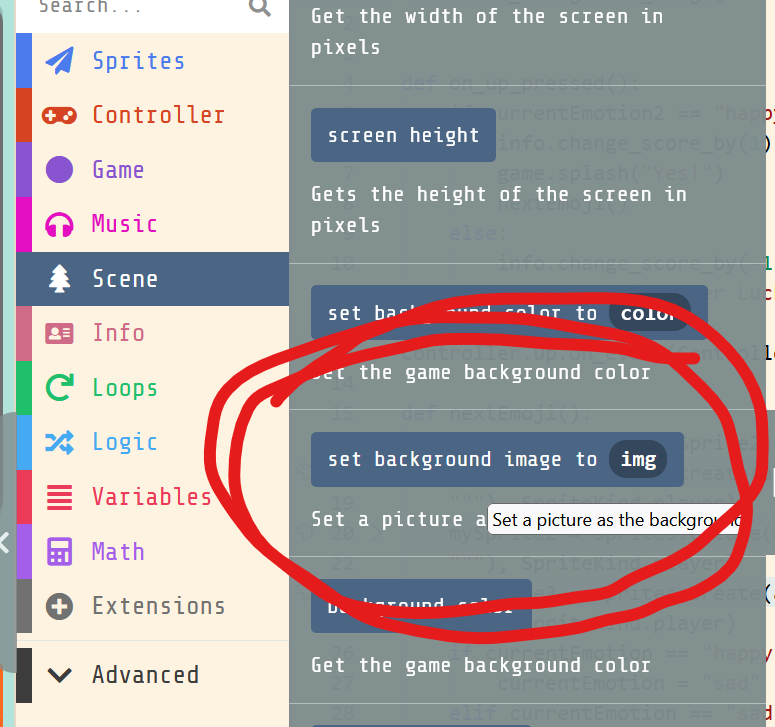
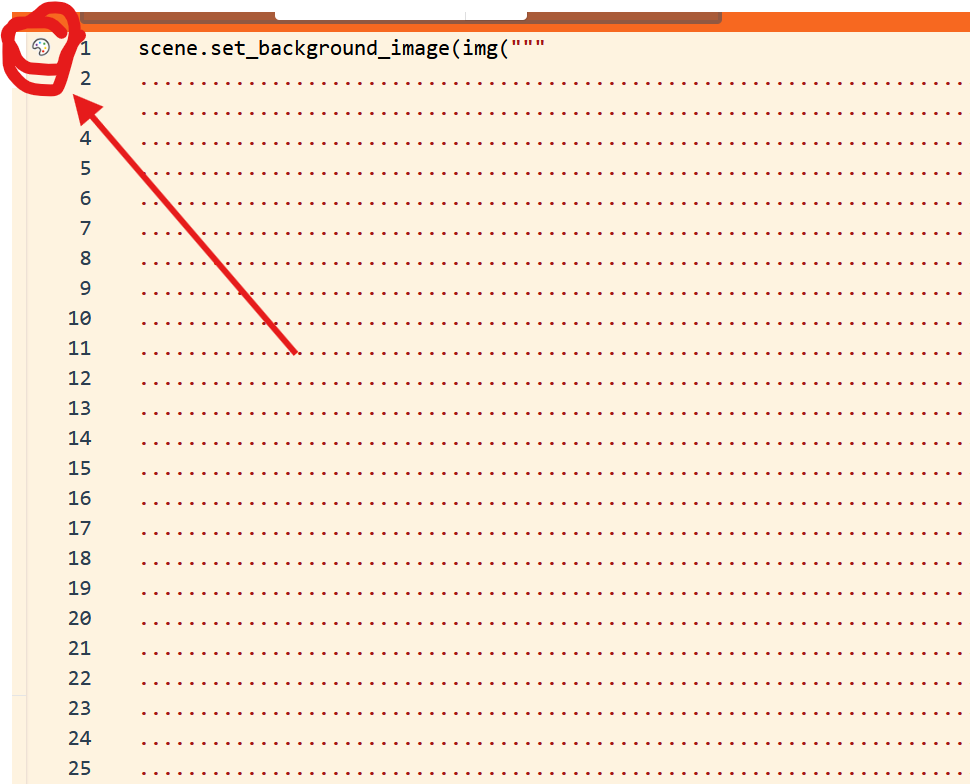
Next to the first line of code there should be a paint palate icon. Click onthe icon. In the window that pops up, click My Assets at the top. Choose the direction image for the background.
This game will keep score for every time the player makes the correct choice. Let's set a variable to keep score. We will set this as an info type so it will be displayed on the screen.
info.set_score(0)
Now let's create the necessary global variables. We will have 3 emotion sprites and a variable called currentEmotion so the program can keep track of which emotion is showing.
Choose a name for each variable. One for happy, one for sad, and one for angry
happy: Sprite = None
sad: Sprite = None
angry: Sprite = None
currentEmotion = "angry"
A global variable is a vairable that can be used anywhere in your code. This is different from local variables which can only be used in a section of the code.
happy, sad, and angry are Sprite image variables.
currentEmotion is a string variable that tracks the emotion.`
Now, let's define a function to update the emotion and display the correct sprite.
We will use the def keyword to define the function, and we will call the function nextEmoji
def nextEmoji():
Anything included in this function must be indented beneath it.
In Makecode Arcade, you must call a sprite with the variable name, Arcade call code, an image, and a type.
- Name the sprite
happy - Make it equal to the Arcade call code:
sprites.create - In parentheses, add a pre-made image by calling
"""happy""" - after a comma, make the sprite a player kind by adding
SpriteKind.playerWhen you begin typing the call codesprites.createindented in the nextemoji() function, a popup should allow you to click to finish the code.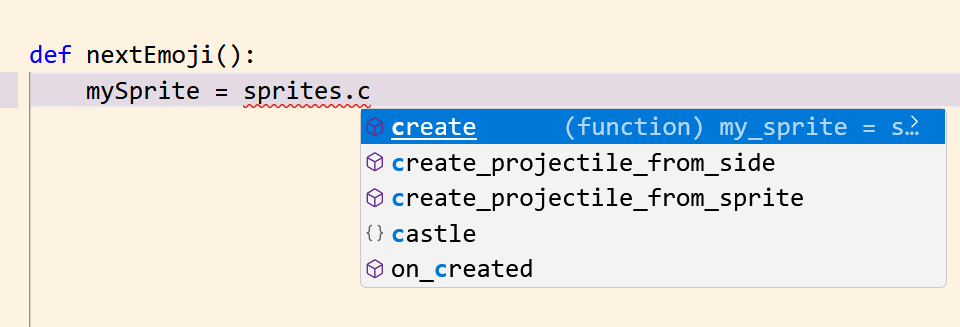
    def nextEmoji():

happy = sprites.create(assets.image(""" happy """), SpriteKind.player)When you have initialized your sprite, a paint palate icon will appear next to your code. Click on it.

At the top, choose "My Assets" and pick the happy face emoji. Then click Done in the bottom left corner.
happy = sprites.create(assets.image("""Happy"""), SpriteKind.player)
Add two more sprites using the same procedure as before, but give sad the sad image and angry the angry image.
    sad = sprites.create(assets.image("""
        sad
    """), SpriteKind.player)
    angry = sprites.create(assets.image("""
        angry
    """), SpriteKind.player)
You have started your emoji game and learned about variables! Continue in the next activity to add conditionals to your game.
scene.set_background_color(0)