Software installation
The Robotic Operating System (ROS) is not an actual operating system. It is technically middleware, which means it sits on top of a base operating system. This means that ROS can theoretically be installed on a range of systems running ubuntu, debian, OSX or even windows. However, the latter two are rather experimental and not recommended. Best results are obtained with a full Linux install (which can run alongside another operating system on a dual boot. You will then be asked which operating system you want to start every time you start your computer). Alternatively, you can also make use of a virtual machine. This is a computer program that simulates a computer, and can run programs inside it. During this workshop, we will make use of such a virtual machine because this makes deployment over many computer a lot simpler. It is not optimal, but sufficient for our needs.
If you wish to use the materials on this repository after the training, you will need to install the required software yourself. Three main components are required:
- A Linux-based operating system
- ROS
- jupyter for viewing the notebooks.
Finally, a few smaller dependencies need to be taken care of.
If you are completely new to both Linux and ROS, we recommend that you install Ubuntu 16.04 with ROS kinetic alongside your usual operating system. These versions are the latest 'long term support' or LTS versions. Which means that they should be more stable than the most recent releases.
To install Ubuntu:
- First, download Ubuntu itself on the official download page
- Next, follow along with the tutorial on the Ubuntu website
To install ROS, you have two main options:
-
For a manual installation, follow the instructions on the ROS wiki
-
For an automatic installation, open a terminal (either by clicking the terminal icon in the launcher, or by using the keyboard shortcut ctrl-alt-T), copy the following commands on after the other and press enter between commands:
-
sudo apt-get update -
sudo apt-get upgrade -
$ wget https://raw.githubusercontent.com/ROBOTIS-GIT/robotis_tools/master/install_ros_kinetic.sh && chmod 755 ./install_ros_kinetic.sh && bash ./install_ros_kinetic.sh
-
**NOTE: ** the word 'sudo' sometimes comes in front of other commands. This signifies that the command is to be run as 'superuser' (sometimes also referred to as 'root privileges'). This is somewhat comparable to administrator privileges on windows. However, prefacing a command with 'sudo' will allow you to do virtually everything, such as deleting all system files, thus rendering your operating system useless. So don't just use it for everything!
The tutorials are written in interactive documents called 'jupyter notebooks'. Jupyter can be installed on its own, but its highly recommended to install jupyter along with a number of commonly used python packages via a distribution such as Anaconda, this will take care of a lot of dependencies later on. Because ROS is mostly built on python 2.7 rather than 3.6, make sure you install the older version. You can download Anaconda here. After downloading the installer, following the instructions on this page.
Anaconda contains most of the python packages that you might need. For ROS, however, a few additional packages are required. We will install these with 'pip', the package manager for python. Open a terminal and run the following commands:
pip install rospkg
pip install catkin_pkg
pip install defusedxml
pip install netifaces
Some additional packages are required for interaction with the Turtlebot. If you don't plan to use a Turtlebot, then the following steps are not required.
sudo apt-get install ros-kinetic-joy ros-kinetic-teleop-twist-joy ros-kinetic-teleop-twist-keyboard ros-kinetic-laser-proc ros-kinetic-rgbd-launch ros-kinetic-depthimage-to-laserscan ros-kinetic-rosserial-arduino ros-kinetic-rosserial-python ros-kinetic-rosserial-server ros-kinetic-rosserial-client ros-kinetic-rosserial-msgs ros-kinetic-amcl ros-kinetic-map-server ros-kinetic-move-base ros-kinetic-urdf ros-kinetic-xacro ros-kinetic-compressed-image-transport ros-kinetic-rqt-image-view ros-kinetic-gmapping ros-kinetic-navigation ros-kinetic-interactive-markers The final class of packages has to be installed in a workspace. Make sure you have a catkin workspace (see Tutorial 1 on how to make one) and clone the Turtlebot 3 repositories:
cd ~/catkin_ws/src/
git clone https://github.com/ROBOTIS-GIT/turtlebot3_msgs.git
git clone https://github.com/ROBOTIS-GIT/turtlebot3_simulations.git
git clone https://github.com/ROBOTIS-GIT/turtlebot3.git
cd ~/catkin_ws && catkin_makeThe Turtlebots from group T are set up to show as wireless access point. Establishing a connection is as simple as selecting the robot from the list of wireless connections, and typing the password ('groupRBP'). Before starting a roscore, make sure that the bashrc file of both your PC and the Turtlebot are setup correctly. This file contains a number of instructions that get executed every time a new terminal is opened. Therefore we can define the IP addresses required to establish a ROS master-slave configuration here. You can set everything up with the following instructions:
-
Flip the switch at the back of the Turtlebot to turn it on.
- On the remote PC (master) connect to the Turtlebot 3 wifi by selecting it from the list of wireless connections in the top right corner of your screen (password = groupRBP) . It can take a few minutes for the robot to show in the available wireless connections.

- On the remote PC (master) connect to the Turtlebot 3 wifi by selecting it from the list of wireless connections in the top right corner of your screen (password = groupRBP) . It can take a few minutes for the robot to show in the available wireless connections.
-
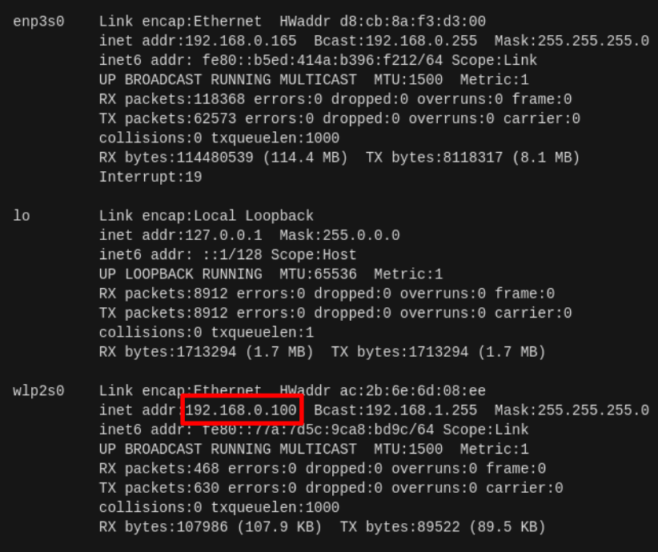
Next, find out your own IP address with
ifconfigand write it down for later. You should get an output similar to the picture below: -
Establish an SSH (secure shell) connection:
- Open a terminal and type: ssh rosberrypi@192.168.42.1
- When prompted for a password, type: groupRBP. Unlike most applications, you will not see any symbols while typing the password. However, the keys are still being registered. So type the password and hit enter.
- If you are asked to add rosberrypi to the list of known hosts, type 'yes' and press enter
- If everything went as expected, the user in the terminal should have changed. All your commands should now be preceded by 'rosberrypi@rosberrypi'. Any command you now type in this terminal is executed on the raspberry pi.
-
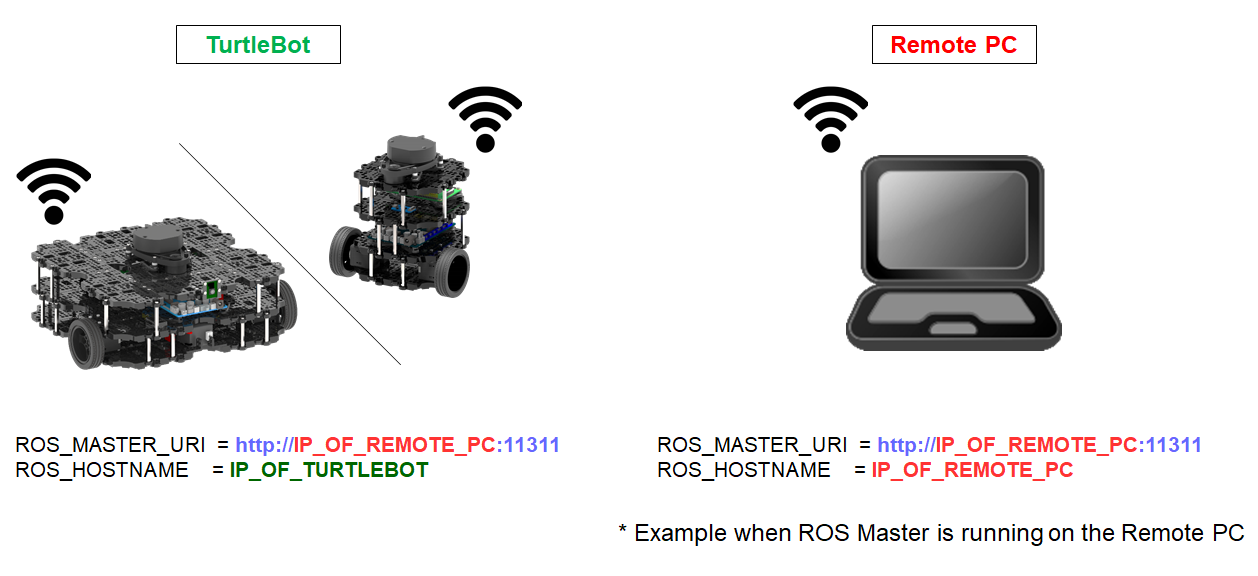
Edit the .bashrc file of both your PC and the Turtlebot with the command
sudo nano ~/.bashrcaccording to the configurations below. The passwords of the ROS workshop PC's and raspberry pi's are ROS and groupRBP, respectively (pay attention to the capital letters). ![network configuration] -
If you do not need a connection to the Turtlebot then the following configuration applies. Make sure you reset your .bashrc when you are no longer connected to a Turtlebot, otherwhise a
roscorewill no longer start!ROS_MASTER_URI=http://localhost:11311 ROS_HOSTNAME=localhost
-
If you do require communication with the Turtlebot, then use the following configuration:
- Finally, make sure to source the .bashrc file after making any changes:
source ~/.bashrc© 2018 Ad Usum Navigantium
