
An application system consisting of an edge server and a desktop client (built with PySide and pymavlink), communicating over ZeroMQ to control the Nebula Team's Teknofest 2025 drone, featuring ArduPilot integration and planned image-based package loading.
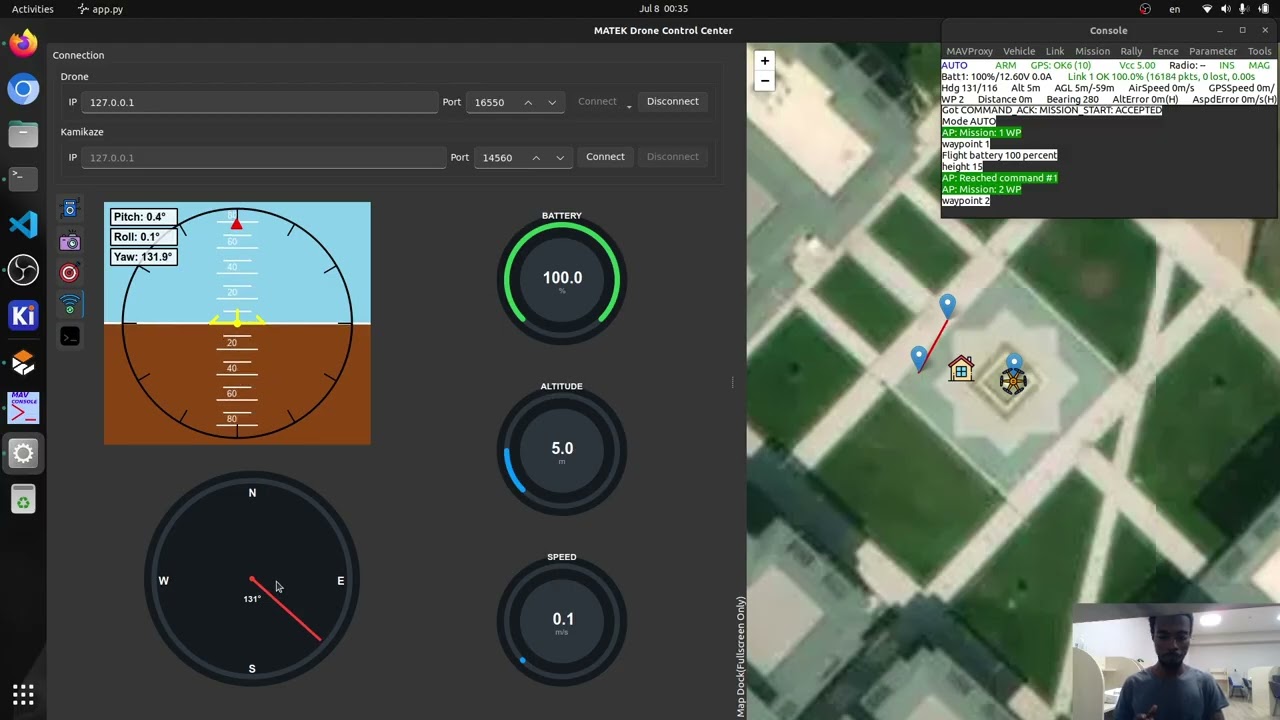
- Ground Control Station: An interface for remotely controlling the drone and monitoring drone telemetry and location, as well as veiwing raw and processed camera feed.
- Gazebo Simulation: Try and test in Gazebo simulation before flight.
- GPS Coordinate Estimation: Object detection and monitoring with YOLO and Precise positioning and navigation using OpenCV
- Drone Controls: Monitoring and controlling ardupilot drone via pymavlink
- Operating System: Ubuntu 22.04 or later
- Hardware: CUDA-enabled GPU for accelerated processing
-
Clone the repository (uses Git submodules):
git clone https://github.com/amar-jay/nebula.git --recursive
-
Setup ArduPilot:
- Follow ArduPilot Linux setup guide
- Follow Gazebo and GStreamer setup guide
-
Install Python packages:
python3 -m venv .venv
source .venv/bin/activate
pip install --upgrade pip
pip install -r requirements.txt
-
Start simulation:
make run_sim
-
Launch Control Station:
make app
-
Launch Controls (optional):
make sim_server # for real drone use `make server`
Note: Currently experimental - to check if it can work across herelink
make server
make appGazebo Video Capture not working (Gazebo GStreamer)
This application uses GStreamer via OpenCV. To troubleshoot:
-
Check if your OpenCV build has GStreamer support by running
make test_cv. -
If GStreamer is not available, the recommended approach is:
-
Install GStreamer via
apt. Follow the Gazebo and GStreamer setup guide -
Rebuild OpenCV from source to ensure it picks up the GStreamer backend.
- You can first check if camera is working perfectly first using
make gz_camera_feed.
In running the server, there is a warning that the queue appears to be full right after starting the server
This is expected behavior. The server starts before the model weights are loaded, so the frame queue fills up quickly. Once the model is loaded, the queue will start to be processed and the warning will go away.However, if the warning persists for a long time, it may indicate that the model is not processing frames fast enough. In that case, you can try reducing the frame rate or resolution of the video feed.
In other cases, the model isn't processing frames at all. This can be due to a number of reasons, such as: - The model weights are not found or not loaded correctly. - There is an error in the model code. - There is a problem with the video feed. - The system is overloaded and cannot keep up with the frame rate.
These are just some of the possible reasons. You can check the server logs for more information on what might be causing the issue. You can check the logs in ~/nebula-zmq-server.log. or start the server with --debug flag to enable debug logging.
How to run the server with debug logging enabled?
You can enable debug logging by adding the `--debug` flag when starting the server. For example: python nebula.mq.zmq_server --debug --is-simulationServer not receiving drone telemetry data?
Make sure that the drone is connected to the same network as the server. If you are using a real drone, make sure that the drone is powered on and that the telemetry module is working correctly.If you are using a simulation, make sure that the simulation is running and that the telemetry data is being sent to the correct IP address and port. You can check the telemetry settings in the ArduPilot configuration file.
Also ensure, that gazebo camera is working correctly. You can test this by running make gz_camera_feed and checking if you see the camera feed. These are common issues that can cause the server to not receive telemetry data.
Usually, the issue is either with the network connection or with the camera feed. Restarting the server and the drone/simulation can also help resolve the issue.
GPS estimation works perfectly in simulation but not in the real world?
Accurate GPS-based coordinate estimation depends on several key factors, including the precision of the drone’s GPS data, proper camera calibration, and reliable object detection.
If you’re experiencing inaccuracies in real-world tests, try the following:
- Avoid altering the camera feed: Ensure the live video stream isn’t being modified (e.g., by zooming, cropping, or changing resolution).
- Calibrate the camera: Use tools within the
nebula/camera_calibrationdirectory to calibrate your camera. Accurate intrinsic parameters are crucial for precise calculations. After updating thecamera_intrinsicswithin theconfig/default.yamlfile. (currently the camera distortion coefficients are assumed to be zero. However, you can implement this feature if you please within thenebula/detection/). - Improve GPS accuracy: Real-world GPS data can be affected by environmental interference—like tall buildings, trees, or reflective surfaces. Test in an open area with a clear view of the sky.
- Optimize camera mounting: The camera should face directly downward (nadir orientation) and maintain a stable view of the ground. Using a gimbal for stabilization is highly recommended.