
Study for a life in Emacs.
paw.el was created in 2021 as an annotation tool, but I was not used it a lot at that time. Recently I picked it up and dramatically changed its usage. Now it is a complete solution of making annotations and language learning tools, right inside Emacs.
paw relies on sqlite. All annotations are saved inside a database, which means it can be easily backup and you can read and make annotation right inside Emacs (PC/mobile) using same database.
paw is not just a dictionary tool. paw was created in mind that:
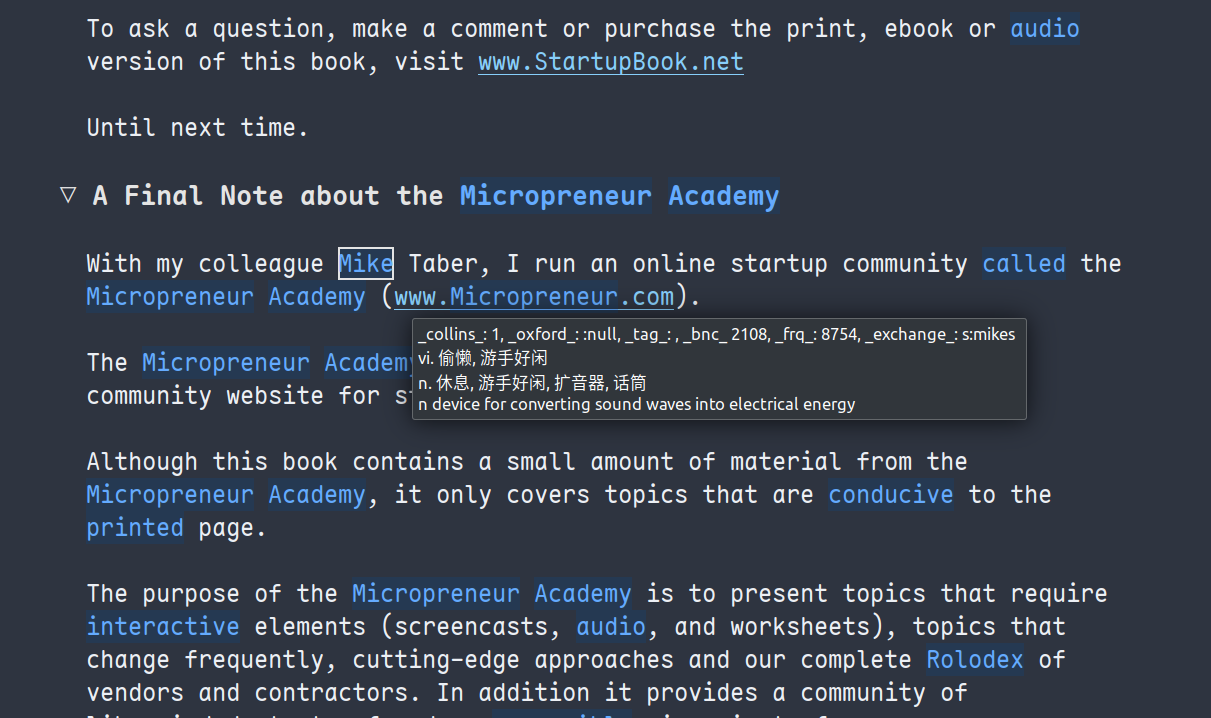
- Query word with single mouse click, even no need to click.
- Save and trace all known/unknown words and wordlist support, online or offline.
- Integrate with other great open source tools, libraries, and dictionaries.
- Integrate with external dictionary tools.
- Support many languages.
- Multi-Platform Support, including Mobile/e-link devices.
- Use AI as assistant.
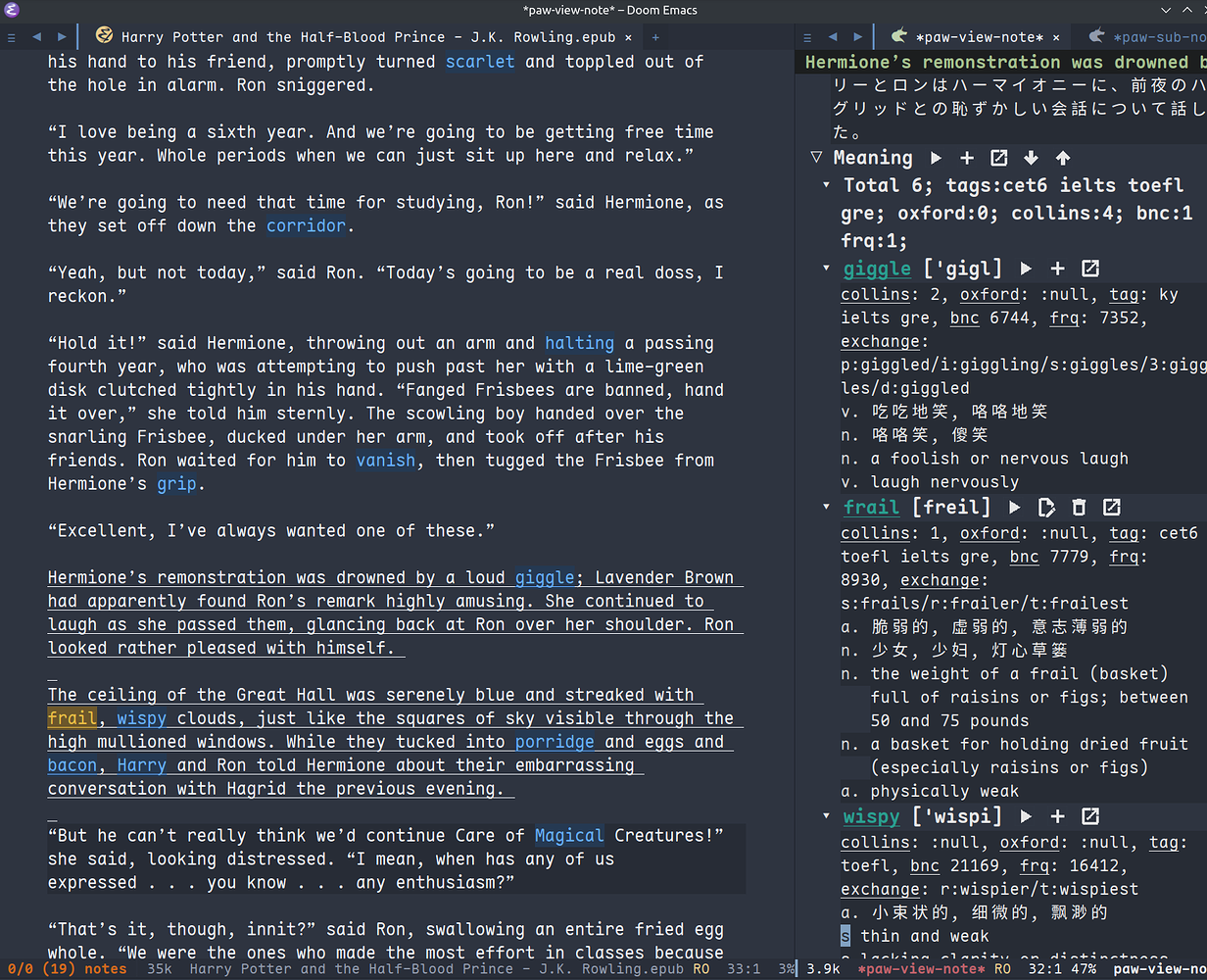
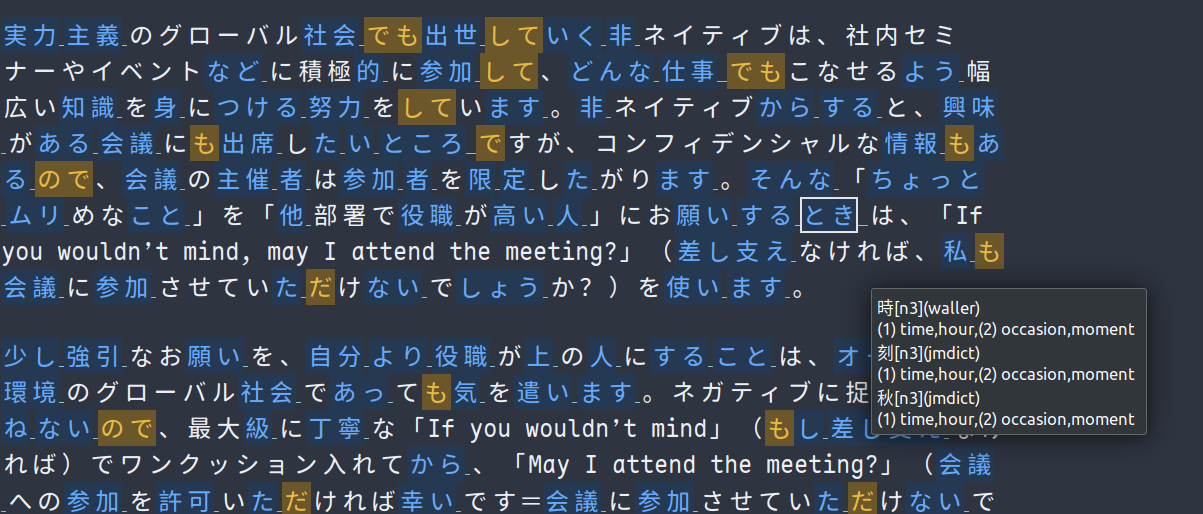
The standout feature of Paw is the ability to scan an entire buffer, tokenize all words, batch-query them, and filter them out according to user-provided tags, ultimately applying overlays alongside meanings to all discovered words. In essence, Paw proactively queries the dictionary on your behalf, making the highlighted word’s meaning immediately available.
This means that you can simply hover your mouse over a word to view its definition, without having to click on it.
This package is mainly used along with:
- nov-mode
- org-mode
- markdown-mode
- eaf-mode
- eww-mode
- wallabag-entry-mode
- pdf-view-mode
- elfeed-show-entry-mode
- telega-webpage-mode
- Browser Support
- Derived text-mode
- Derived prog-mode
Modes that supported in paw-annotation-mode-supported-modes can enable
paw-annotation-mode.
See the doc of M-x describe-function paw-annotation-mode
paw-annotation-live-mode is similar as paw-annotation-mode
But it can be used on any buffer, less limitation, and less keybindings, with auto refresh annotation overlays feature.
See the doc of M-x describe-function paw-annotation-live-mode
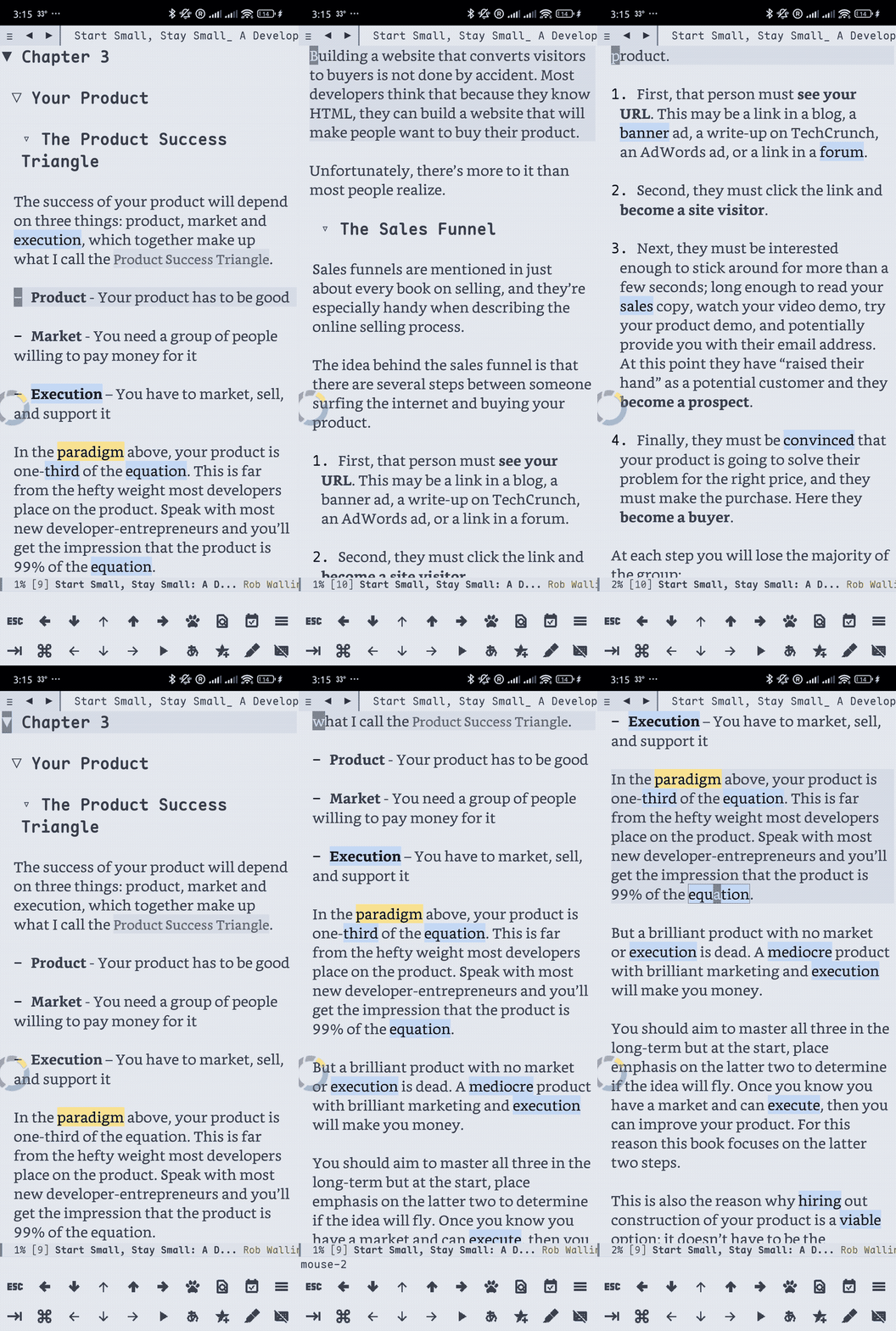
- Open an epub file using nov.el, open an org/txt/md file, browse web with eww/eaf, read rss with elfeed, you name it.
- Enable
paw-annotation-mode(buffer will be turned into read-only ifpaw-annotation-read-only-enableis t to avoid accidental alternation) - Use
pawadd word/highlight/bookmark/todo/, for example,paw-add-word,paw-add-highlight… Please check M-xpaw-add-*related commands for all type of supported annotations. - Annotations will be highlighted via overlay. Under the annotation, you can do
various of operations. For example, to edit the annotation, under the
annotation, press
i,paw-find-note. It will create an temporary org file dedicated for this annotation,C-c C-ito insert annotation link as reflink, finally save byC-c C-c, changes will be saved in the database respectively. - Under the annotation, run
paw-change-annotation-note-type(c) orpaw-change-note_type(C) to change the face of the overlay. - The most useful case is adding highlight by
paw-add-highlight, then change the highlight overlay bypaw-change-annotation-note-type. The default highlight overlay is defined inpaw-annotation-default-highlight-type, and runningpaw-change-annotation-note-typewill remember the last highlight overlay. paw predefines some most used highlight styles that often appeared in other annotation tools, like marker or underline (pressc1,c2,c3, etc), but it is not limited to that, you can change to any face you want (presscf) - Use
paw-add-comment(C-c iori[evil] underpaw-annotation-mode) to quickly add a comment to the current thing (paw-add-comment-thing), if no comment is added, the annotation will be deleted after quitting the note buffer.paw-add-commentis actually a convenient wrapper ofpaw-add-highlightandpaw-find-note.- Inside
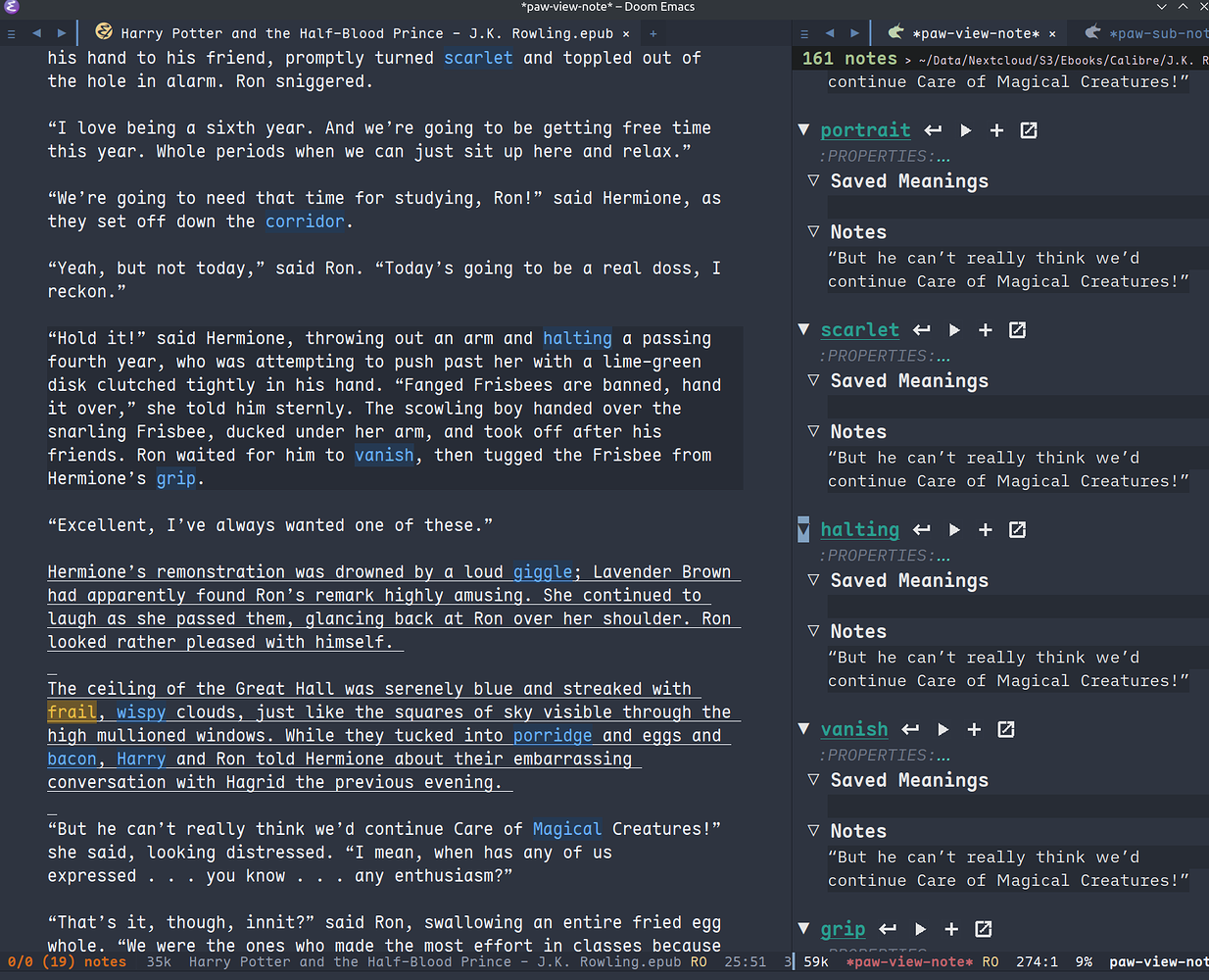
*paw-view-note*buffer, you can pressito edit the Saved Meanings or Notes. Checkpaw-view-note-transientfor more operations.
- Inside
- Call
paw,paw-list-annotations,paw-list-all-annotationsorpaw-list-all-linksto manage or jump to annotation location (One useful case is that make highlight or create bookmark oneww, and jump back to the exact same annotation location simply pressing Enter) - Under the annotation, M-x
paw-view-notes, all notes under the same path will be shown, giving you an overview on all notes you’ve made for the same file. Or M-xpaw-find-notesto update/save all notes under the same path into an org file underpaw-note-dir, and jump to the annotation location inside the org file. paw-add-bookmarkworks great on eww-mode/eaf-mode (browser or pdf-viewer)M-x paw-toggle-inline-annotations, to show all annotations inline.

Any buffer can enable paw-annotation-live-mode. After enabling it, you can add annotations with M-x paw-add-*. After file saved, annotations will be auto refreshed (location will be updated if possible).
M-x paw-toggle-inline-annotations, to show all annotations inline.
By default, the major-mode includes in paw-annotation-mode-supported-modes will
turn into read-only if paw-annotation-read-only-enable is t.
However, two special modes text-mode/prog-mode are added in
paw-annotation-mode-supported-modes. If the current buffer’s major-mode is not
one of modes in paw-annotation-mode-supported-modes but derived from text-mode
or prog-mode. Enabling paw-annotation-mode will not alternate the read-only
status, in the mean time, it shows annotations made on the current buffer while
disable other paw-annotation-mode features (like mouse click to query, show
unknown words, show wordlists’ words etc, which makes sense when Reading but not
Editing). This makes sure that we can continue to edit the buffer and use the
buffer’s cooresponding keymaps while also able to add/show/manage annotations.
M-x paw-toggle-inline-annotations, to show all annotations inline.

- Copy a text you want to learn to an org file or browse a page with eww/eaf etc.
- Enable
paw-annotation-mode - Click/Select word/sentence with
paw-view-note, it will show you an informative buffer of the word/sentence. It has dictionary, translation, notes and also able to search by external browser. - Use
paw-add-offline-wordorpaw-add-online-wordto add a new word. For Online words, please check Anki Integration Eudic IntegrationAll offline/online words appeared on any buffers that were enabled
paw-annoation-modewill be highlighted, useful for language learners using the important method: Repetition. - For offline words, please setup
paw-offline-studylistbefore using it. By default we have two offline studylists:English StudylistandJapanese Studylist. - You can also use
paw-add-word. Unlike offline/online word, the word added bypaw-add-wordis linked with an unique id, it is only highlighted at the location where we added it. - Under any annotation, click or press
vto invokepaw-view-note, a buffer with saved meanings, dictionary, translation, notes is shown. - Under any annotation, click or press
Sto invokepaw-change-word-learning-level, select from level 1~5. 1~4 are controlled bypaw-level-1-word-facetopaw-level-4-word-facefor online words,paw-level-1-offline-word-facetopaw-level-4-offline-word-facefor offline words, while 5 is considered as Known word, skipping adding overlay face (just hiding). You can change the word to level 5 while keep it hiding, but if you don’t need it anymore, simply runpaw-delete-annotationto delete it. - Click/Select word/sentence with
paw-view-note-current-thing,paw-view-note-next-thing,paw-view-note-prev-thing, it will do segmentation using kagome (Japanese), and ECDICT (English). - Check https://www.lingq.com/en/, you know more ideas how to learn a foreign
language with
paw.el. - Run
paw-export-notes-to-csv, check the csv file underpaw-csv-file, import it to Anki for further studying. - Both
paw-add-wordandpaw-add-online-wordwill capture the context sentence and save it into Notes field.
M-x paw-toggle-inline-annotations, to show all annotations inline (think about it as a similar feature - kindle word wise)
- Check
paw-annotation-transientfor more operations. - To review all words in the current buffer, under any unknown/known word (the
overlay), C-u M-x
paw-view-notes, all unknown/known words appeared in the current buffer will be shown, giving you an overview on all words appeared in the current buffer. Or C-u M-xpaw-find-notesto save all words appeared in the current buffer into an org file underpaw-note-dir, and jump to the annotation location inside the org file. - Please notice: if use M-x
paw-view-noteswithout C-u, all notes under the path the moment it was captured will be shown instead.
Tip: Find some interesting contents on LingQ, and browse using eww, enable
paw-annotation-mode, enjoy language studying!

- Select/Under a word/sentence
- Run
paw-view-note(no segmentation, good for word) orpaw-view-note-current-thing(segmentation, good for sentence) - Further search with
paw-view-note-in-dictionaryor search with browser.
- Select/Under a word/sentence
- Run
paw-view-note-in-dictionary, currently support eudic/goldendict/silverdict/yomitan (configured bypaw-dictionary-function) - You can also use:
paw-mac-dictionary-search-details(can configure mac dictionary or eudic, bypaw-mac-dictionary-program)paw-goldendict-search-details(bypaw-goldendict-program)paw-silverdict-search-details(bypaw-silverdict-hostandpaw-silverdict-port)paw-yomitan-search-details-firefox(configurepaw-yomitan-firefox-idand yomitan extension on browser before use)paw-yomitan-search-details-chrome(configure yomitan extension on browser before use)paw-android-search-details(android)paw-eudic-search-details(mac/android/windows,paw-eudic-android-program)paw-chatgpt-search-details(mac/android,paw-chatgpt-android-program)paw-moji-search-details(android,paw-moji-android-program)
M-x pawIt will launch a dashboard of annotations based on the current path of the buffer or project-root (text-mode/prog-mode).
Overview all notes using paw-view-notes on the same path.
Demo:

Export notes to an org file and print out as pdf (using latex), use paw-find-notes.
Demo:

You should install the following Dependencies if you want to make use all the power of paw:
- Command line tools
- sdcv (external command line dictionary)
- mpv (or other command line mp3 player)
- goldendict (external dictionary)
- silverdict (external web-based dictionary, works on Android)
- edge-tts (pronunciation)
- kagome (For Japanese sentence segmentation)
- python dependencies (install paw command line by
pip install emacs-pawor one by one manually):- Python itself (3.10+, for mac 3.11+)
- nltk
- flask
- flask-cors
- requests
- mecab-python3
- unidic-lite
- waitress (optional, for enhanced server performance)
- Language detection python dependencies:
- paw (emacs-paw cli), lingua-py, pycld2, or gcld3
- Emacs packages (Not all are needed, some are optional, but paw just supports them. Some needed packages will be installed along with paw):
- Offline Dictionary:
- stardict dictionaries (Used by sdcv, you can download mine from sdcv_dictionaries)
- ECDICT (Please go into the page and download the
ecdict-stardict-28.zip, unzip asstartdict.db) - yomichan-jlpt-vocab (Please go into the page, clone the repo, and build the japanese.db by yourself, or download mine in paw_dictionaries)
- text/csv dictionaries (I uploaded my dictionaries to paw_dictionaries, you can also easily convert the any Anki Deck into csv format and use them. Also, this project also provides some functions to download, check
paw-util.el)
- Other Dictionaries
- yomitan (external dictionary)
Five steps:
- Install Offline Dictionaries (See above)
- Install Python
brew install python # You can use pyenv or other tools to install python- Install emacs-paw command line by the following command, check usage at paw_server
pip install emacs-pawNote: The Python CLI tool and server components have been migrated to paw_server for better organization and standalone usage.
- Please be patient… run the following command lines, you may need to adjust them based on your system, take mac for example:
brew install sdcv
brew install mpv
pip install edge-tts
python -m nltk.downloader stopwords
python -m nltk.downloader punkt
python -m nltk.downloader punkt_tab- For android install:
pkg install tur-repo # https://github.com/termux-user-repository/tur
pkg install python3.10 # install python 3.10 (newer versions may not work at the time of writing)- Finally, Install paw.el
(package! paw :recipe (:host github :repo "chenyanming/paw" :files ("*")))After installing the above Dependencies, you can configure paw like config.el (which I may update frequently based on my need). You should better copy to your own configurations and tweak it based on your need.
Some csv dictionaries can be found in paw_dictionaries, you can download them and change the location. You can also convert from Anki Decks or Make your own, it is just text based dictionaries.
You can also check the language specific configurations below:
(setq paw-sdcv-program "/opt/homebrew/bin/sdcv" )
(setq paw-sdcv-dictionary-data-dir (expand-file-name "dict" doom-private-dir))
;; (setq paw-sdcv-env-lang (getenv "LANG")) ;; may need this on linux and android
(setq paw-sdcv-dictionary-list    ;setup dictionary list for simple search
      '("懒虫简明英汉词典"
        "Collins Cobuild English Dictionary"
        "小学馆-日中词典"
        "日汉双解词典"
        "EJ-EDict" "JE-EDICT_Kanji"
        "日汉词典" "jmdict-ja-en" "KANJIDIC2" "新明解国語辞典"
        "小学館中日辞典EB版" "広辞苑 第六版" "EJ-GENE95"
        "jmdict-en-ja"
        "JCEDict" "EDICT"
"JEDict" "ENAMDICT" "EJDic" "DrEye日汉词典" "DrEye4in1词典"))paw supports Emacs native keybindings, evil, and transient menu (?).
You can add paw-annotation-mode to the corresponding hook, so that it can enable automatically after the corresponding mode is loaded:
(add-hook 'wallabag-entry-mode-hook #'paw-annotation-mode)
(add-hook 'nov-mode-hook #'paw-annotation-mode)
(add-hook 'elfeed-show-mode-hook #'paw-annotation-mode)
(add-hook 'eaf-mode-hook 'paw-annotation-mode)
(add-hook 'telega-webpage-mode-hook #'paw-annotation-mode)
Some modes like nov-mode, wallabag-entry-mode and eww-mode, adding above hook is not enough, you also need to add the following highlight functions :after the render function using advice-add:
(when (bound-and-true-p paw-annotation-mode)
      (paw-clear-annotation-overlay)
      (paw-show-all-annotations)
      (if paw-annotation-show-wordlists-words-p
          (paw-focus-find-words :wordlist t))
      (if paw-annotation-show-unknown-words-p
          (paw-focus-find-words)))
For more examples, please check: https://github.com/chenyanming/shrface/blob/master/config.el
By default, if paw-annotation-mode is enabled, you can One-Click to query the word. If you want to disable it:
(setq paw-view-note-click-enable nil) ;; Disable Left-Click One-Click to query featureOr
M-x paw-view-note-click-enable-toggle to toggle the One-Click feature on the fly.
You can also use paw-view-note-under-mouse to query the word under mouse, it is bound to ` by default. Move the mouse and hover on the word to be queried, and press `. I called it as One-Key to query.
You may also use ~paw-view-note-click-directly~, which is bound to ~mouse-3~ (Right Click). This is not controlled by ~paw-view-note-click-enable~, it is also One-Click to query but using Right Click. -> I don’t use it anymore.
Now,
Mouse-1 bound to paw-view-note-click (Click the word)
Mouse-2 bound to paw-view-note (After Mouse-1 drag a text then Mouse-2 for query the selected area)
Mouse-3 bound to paw-view-note-quit (Quit the view window)
Paw includes multiple sound engines that can be used to download audio files. The available sound engines include:
paw-say-word-cambridgepaw-say-word-oxfordpaw-say-word-jpod101-alternatepaw-edge-tts-say-wordpaw-youdao-say-wordpaw-say-word-forvo- and more
By default, the sequence in which these sound engines are used is defined by paw-say-word-functions.
The following configs control wheather say the word when you view by M-x paw-view-note
(defcustom paw-say-word-p t
  "paw say word automatically"
  :group 'paw
  :type 'boolean)

(defcustom paw-say-word-supported-note-types '(word)
  "The note types will be say automatically."
  :group 'paw
  :type '(repeat (choice symbol)))
In dashboard header, it is possible to toggle the paw-say-word-p (Voice) on the fly.
Paw supports various audio players for pronunciation playback. The player program is automatically detected based on your system:
- macOS:
afplay(with native--volumesupport) - Other systems:
mpv,mplayer, ormpg123
You can configure the audio player and volume:
;; Audio player program (auto-detected by default)
(setq paw-player-program "/usr/bin/afplay")  ; or your preferred player

;; Volume control (0-100 range)
(setq paw-player-volume 50)  ; 50% volume
Volume support by player:
mpv: Uses--volume=Nparametermplayer: Uses-volume Nparameterafplay(macOS): Uses--volume N.Nparameter (0.0-1.0 range)mpg123: Uses-g Nparameter for gain controlaplayer: No volume support, falls back to normal playback
Paw support all major emacs icons packages, you can choose one of them.
- svg-icon
- nerd-icons (recommended if you use nerd fonts)
- all-the-icons
- pbm (image icons, recommended on android)
- text (if all options are nil, fallback to pure text as icons)
The current checking sequence is svg -> pbm -> all-the-icons -> nerd-icons -> text. The first t option will be used first.
To enable pbm on android while use nerd-icon on non-android, we can configure like so:
;; svg icons
(setq paw-svg-enable nil)
;; Use pbm icons/buttons on android
(setq paw-pbm-enable (if (eq system-type 'android) t))
;; all the icons icon
(setq paw-all-the-icons-icon-enable nil)
;; all the icons button
(setq paw-all-the-icons-button-enable nil)
;; nerd icon/buttons
(setq paw-nerd-icons-icon-enable t)Set paw-detect-language-p to t, paw will use emacs-paw python cli (to use others
tools check paw-detect-language-program) to detect the language for more
accurate tts pronunciation and translation.
If you don’t want to use language detection program, paw use simple ascii rate:
paw-ascii-rate to detect the language, if the rate is greater than
paw-ascii-rate, then it is considered as English, otherwise use
paw-detect-language-program to detect the language of the TEXT, if
paw-detect-language-p is t, or return as paw-non-ascii-language if
paw-detect-language-p is nil.
Setup paw-python-program if necessary, if the pip module is installed with
different python version, for android, set it to python3.10
Supported edge-tts voice:
paw-tts-english-voicepaw-tts-zh-cn-voicepaw-tts-zh-tw-voicepaw-tts-japanese-voicepaw-tts-korean-voice- Other languages:
paw-tts-multilingual-voice
Welcome PRs to add more languages :)
If paw-view-note-window-auto-adjust is t (default), the window of
*paw-view-note* will be automatically adjusted. If the height of the window is
larger than the width, show it on the paw-view-note-vertical-position, otherwise
show it on the paw-view-note-horizontal-position. Also, the windows width/height
could be configured by paw-view-note-window-width and
paw-view-note-window-height.
You can adjust the section order or remove the unwanted sections by configuring paw-view-note-sections
The order of the sections is the order of the list. Supported values are:
- “Dictionaries”: The online dictionaries buttons
- “Search”: The online search engine buttons
- “Context”: The context around the word/annotation
- “Translation”: The translation of the word/annotation
- “Saved Meanings”: The Saved Meanings of the word/annotation
- “Meaning”: The SDCV result of the word/annotation
- “Notes”: The notes of the word/annotation
- “Anki”: Special section for Anki
Normally, when you run paw-view-note, paw will switch to *paw-view-note* buffer. But there are some cases we want to stay at the original buffer, in this case:
- Set
paw-view-note-back-to-original-bufferas t (Default) - And add or remove the targeted major-mode into
paw-view-note-back-to-original-buffer-supported-modes.
- PC: Install Anki.
- PC: Install AnkiConnect, add-on code: 2055492159.
- Android: Install AnkiDroid from F-Driod (We need it has full media access
right, so that Emacs can copy audio files to it. Instead of using AnkiConect
to download the audio, paw will download and cache the audio in
paw-tts-cache-dirafter the voice is pronounced.). - Android: Install AnkiconnectAndroid
- Install Anki Editor if not installed.
- If you just want to try or use the default settings. Please download the default template Memrise Templates (Lτ) v3.32.apkg and import it into anki then you are all done.
If you want to use different template,
- Run
paw-anki-configure-card-formatto choose from default templatespaw-anki-templates, or configure deck, note type, filed-name, and filed-values one by one temporarily. Currently Supported field-value:word: the word to learnexp: the explanation of the wordsound: the sound file of the wordnote: the note of the wordcloze_note: the note of the word, word is clozedcloze_note_exp_hint: the note of the word, word is clozed, use exp as hintchoices: the choices of the wordnil: empty field- Other values: the value of the field, it must be a string
- If you want to make it permanent, set
paw-anki-deck,paw-anki-note-type,paw-anki-field-namesandpaw-anki-field-valuesmanually in your config, - Configure
paw-online-word-servers,(setq paw-online-word-servers '(anki))to enable anki server, or(setq paw-online-word-servers '(eudic anki))to enable both eudic and anki servers.
PS:
All types of annotations (not all are tested) could be added into Anki. Either using paw-add-online-word (anywhere), or paw-anki-editor-push-note(s) (dashboard) paw-anki-editor-delete-note(s) (dashboard).
paw-anki-editor-delete-note: Delete note at point to Anki.
paw-anki-editor-push-note: Push note at point to Anki.
paw-anki-editor-push-notes: Push notes of marked-entries in dashboard to anki,
or push all anki notes in the same origin path (same file or same buffer). Same
file name under paw-annotation-search-paths is also considerred same origin
path.
paw-anki-editor-delete-notes: Delete anki notes of marked-entries in dashboard,
or delete all anki notes in the same origin path (same file or same buffer),
Same file name under paw-annotation-search-paths is also considerred same
origin path.
Other templates:
- MemCloze.apkg
- Anime Mining: https://github.com/donkuri/lapis
The audio file is automatically downloaded and added to the anki note, if paw-anki-download-sound is t (default). The sound file download sequence are defined by paw-anki-download-sound-functions.
- Apply Authorization key on https://my.eudic.net/OpenAPI/Authorization, and fill it into
paw-authorization-keysbefore adding online words. - Configure
paw-online-word-servers,(setq paw-online-word-servers '(eudic))to enable Eudic server, or(setq paw-online-word-servers '(eudic anki))to enable both eudic and anki servers.
PS:
Only online words can be added into Eudic. Mainly via command paw-add-online-word
Use my forks which add paw support.
- https://github.com/chenyanming/eaf-browser: Able to highlight all words in the database in the page, click to search word and show in paw-view-note buffer.
- https://github.com/chenyanming/eaf-pdf-viewer: Able to search the word under cursor by pressing one key (no need to select the word) and translate the sourrounded sentence, show in paw-view-note buffer.
Add the following bindings to your configuration:
(eaf-bind-key insert_or_paw_view_note_in_eaf "`" eaf-browser-keybinding)
(eaf-bind-key paw_view_note_in_eaf "`" eaf-pdf-viewer-keybinding)
SilverDict is a web-based dictionary server that works on multiple platforms including Android (via Termux). Unlike GoldenDict, SilverDict provides dictionary lookup through a web interface.
- Install and run SilverDict server on your device (see SilverDict documentation)
- Configure paw to use SilverDict:
;; Set SilverDict as the external dictionary function
(setq paw-external-dictionary-function 'paw-silverdict-search-details)

;; Configure host and port (defaults shown below)
(setq paw-silverdict-host "localhost")  ; or your server IP
(setq paw-silverdict-port "2628")       ; default SilverDict port

;; Configure the query path for your dictionary group (optional)
;; Default is "/api/query/Default%20Group/"
;; Change this to match your SilverDict dictionary group
(setq paw-silverdict-query-path "/api/query/Default%20Group/")
;; Examples:
;; (setq paw-silverdict-query-path "/api/query/Chinese/")
;; (setq paw-silverdict-query-path "/api/query/YourGroup/")
- For Android (Termux) setup, you may need to use
127.0.0.1orlocalhostif running locally, or your device’s IP address if running on another device on the same network.
- Firefox & Firefox Android https://addons.mozilla.org/en-US/firefox/addon/emacs-paw
- Chrome: https://chromewebstore.google.com/detail/paw/ofhodjclfalelhgjbfmdddekoghamlge
- Brave: Same as Chrome, but need to add
@@||localhost^intoCreate custom filters sectionofbrave://settings/shields/filtersif you need paw-server features. - This browser extension enhances word interaction by underlining words on mouseover and capturing context when words are clicked. The captured information is sent to Emacs via org-protocol and displayed in the paw-view-note buffer.
- Update the server config inside the config page of the extension, and make sure the port number (
paw-server-port) matches, for example, http://localhost:5001 - M-x
paw-server. Run the paw-server, so that all words can be highlighted on browser. - paw-server is optional, you don’t need to run it, and still able to use the org-protocol feature. If you installed paw command line, you can run paw-server in several ways (see also paw_server for standalone usage):
**Method 1: Emacs Integration (Original), same as M-x paw-server**
paw run_server --database /home/damonchan/org/paw.sqlite --save-dir /tmp/ --port 5001 --wallabag-host https://example.com --wallabag-username username --wallabag-password password --wallabag-clientid clientid --wallabag-secret secret**Method 2: Standalone Mode (Enhanced, Recommended for Production, run on command line directly)**
# Using environment variables (recommended)
export PAW_DATABASE_PATH="/home/damonchan/org/paw.sqlite"
export PAW_SAVE_DIR="/tmp/"
export PAW_PORT="5001"
export PAW_SERVER_TYPE="production"  # or "flask"
export WALLABAG_HOST="https://example.com"
export WALLABAG_USERNAME="username"
export WALLABAG_PASSWORD="password"
export WALLABAG_CLIENTID="clientid"
export WALLABAG_SECRET="secret"

paw server
**Method 3: Python Server (Moved)**
The Python server functionality has been moved to a separate repository: paw_server. Please refer to that repository for server installation and usage instructions.
The standalone mode offers enhanced stability, better error handling, environment variable support, and waitress support for better performance.


Check more on: https://github.com/chenyanming/paw_org_protocol
If you don’t want to use extension or sometimes can not use, add the following bookmarklet in browser, paste the following code as URL:
javascript:(function(){
var selection = window.getSelection().toString();
if (selection.length > 0) {
var url = encodeURIComponent(window.location.href);
var title = encodeURIComponent(document.title || "[untitled page]");
var body = encodeURIComponent(selection);
var parent = window.getSelection().getRangeAt(0).commonAncestorContainer.parentNode;
while (parent.nodeType !== Node.ELEMENT_NODE) {
parent = parent.parentNode;
}
var p_tag_parent = parent;
while (p_tag_parent.tagName !== undefined && p_tag_parent.tagName !== 'P') {
p_tag_parent = p_tag_parent.parentNode;
}
if (p_tag_parent !== document) {
parent = p_tag_parent;
}
var note = encodeURIComponent(parent.textContent || "");
location.href = 'org-protocol://paw?template=w&url=' + url + '&title=' + title + '¬e=' + note + '&body=' + body;
}
}());Select the word, and click the bookmark, the word will be shown in paw-view-note buffer.
Check more examples on js files in the root folder.
You can show anything on *paw-view-note* buffer!
For example, the following snippet shows the gptel result to *paw-view-note* buffer by using paw-view-note and paw-new-entry functions, use edge-tts to say the response out, use go-translate to transalte the response, also user can further interact (add to database etc) with the result in *paw-view-note* buffer.
(defun gptel-quick (&optional query)
  "ASK AI with predefined prompts."
  (interactive)
  (require 'gptel)
  (let* ((selected-text (when (use-region-p)
                          (buffer-substring-no-properties (region-beginning) (region-end))))
         ;; (current-buffer-text (buffer-substring-no-properties (point-min) (point-max)))
         (additional-text (or selected-text ""))
         (prompt (completing-read "Ask AI: "
                                  '("Draft an outline"
                                    "Draft anything"
                                    "Draft an email"
                                    "Draft a journal entry"
                                    "Draft a meeting agenda"
                                    "Explain in 12 words or less"
                                    "Explain in 48 words or less"
                                    "Explain in 100 words or less"
                                    "Explain in 200 words or less"
                                    "Write anything"
                                    "Brainstorm ideas"
                                    "Translate it to Chinese"))))
    (when (string= prompt "") (user-error "A prompt is required."))
    (deactivate-mark)
    (setq gptel-last-prompt (format "%s. %s" prompt additional-text))
    (gptel-request (or query gptel-last-prompt)
      :system "You are an AI assistant that lives inside Emacs"
      :callback
      (lambda (response info)
        (if (not response)
            (message "gptel-quick failed with message: %s" (plist-get info :status))
          (with-current-buffer (get-buffer-create "*gptel-quick*")
            (let ((paw-say-word-p t) ;; say the response out
                  (lang (paw-check-language response)))
              (paw-view-note (paw-new-entry response
                                            :origin_type "gptel"
                                            :serverp 3
                                            :lang lang
                                            :context (format "Question: %s\nAnswer: %s" gptel-last-prompt response))
                             :buffer-name paw-view-note-buffer-name
:display-func 'switch-to-buffer))))))))I personally use Syncting to share the database between PC and Android. The
drawback is that, if the database is in used in any party, the synchronization
will stop. You can run paw-db-sync to close the connection with the database, or
run paw then paw-quit, or close Emacs directly before Synchronization.
https://emacs-china.org/uploads/default/original/3X/2/b/2bc2d9fd996827097b13f751c327ad7141376f88.gif

https://emacs-china.org/uploads/default/original/3X/3/5/3544a2bf376d1f3b8f1fc86063af2975e4da42b4.gif
https://emacs-china.org/uploads/default/original/3X/5/5/55c6991c0521c6a70dbbce844ce1fb650119dc1e.png
https://emacs-china.org/uploads/default/original/3X/9/7/971b92c62a837e0a2e053e0e01f02916b8ae465d.png
https://emacs-china.org/t/paw-el-emacs-lingq/27331
- LingQ: Learning a language by reading
- Kindle Vocabulary Builder
- org noter
- Chatgpt
- SDCV
- go-translate
- Eudic
- 蒙哥阅读器
- Anki
- Yomitan
- asbplayer
- mokuro
- ODH
- LuLu Translate
- Immersive Translate
- Denote
- Notion