The file centric Items and BOM workflow transfers Vault file metadata, file BOM blobs as well as file and drawing attachments to Fusion Manage. The workflow is seamlessly integrated into Vault workflows, triggered by a Vault file state transition and executed on the Autodesk Vault Job Processor.
The entire workflow is based on PowerShell scripts and can be customized if needed.
The option Enable Job Server must be set in the Job Server Management in Vault and the installation explained below must be executed on a Job Processor machine.
The coolOrange products "powerJobs Processor" and "powerFLC" must be installed on the Job Processor machine. Both products can be downloaded from http://download.coolorange.com.
- Copy the files located in Jobs and Modules to “C:\ProgramData\coolOrange\powerJobs”
- In Vault, open the “powerFLC Configuration Manager” from the tools menu
- Import the workflow “Sample.TransferFileBOMs.json” using the "Import" button
- Once imported, double-click the workflow to adjust the settings
The selected Workspace is used to transfer item and BOM data from Vault to Fusion Manage. A field from this workspace must be chosen as Unique Identifier. Typically, this field represents the item number. The unique Vault Property defaults to Part Number in Vault.
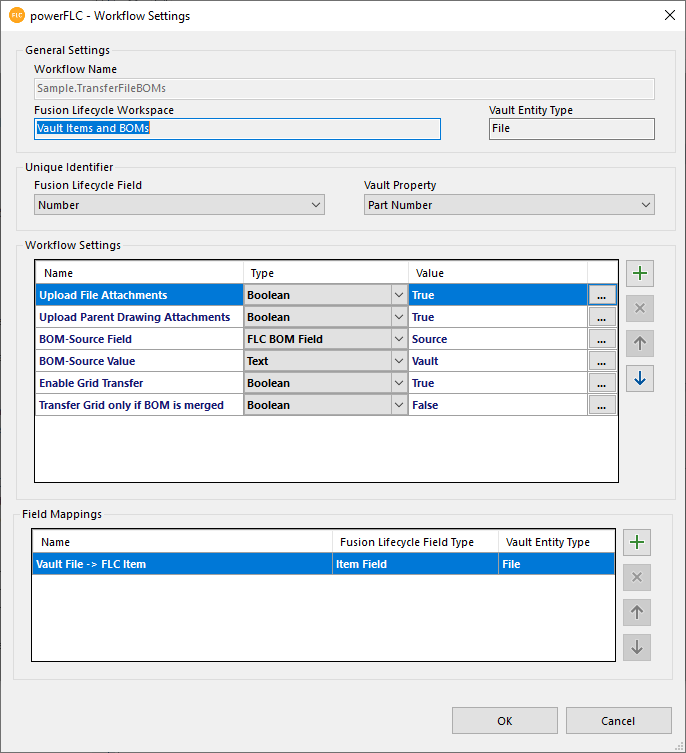
If set to "True" all files attached to a file in Vault are be uploaded as attachment to the corresponding Fusion Manage item
If set to "True" all files attached to the parent drawing of a file in Vault are be uploaded as attachment to the corresponding Fusion Manage item
An "Item Field Mapping" is available. Values from the file properties chosen in Vault File Property column will be copied to the Fusion Manage fields chosen in the Fusion Manage Item Field column when an item is created or updated in Fusion Manage.
Note: A BOM field mapping is not present in the powerFLC Configuration Manager but can be adjusted in the script file "C:\ProgramData\coolOrange\powerJobs\Jobs\Sample.TransferFileBOMs.ps1"
In order to configure the workflow to be executed on a Vault lifecycle state transition, Vault's Custom Job Types functionality can be used.
- Log in to Vault as Administrator
- Open the Vault settings
- Navigate to Bahaviors, Lifecycle...
- Edit a "Lifecyle Definition" (e.g. "Flexible Release Process")
- Navigate to the "Transitions" tab
- Edit the Transition that should trigger the workflow
- Navigate to the "Custom Job Types" tab
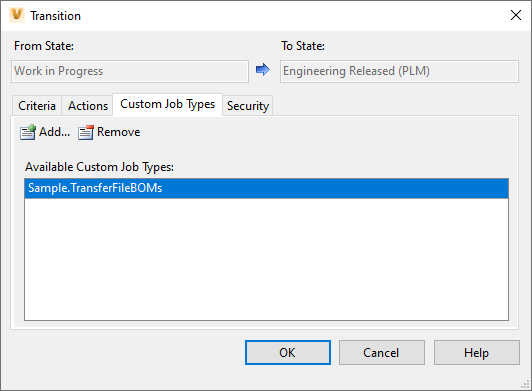
- Use the "Add..." command to add the job type "Sample.TransferFileBOMs"
- Commit the changes using the "OK" button
Start / restart powerJobs Processor to automatically register the jobs to Vault's JobProcessor
powerFLC: https://doc.coolorange.com/projects/coolorange-powerflcdocs/en/stable/
powerJobs Processor: https://doc.coolorange.com/projects/coolorange-powerjobsprocessordocs/en/stable/
The usage of these samples is at your own risk. There is no free support related to the samples. However, if you have questions to powerJobs or powerFLC, then visit http://www.coolorange.com/wiki or start a conversation in our support forum at http://support.coolorange.com/support/discussions