A simple editor and viewer for graphviz code

I made this on a whim because I needed to have a dead simple editor and visualizer for graphviz code. It was also a reason to learn how to embed and read data with .svg files. This is just a quick tool, nothing fancy.
- auto-save for the active file in the editor (just 1 file!)
- continuous linting (to catch syntax issues)
- basic syntax highlighting
- reading in and parsing SVG files to extract graphviz code (if any)
The SVG loading function will fail if the file does not contain useful graphviz code. The intention of this feature is to use SVG files as 'save files' for both the code and the image itself. Loading one of these files could be a handy way to recover lost work or extend an SVG file generated earlier with this application.
The above view allows an SVG file to be saved. We can include that file here to demonstrate how it might look when embedded in a website and rendered in your browser. This is the SVG file:
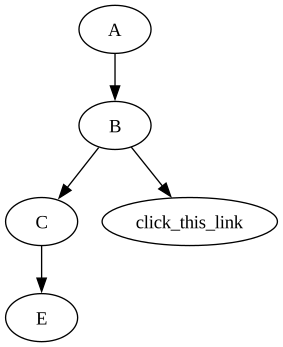
If you click that link, it should take you to example.com in another tab.
The application is a single python file and a template. It pulls down a few stylesheets from the Internet. This setup is the bare-bones way of running TechLines. Anyway, here's the basic procedure.
Don't forget this uses the dot graphviz engine. You can test quickly to see if you have dot installed. It should display some sort of version string.
$ dot -V
dot - graphviz version 12.2.1 (20241206.2353)
If you don't have that installed:
- on ubuntu/debian you can
apt-get install graphviz - on macos, you can
brew install graphviz
Then run the server. By default it should listen like a good little default flask app on http://localhost:5000.
uv run main.py
Then close the 38,291,484 other flask apps you have running on port 5000 and just go to http://localhost:5000 in your browser.
aaaaaand you're done.
Run the unit tests like so.
uv run pytest
Run tests and generate a coverage report.
uv run pytest --cov=. --cov-report=term-missing --cov-report=html
Then maybe crack that coverage report open in the browser.
python -m http.server
weeee