The porpuse of the project in the attached link is to interpret a special programming language that has been written for controlling and flying the flightgear flight simulator (https://www.flightgear.org). In this project, we used sockets and multi-threading for acheiving communication with the simulator's socket server. (https://github.com/danak1997/flightgear)
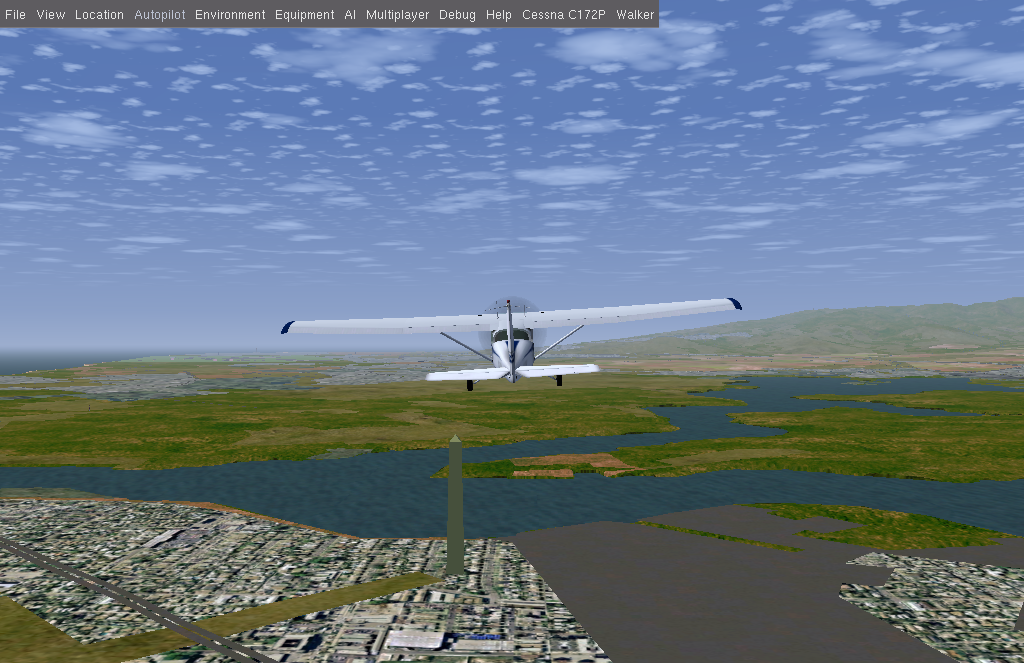
In order to start the program you should do the following:
- add two arguments to flightGear's setting:
- --generic=socket,out,10,REQUESTED-IP,5400,tcp,generic_small.
- --telnet=socket,in,10,REQUESTED-IP,5402,tcp.
- add the included "generic_small.xml" file to the FlightGear installation folder under "data/Protocol". After following the steps above, you are ready to fly! You should first run the program (compile the files by running The following command: "g++ -std=c++14 *.cpp -Wall -Wextra -Wshadow -Wnon-virtual-dtor -pedantic -o a.out -pthread").
- run the output file from the compilation process(a.out), and give it the path to your flight script(fly.txt etc.) as an argument like so - "./a.out path/to/fly.txt"
- start flightgear.
Congragulations! the hard part is over. Now let the plane do the rest of the work... We'll guide you through the different prints in the console during the flight:
- Before even starting the flight simulator, you'll see the message: "accepting clients". That means that the "OpenDataServerCommand" has executed successfuly and now waiting for connection.
- After the flight simulaor started, if the connection proccess was made the "OpenDataServerCommand" will let you know that "client connected, listening for messages". The server you've created is now waiting for data from the simulator.
- Next, "connected" will appear - you are connected as a client (you're actually also a server 😉 ). That is the multi-threading in action!
The program reads from a file which you can edit however you want - write the commands for the simulator and create your own journy...
🔹 Open Data Server Comand[port] - open server using sockets used for reciving data.
🔹 Connect Control Client Command[ip, port] - open client using sockets used for sending data.
🔹 Var Command[name] - assign value to a variable.
🔹 Print Command[expression] - Prints the given expression to consol.
🔹 Sleep Command[expression] - stop the main thread for the specified amount of time.
🔹 while Command[condition] - while the condition is true, execute the commands.
🔹 If Command[condition] - if the condition is true, execute the commands.
🌟 Chen Baadani
🌟 Dana Kreimer