This plugin is no longer needed for NativeScript (NS) 8.x and iOS. It's been replaced by out of the box functionality in TextField. Attempting to run this plugin in NS 8.x even in the demo returns an error Error is: Command xcodebuild failed with exit code 65.. Make the following changes in your NS 6 or NS 7 projects:
ns plugin remove nativescript-numeric-keyboardRemove any references and code related to that plugin:
// remove
import { NumericKeyboard } from "nativescript-numeric-keyboard";

// remove
new NumericKeyboard().decorate({
    textField: <TextField>page.getViewById('myTextFieldName'),
    noDecimals: true,
    noIpadInputBar: true,
    returnKeyTitle: 'OK',
    onReturnKeyPressed: (): boolean => {
        // do something
        return false; // Return true to hide/collapse the keyboard, use false to keep the keyboard in place.
    }
});
Replace any references in your XML files:
<!-- REMOVE reference -->
<Page
    xmlns:NK="nativescript-numeric-keyboard"
>
<!-- FROM -->
<NK:NumericKeyboardView android:keyboardType="number" ... />
<!-- TO OPTION #1 -->
<TextField ios:keyboardType="integer" android:keyboardType="number" ... />
<!-- TO OPTION #2 -->
<TextField keyboardType="number" ... />
Documentation for the keyboardType has more options to choose.



For iOS. Falls back to the best platform-provided numeric keyboard on Android. Note that the iPad UI looks a bit sleeker than shown in the screenshot below.
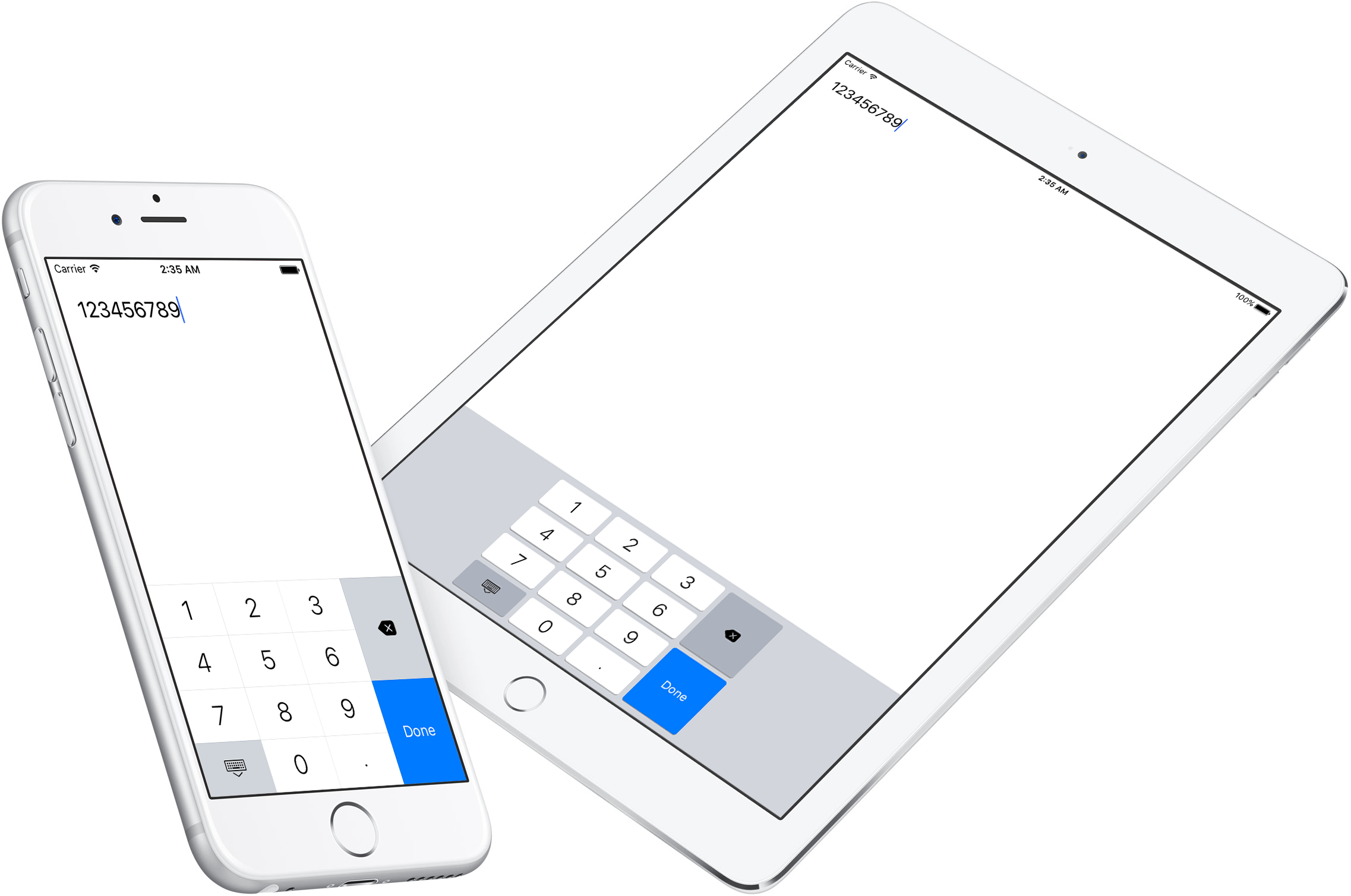
BREAKING CHANGE in plugin version 4.0.0: we used to extend a
TextView, now it's aTextField, because I finally hacked my way around a problem that prevented a TextField from emitting atextChangeevent. Note that unless you use thedecorate()function this will not affect you (bar some now-fixed UI glitches).
From the command prompt go to your app's root folder and execute:
tns plugin add nativescript-numeric-keyboard
tns plugin add nativescript-numeric-keyboard@4
mind the
@4on the end, because since plugin version 5 we require NativeScript 7.
Check out the demo to play with the keyboard. You can run it by typing npm run demo.iphone / npm run demo.ipad at the root of the project.
This plugin wraps a native keyboard library and extends a regular NativeScript TextField.
You can set any property you'd normally set on this widget (class, text, etc) and a few plugin-specific properties as well.
You can either define the keyboard in XML or in code - use whichever tickles your fancy.
After adding the plugin you can add a namespace to your view (using NumKey below) and use the NumericKeyboardView tag to render a TextField powered by this plugin.
<Page xmlns="http://schemas.nativescript.org/tns.xsd" xmlns:NK="nativescript-numeric-keyboard">
  <NK:NumericKeyboardView text="123.45" maxLength="10" returnKeyButtonBackgroundColor="#333333" />
</Page>
For comparison sake we kick off with the default appearance of a TextField and then showcase the various properties this plugin exposes:
| Appearance | Declaration |
|---|---|
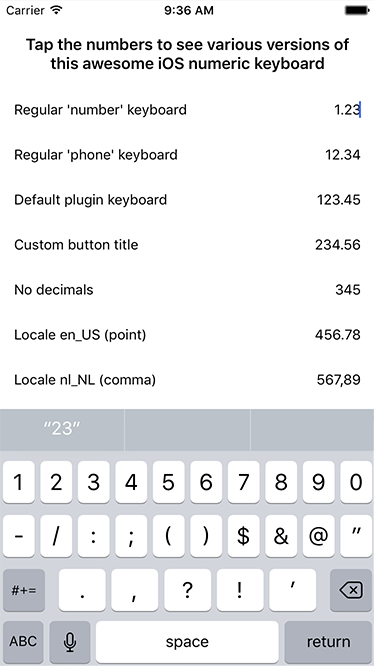 |
<TextField keyboardType="number" text="1.23"/> |
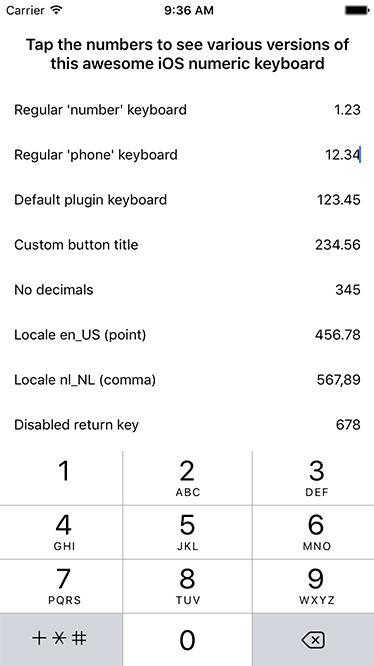 |
<TextField keyboardType="phone" text="12.34"/> |
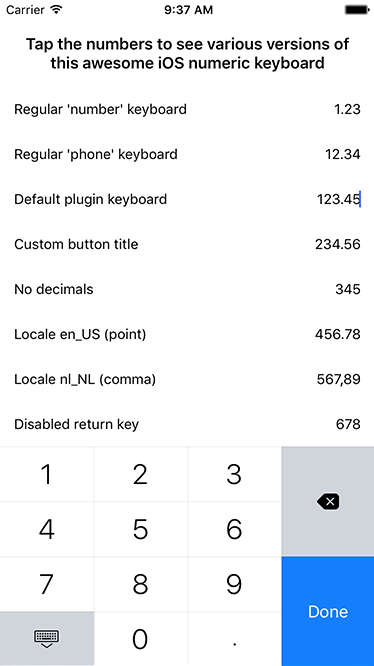 |
<NK:NumericKeyboardView text="123.45"/> |
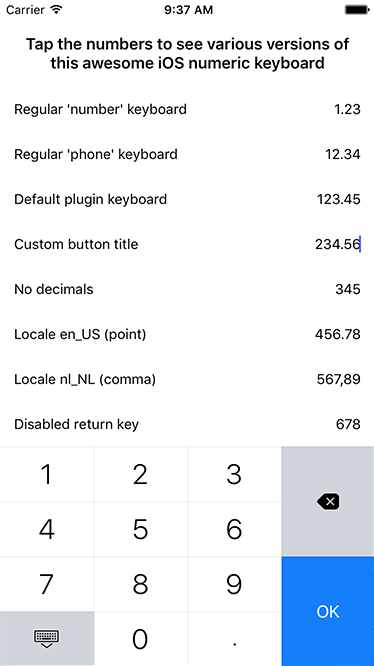 |
<NK:NumericKeyboardView returnKeyTitle="OK" text="234.56"/> |
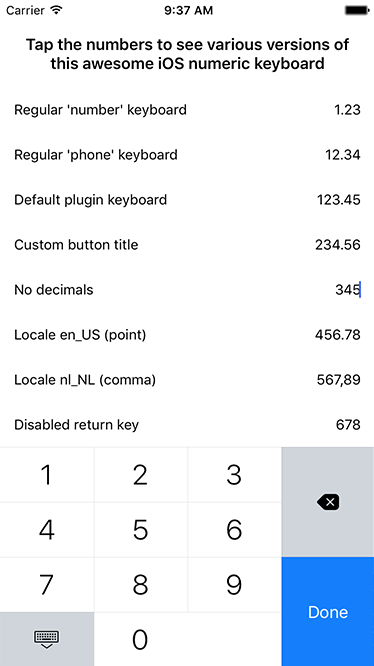 |
<NK:NumericKeyboardView noDecimals="true" text="345"/> |
 |
<NK:NumericKeyboardView noReturnKey="true" text="678"/> |
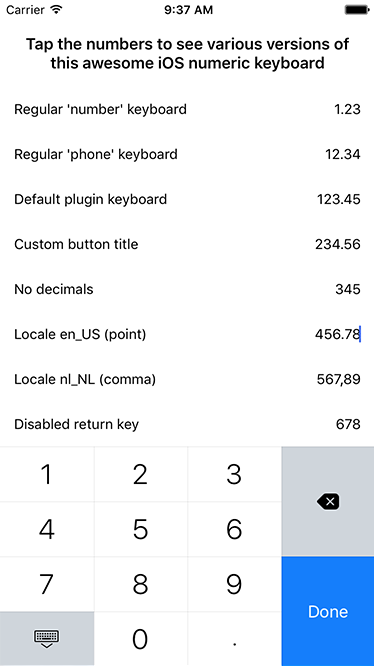 |
<NK:NumericKeyboardView locale="en_US" text="456.78"/> |
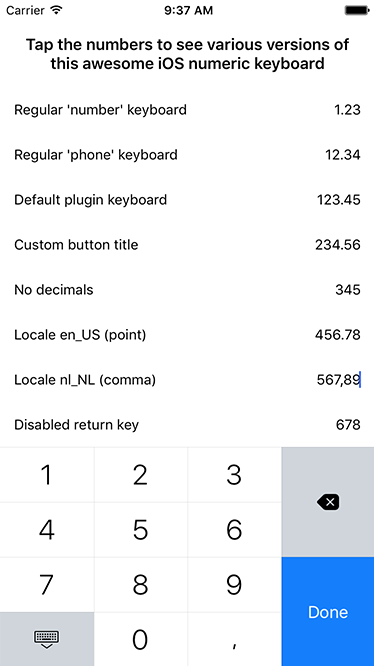 |
<NK:NumericKeyboardView locale="nl_NL" text="567,89"/> |
It's similar (although a bit cleaner than in these screenshots), except for some padding on both sides of the keyboard:
| Appearance | Declaration |
|---|---|
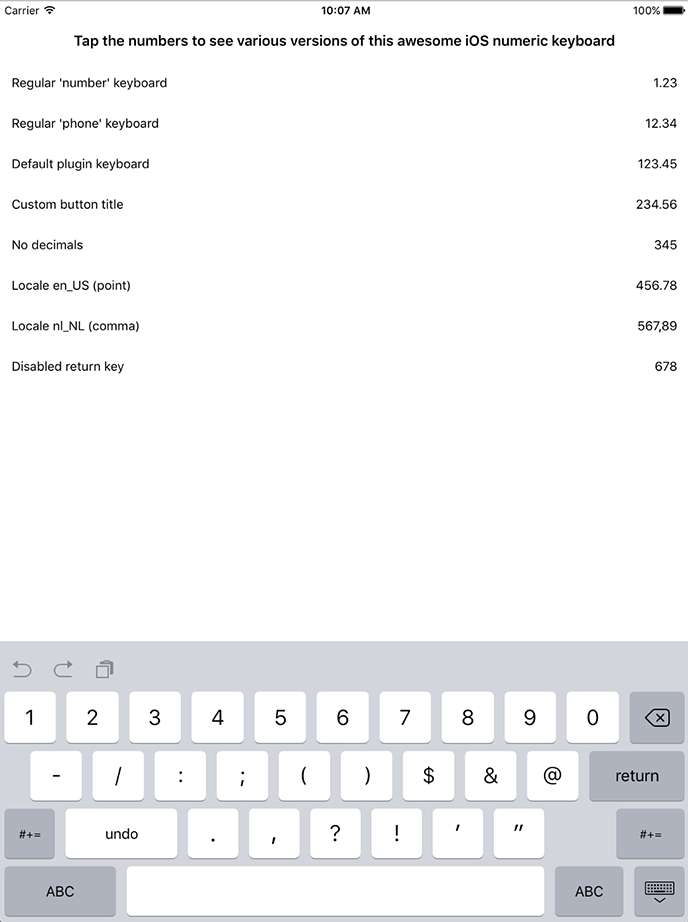 |
<TextField keyboardType="phone" text="12.34"/> |
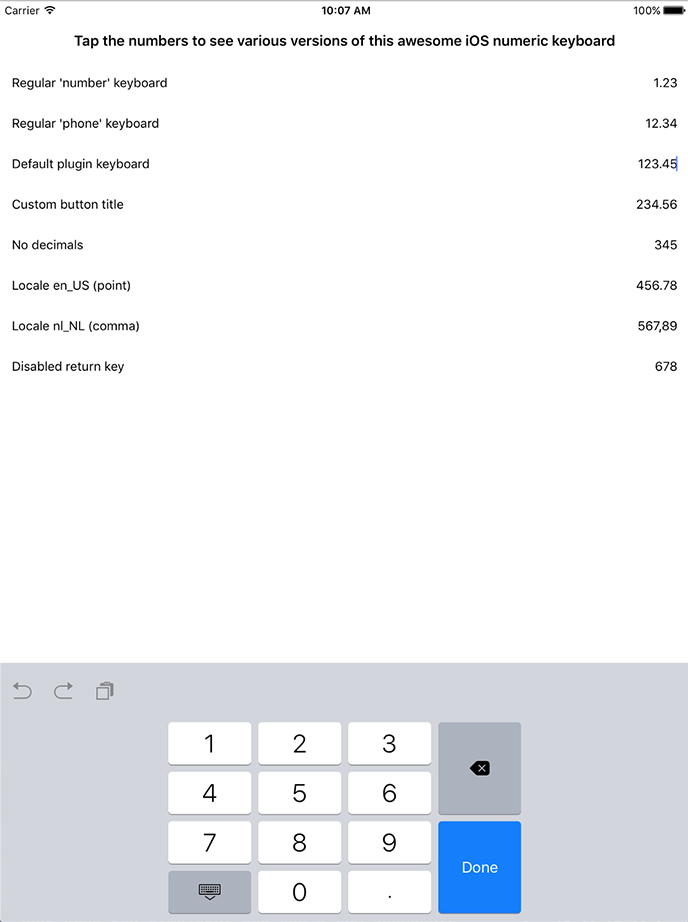 |
<NK:NumericKeyboard text="123.45"/> |
Open main.ts (or .js) and add this:
Vue.registerElement('NumericKeyboard', () => require('nativescript-numeric-keyboard').NumericKeyboardView);Check this registerElement example, and this usage example.
Open app.module.ts and add:
import { registerElement } from "nativescript-angular";
registerElement("NumericKeyboard", () => require("nativescript-numeric-keyboard").NumericKeyboardView);
For the views you can take a look at the examples above and just replace NumKey:NumericKeyboardView by NumericKeyboard :
<NumericKeyboard noDecimals="true"></NumericKeyboard>Say you have a plain old TextField in your view:
<Page xmlns="http://schemas.nativescript.org/tns.xsd" loaded="pageLoaded">
  <TextField id="myTextField" maxlength="8" keyboardType="number" text="{{ myTextPlugin }}" />
</Page>
Now you can enhance the TextField with this plugin by doing fi. this in the pageLoaded event you've defined in the <Page> tag above:
import { NumericKeyboard } from "nativescript-numeric-keyboard";
import { Color } from "tns-core-modules/color";

export function pageLoaded(args: observable.EventData) {
  const page = <pages.Page>args.object;
  const textField = <TextField>page.getViewById("myTextField");
  // or even textField.ios

  // this is an example with all possible properties, not that they make sense combined :)
  new NumericKeyboard().decorate({
    textField: textField,
    returnKeyTitle: "Go!",
    locale: "en_US", // or "nl_NL", or any valid locale really (to define the decimal char)
    noReturnKey: true,
    noDecimals: true,
    noIpadInputBar: true, // suppress the bar with buttons iOS renders on iPad since iOS 9
    returnKeyButtonBackgroundColor: new Color("red"), // optional, set this to change the (default) blue color of the 'return' key
    onReturnKeyPressed: (): boolean => {
      // Your code here
      return true; // Return true to hide/collapse the keyboard, use false to keep the keyboard in place.
    }
  });
}
Note that on Android you'll just get a numeric keyboard as usual (since we specified keyboardType="number").