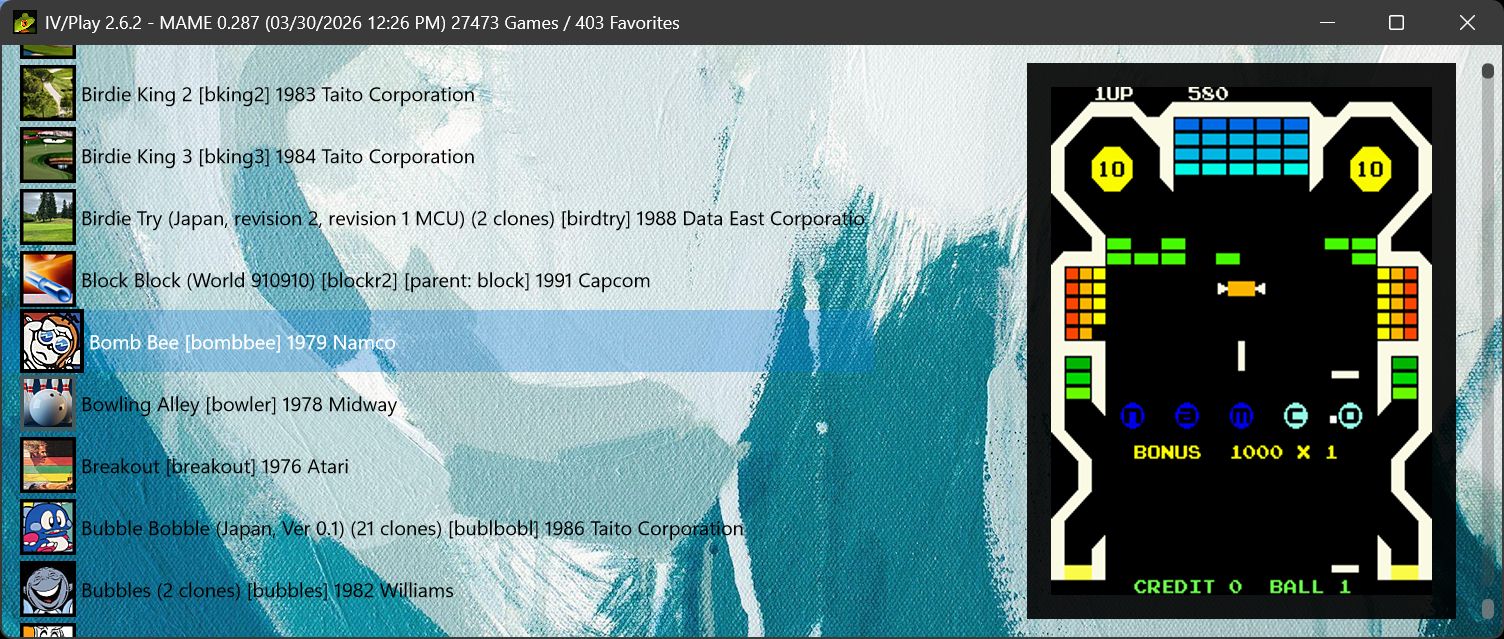
IV/Play (pronounced 'Four Play') is a desktop/keyboard-oriented GUI front-end for MAME™ designed for high-end Windows 11 systems. Conceived in 2006 and commissioned in 2011 by John IV of the original MAMEUI team, it provides a classic MAMEUI-style experience decoupled from the MAME core — built on a DirectX 11 / Direct2D render pipeline and shipping as a Native AOT executable for consistent, near-instant performance.
Latest release: {{VERSION}} — Homepage & Download
- Place
IV-Play.exeande_sqlite3.dllin your MAME directory alongsidemame.exe. - Launch
IV-Play.exe— it auto-detectsmame.exeand builds its database and caches on first run. - Subsequent launches render a fully populated, interactive UI in under one second.
IV/Play is architected for speed and a smooth user experience, trading a one-time initial asset processing cost for a highly responsive and fluid interface during use.
GPU Render Pipeline: The entire UI is rendered using a DirectX 11 / Direct2D pipeline, offloading all drawing to the GPU. This completely eliminates the "scrolling judder" and freezes that affect GDI-based applications.
Native AOT Build: IV/Play ships as a fully self-contained Native AOT executable. No .NET 10 runtime installation is required — the binary includes everything it needs. Startup behavior is consistent across machines with no JIT warm-up variance.
Optimized Warm Start: The application renders a fully populated, interactive UI in under one second by querying a flattened summary table via raw ADO.NET and applying filters in memory. Heavier assets like the icon atlas load on a background thread after the UI is already interactive.
SQLite Backend: The data layer uses a robust SQLite database. Schema creation and cold-start writes use Entity Framework Core; all warm-start reads bypass EF Core entirely in favor of raw ADO.NET for maximum throughput.
Multi-Layered Caching: To minimize disk I/O and maximize speed, IV/Play uses several caching strategies:
- Icon Atlas Cache: All game icons are combined into a single raw binary atlas loaded into GPU memory at startup, eliminating the overhead of individual file reads.
- DAT File Cache:
history.xml,mameinfo.dat, andcatlist.iniare parsed once and stored in optimized binary caches; subsequent launches load them in milliseconds. - In-Memory Art Cache: An LRU (Least Recently Used) cache keeps frequently viewed artwork like snapshots and flyers in RAM.
- Archive Support: Supports reading artwork and icons directly from
.zipand.7zarchives (non-solid archives only) to reduce file system clutter.
High DPI Support: The application is fully DPI-aware and scales its UI elements correctly on high-resolution monitors like 1440p and 4K without compatibility hacks. Multi-monitor setups with different DPI values are handled correctly when dragging between screens.
Dynamic Color Themes: Beyond static themes, IV/Play includes dynamic engines (Brightness Ladder, Saturation Gradient, Dual Contrast, Analogous Palette, Miami Pastels) that automatically calculate UI text, border, and scrollbar colors based on the dominant color and brightness of your background image.
Multiple Views: Cycle through multiple view modes — classic list, large icon list, grid, and flat view — using Alt+P or Tab. Cycle through various icon sizing presets with Alt+I.
Flat View: A non-indented view mode that decouples clones from their parents and enables global sorting by description, machine name, manufacturer, or year via Alt+S.
Machine Status Icon Borders: Icon borders optionally reflect each machine's MAME driver status — green for working, orange for imperfect, red for not working. The imperfect border defaults to a background-derived theme color to complement the dynamic theme system; this can be overridden with a fixed RGB in F1. Extends to softlist media items.
Properties View: Alt+Enter opens a detailed properties panel for the selected game, surfacing driver status, graphics and sound emulation quality, genre, MAME first-appearance version, machine type, cocktail mode, bad/no-dump flags, CPU, sound hardware, and softlist information. All fields are selectable and copyable.
Aspect Ratio Sizing: Hold Ctrl while resizing the window to maintain the classic 2.35:1 "TohoScope" aspect ratio.
Customizable Artwork: The art area supports unlimited user-defined art types, configurable borders, transparency, and nearest-neighbor scaling. A simulated scanline effect can be applied to snapshots; it is suppressed automatically on vector games and non-MAME-generated art types such as flyers, marquees, and PCBs.
Clone Counts: Optionally display the number of clones on parent entries and the parent name on clone entries, surfacing historical bootleg patterns at a glance.
DAT-Integrated Filter: The filter engine (Ctrl+F) indexes history.xml, mameinfo.dat, and catlist.ini at launch. New operators expose this data directly:
history:(aliashist:) — searches the descriptive text from History.xmlgenre:(aliasgg:) — queries CatList.ini categories and subgenresmameversion:(aliasmv:) — filters by first-appearance MAME version from Mameinfo.datmachinetype:(aliasesmtype:,mt:) — matches machine type descriptors from History.xml (e.g.,pinball,fruit machine,home console)
Unified Software Lists: Search across MAME's entire software library (140,000+ items across consoles and computers) alongside arcade machines. Queries like name:zaxxon return the arcade version and all console ports.
Advanced Text Filter: Supports natural language queries (capcom late 90s no clones), hybrid queries (Year >= "1995" noclones), field-specific searches (manufacturer:Sega workingstatus:imperfect), hardware filters (2 screens, lightgun, vertical), and 3-way status operators: workingstatus: (ws:) for machine driver quality (working/imperfect/notworking) and supportstatus: (ss:) for softlist item support level (yes/partial/no).
Curated Game Lists: A built-in Arcade Only list excludes mechanical, gambling, and redemption games for a purist experience. The Available list audits your MAME rompath and shows only machines whose ROM archives are confirmed present on disk. Cycle all lists with Alt+Insert / Alt+Delete.
Save Filter as Custom List: Press Alt+L from any filter result set to automatically save it as a named entry in IV-Play.Custom.ini.
Custom Game Lists: Create your own game lists in the IV-Play.Custom.ini file and select them from the configuration screen.
Favorites: Add/remove games to a favorites.ini file with Ctrl+D. Supports both machines and specific software list items (e.g., a2600/combat). At launch, favorites are audited against the current MAME database — unrecognized entries are flagged with an asterisk and reported in an overlay, helping catch machine renames between MAME versions.
Settings Snapshot: A snapshot of the entire configuration is captured at launch and available in the F2 log overlay. Changes made during the session are flagged with a Δ marker on the next F2 view for rapid diagnostic identification.
INP Recording: Every game launch automatically records a session .inp file. Press Ctrl+Enter on any game to play back its last recorded session. Recording can be toggled in F1.
Diagnostic Overlays:
F2: View the application log file — including the startup performance report and Settings Snapshot — in a real-time overlay.F3: View theIV-Play.cfgfile in an overlay.F7: Display a performance dashboard with FPS, CPU/GPU memory usage, and garbage collection stats.~(Tilde): Open a "DAT Peek" overlay to viewhistory.xmlormameinfo.datcontent for the selected game, with search term highlighting.
Benchmarking:
F9: Runs "BigBench," a suite of 36 games to stress-test system performance.Ctrl+B: Benchmarks the currently selected game for 90 emulated seconds.
Command Line Autocomplete: The F1 command line override field captures MAME's -showusage output and uses it to drive inline suggestions.
OS: Windows 11 (Preferred)
Runtime: None — IV/Play ships as a Native AOT self-contained executable. No .NET installation is required.
Hardware: A modern system with a multi-core CPU, an SSD/NVMe for fast asset loading, and a DirectX 11 compatible GPU is strongly recommended to meet the application's performance goals.
IV/Play is a portable application and does not require a formal installer.
- Place the IV/Play executable and its files into your main MAME directory alongside
mame.exe. - Ensure the
e_sqlite3.dllfile is in the same directory asIV-Play.exe. - On first launch, IV/Play will automatically detect
mame.exe. If it can't find it, a dialog will appear prompting you to locate it. - The application will then build its database and caches in a sub-folder named
IV-Play. YourIV-Play.cfg,favorites.ini, andIV-Play.Custom.inifiles will be kept at the same level as the executable to survive cache clears and resets.
| Key | Function |
|---|---|
~ (Tilde) |
Toggles the DAT "peek" overlay. Use Left/Right arrows to resize and Tab to cycle. |
Alt+1-0 |
Switches directly to the corresponding art type. |
Alt+D |
Cycles through favorite display modes (Off, Favorites + Games, Favorites Only). |
Alt+Enter |
Displays the properties dialog for the selected game. |
Alt+I |
Cycles through the icon display sizing presets. |
Alt+L |
Saves the current filter result set as a new entry in IV-Play.Custom.ini. |
Alt+P / Tab |
Cycles through all Game List view modes (List, Large Icon, Grid, Flat). |
Alt+S |
Cycles through global sort options while in Flat View. |
Alt+Ins/Del |
Cycles through Custom Game Lists (e.g. Full, Arcade Only, Available, User Lists). |
Alt+Left |
Exits a software list view or clears an active filter. |
Arrows |
Navigate the game list. Left/Right jump by letter (List View) or cell (Grid View). |
Ctrl+B |
Benchmarks the currently selected game (90s duration). |
Ctrl+D |
Adds or removes the selected game from favorites.ini. |
Ctrl+Enter |
Launches playback of a previously recorded game session (.inp file). |
Ctrl+F / E |
Opens the Text Filter dialog. |
Ctrl+R |
Selects a random game. |
Ctrl+Shift+C |
Copies the currently filtered list to the clipboard. |
Ctrl+Shift+L |
Cycles through the MAME command line history. |
Shift+Enter |
Launches a softlist machine (e.g., a console) directly, bypassing its software list. |
Shift+1-9 |
Launches the selected game in N concurrent windowed instances (Tiling). |
Shift+F8 |
Displays all internal splash screens in an overlay panel. |
Ins / Del |
Cycles through the available Themes (Static and Dynamic). |
F1 |
Opens the Configuration screen. |
F2 |
Toggles the Log file overlay (includes startup performance report and Settings Snapshot). |
F3 |
Toggles the Config file (.cfg) overlay. |
F4 |
Re-links the MAME executable. |
F5 |
Refreshes all data from MAME and rebuilds all caches. |
F6 |
Runs the Asset Auditor to find missing art. |
F7 |
Toggles the performance dashboard overlay. |
F8 |
Initiates a factory reset. |
F9 |
Runs the "BigBench" MAME benchmark suite. |
F10 |
Runs the Build Verification Test (BVT) for developer diagnostics. |
F11 |
Toggles full screen mode. |
F12 |
Builds the Available gamelist (rompath audit). |
Home / End |
Navigates to the start/end of the current section (Favorites or Main List). |
Page Up / Down |
Navigates the list by one page. |
- Creator & Designer (2006-Present): John L. Hardy IV
- Legacy v1 Codebase (2011–2016): Matan Bareket


