
CorelDRAW addon for print industry
SQTools is a CorelDRAW addon containing tools that help with DTP processing files in the print industry.
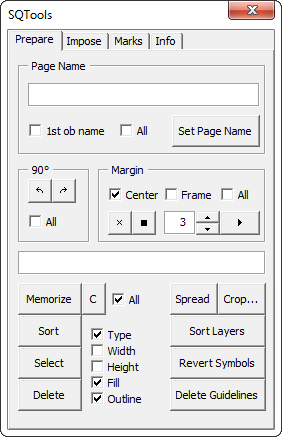
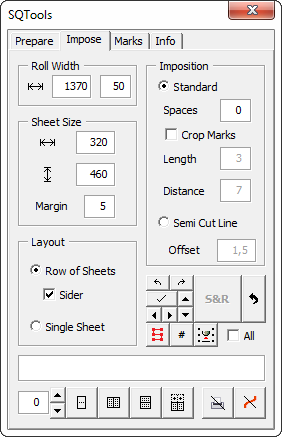
Process print files in no time
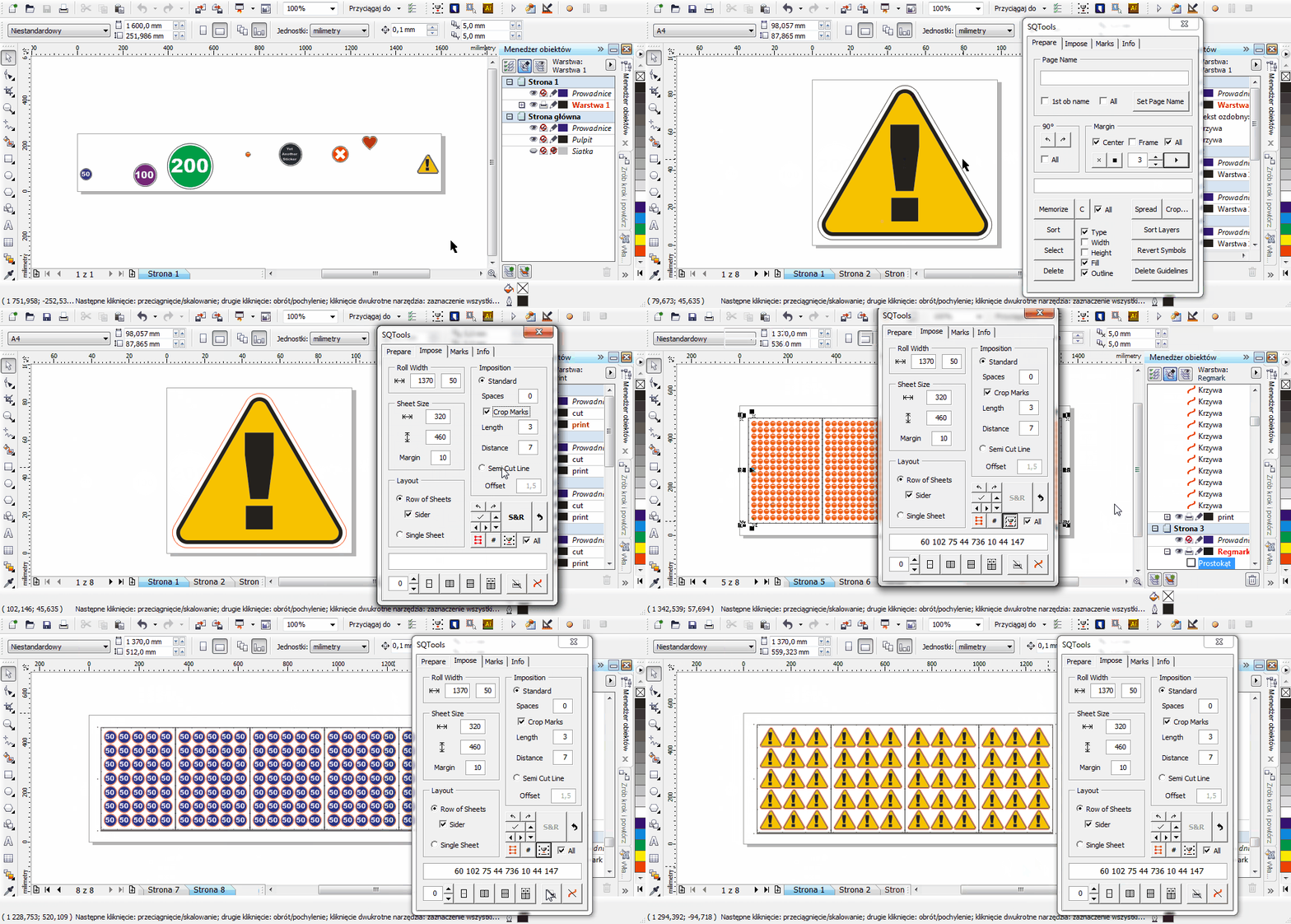
Multiple layout options available:
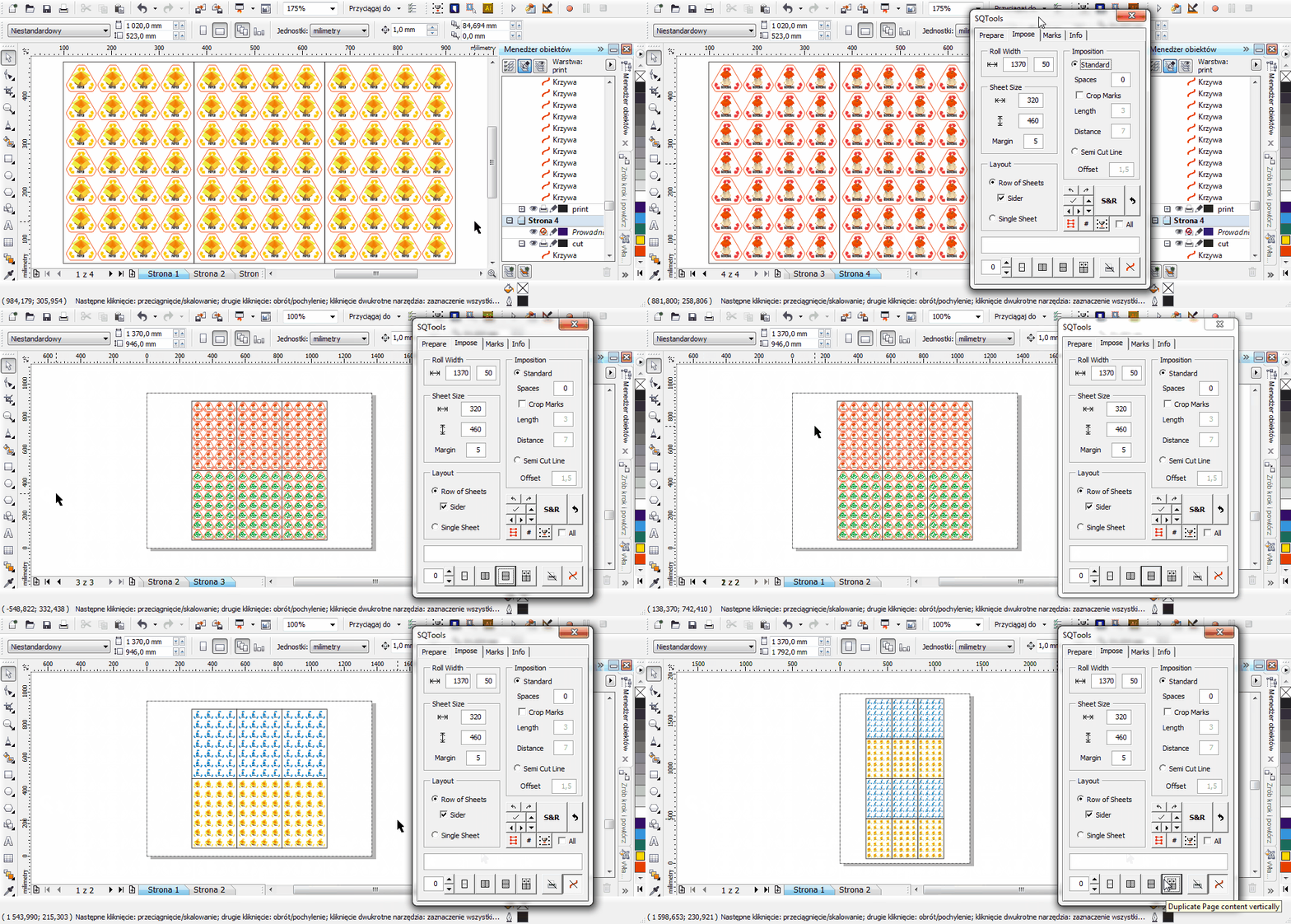
full width, sheets split, sider sheet (fill blank space with smaller sheet), single sheets, combine sheets
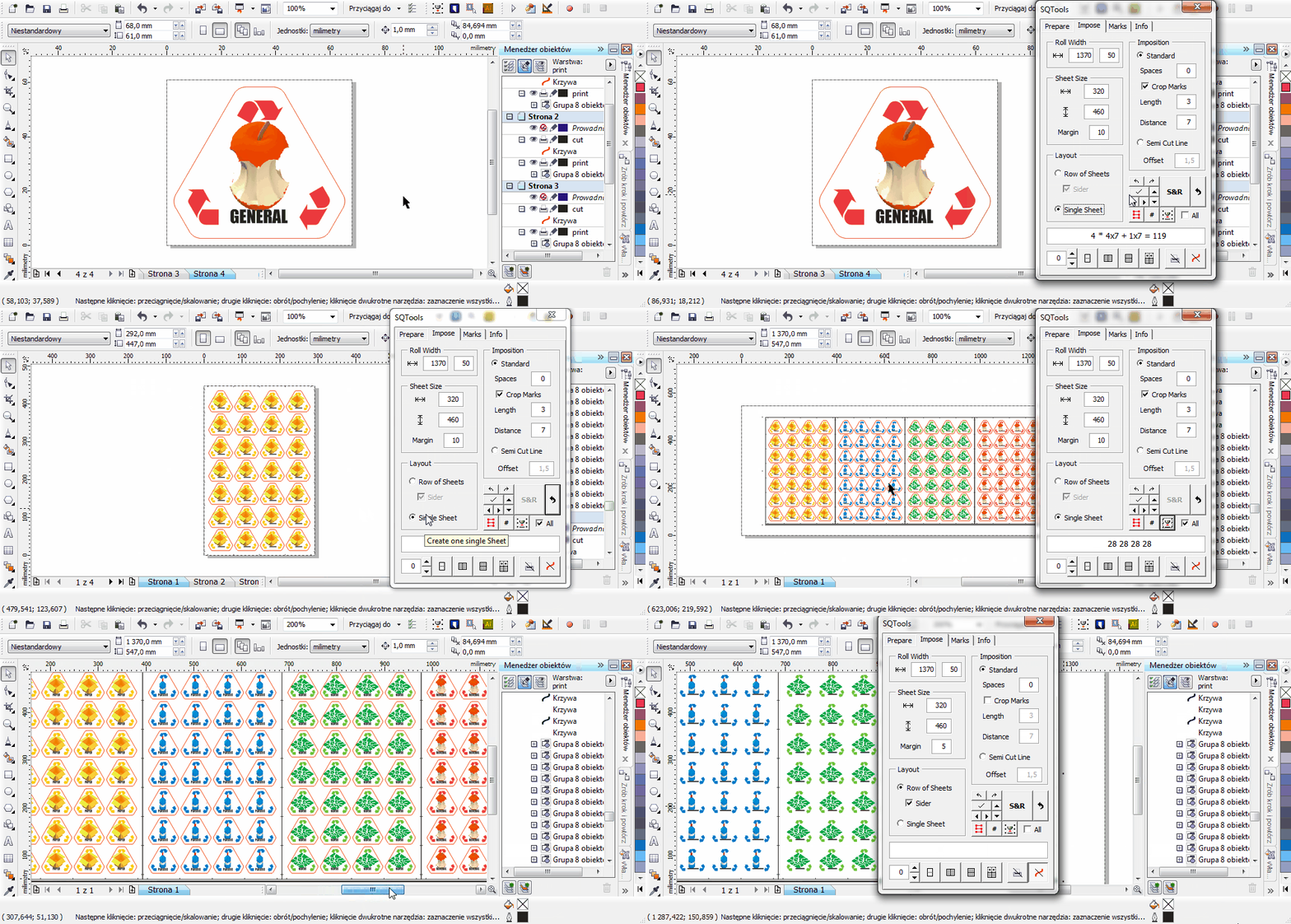
Separate layers for printting and cutting plotters
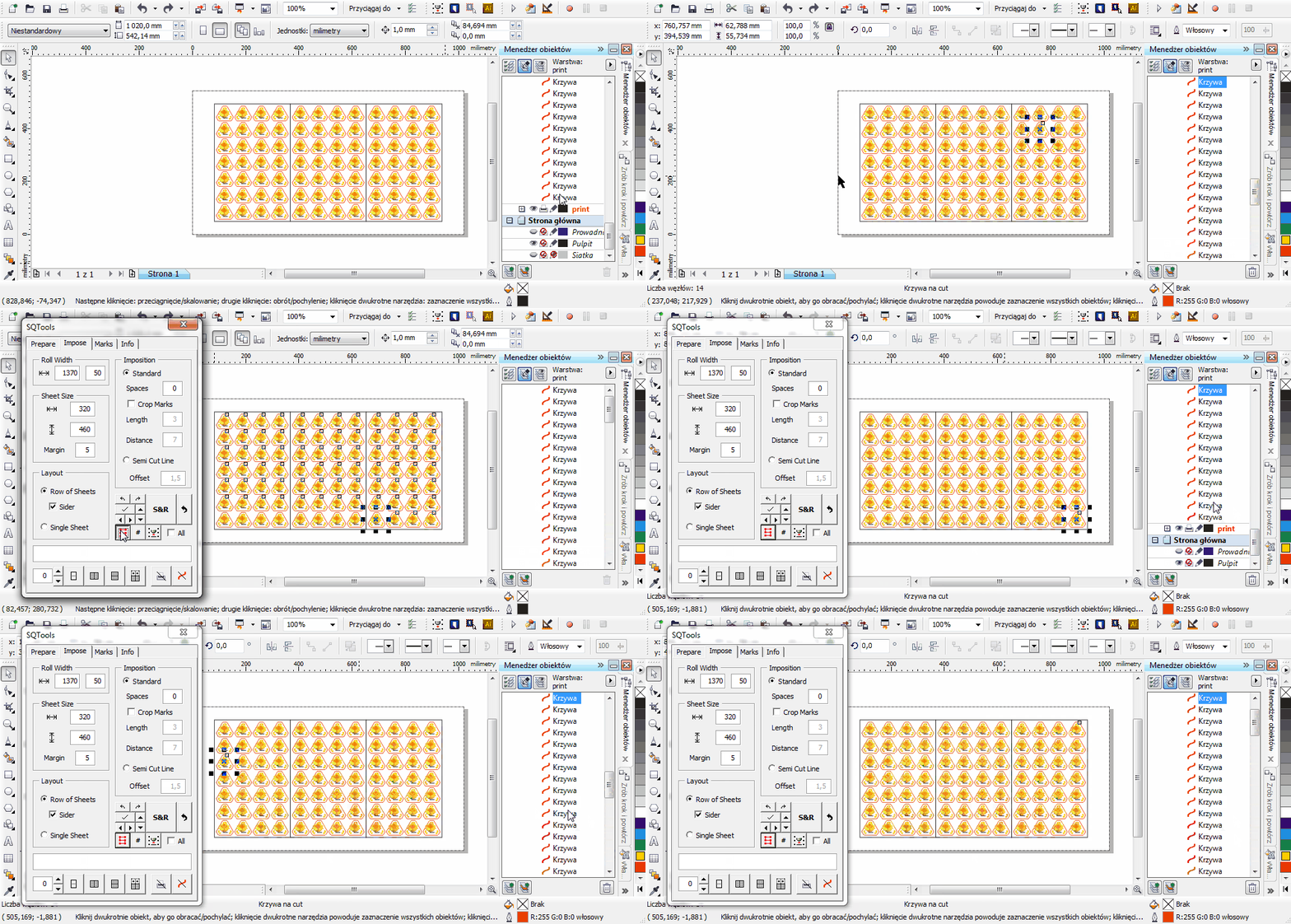
Reducing cut process time
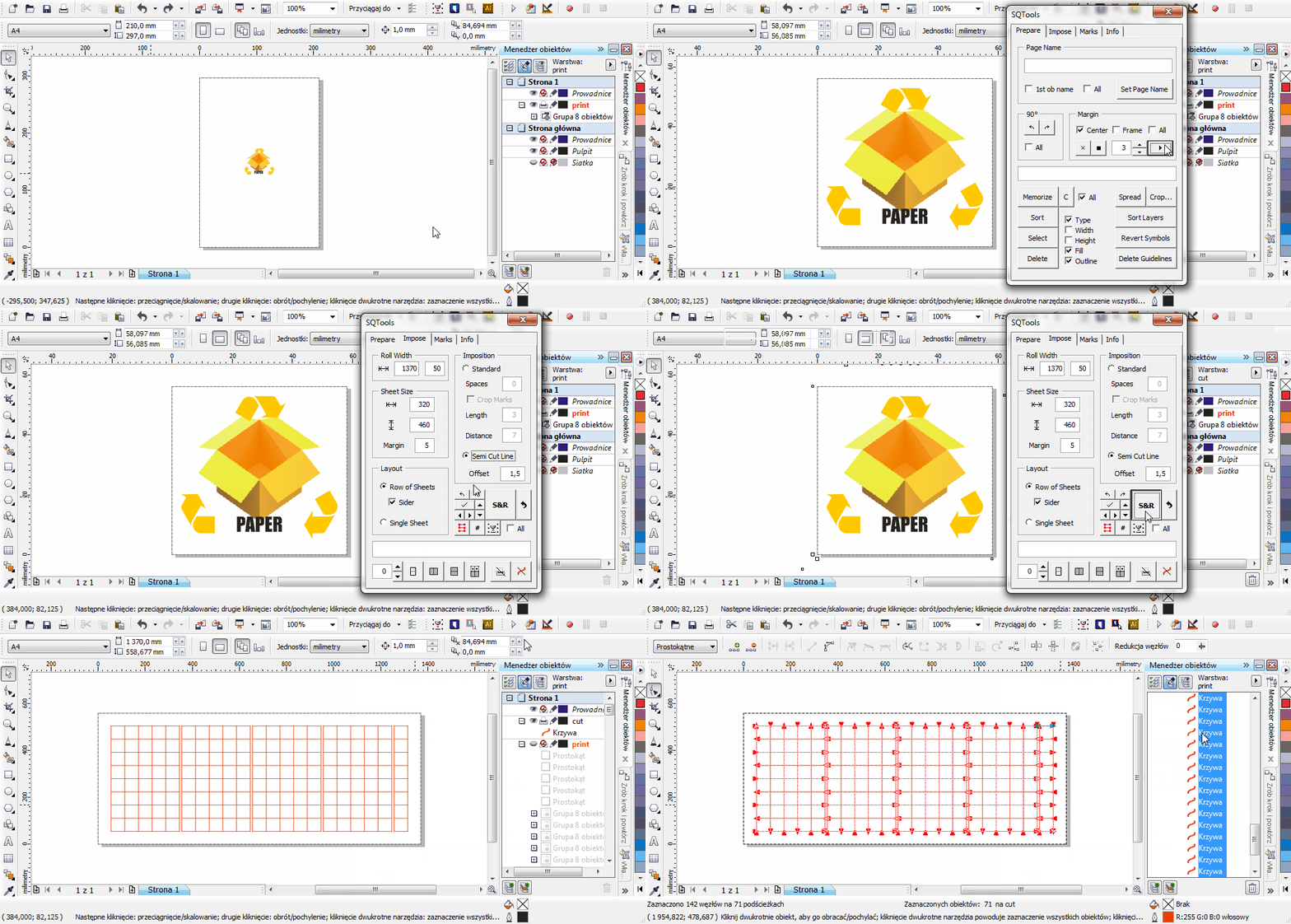
Reducing cut process time for solid background rectangular shapes
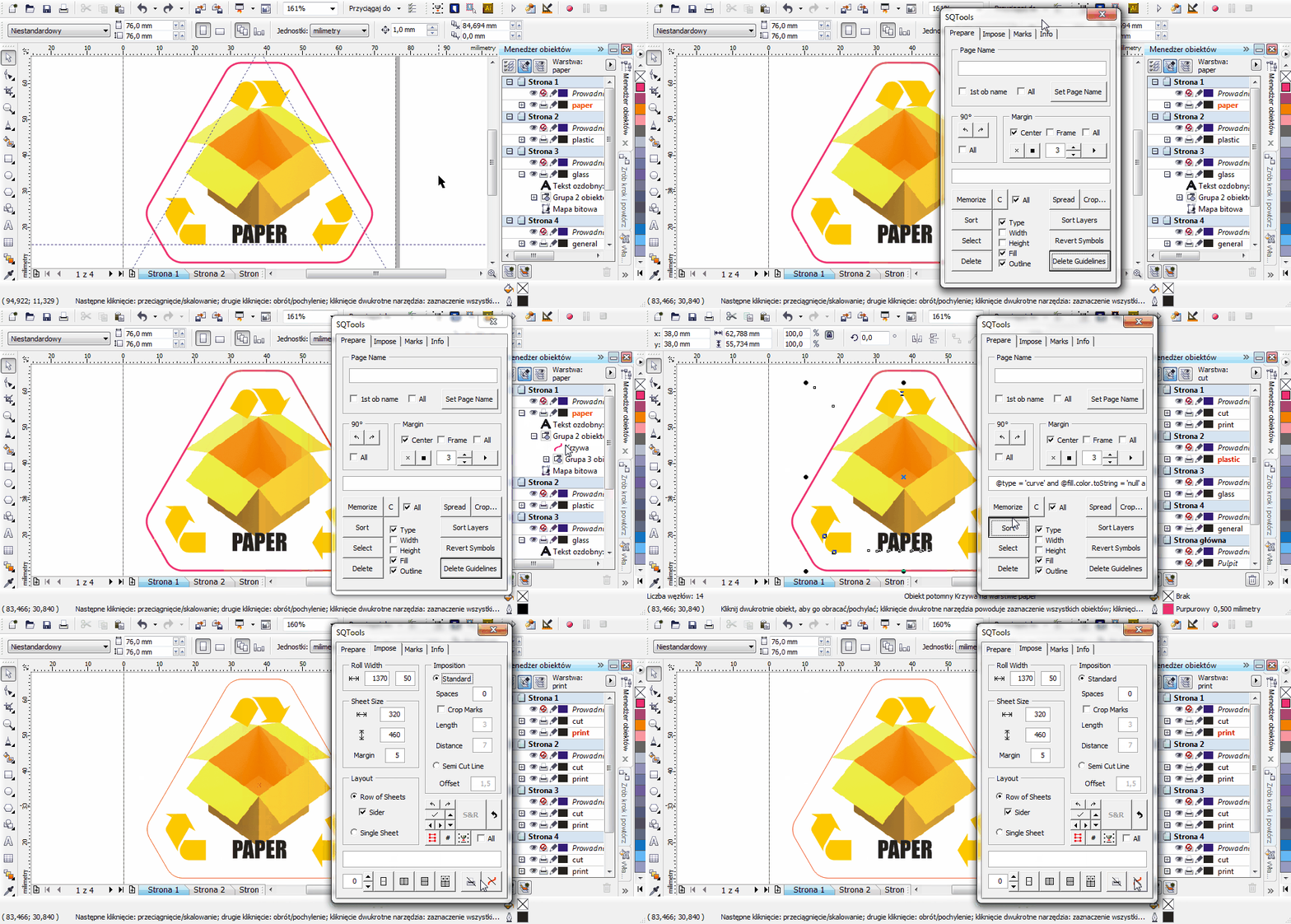
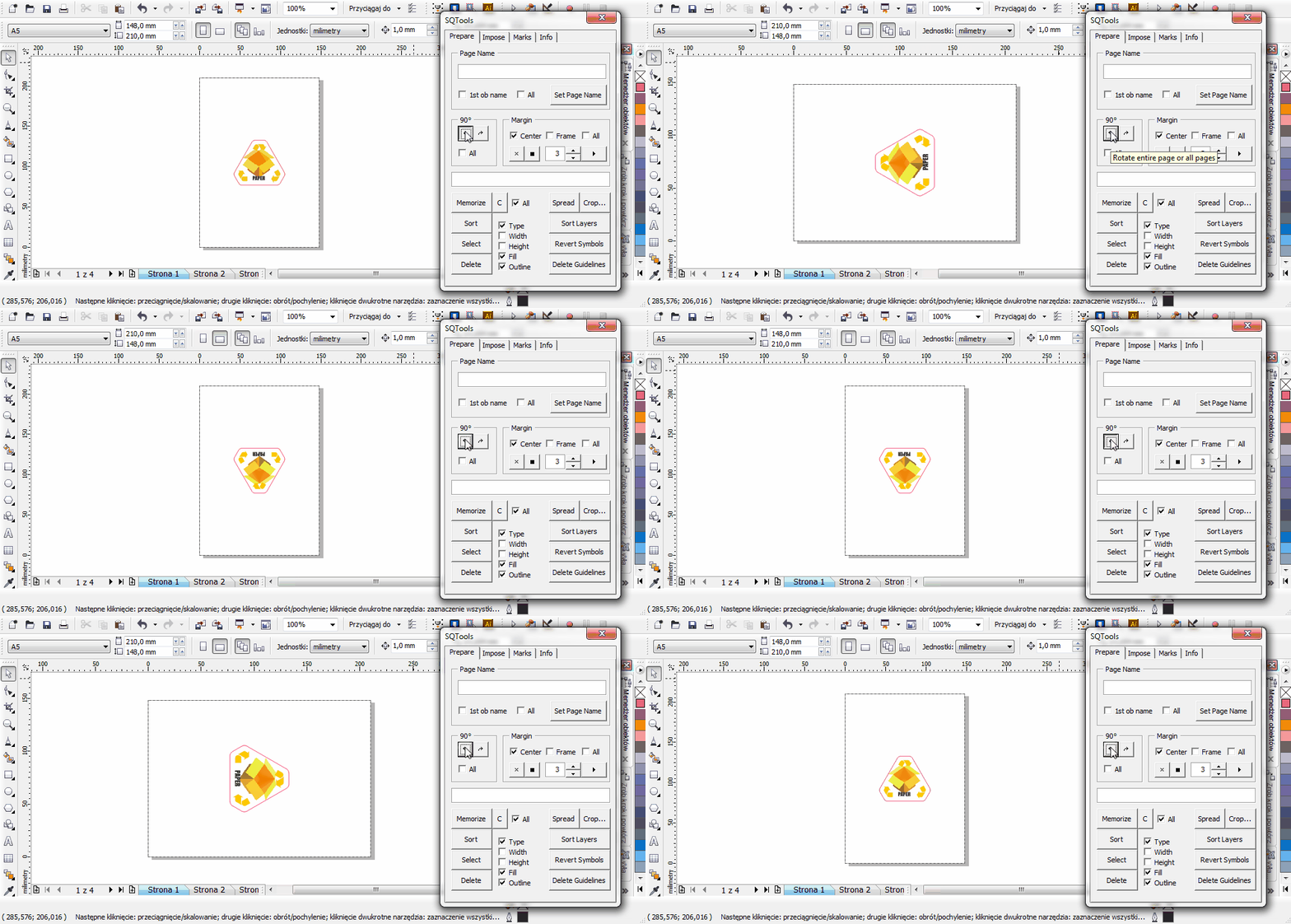
Rotate/margin/crop
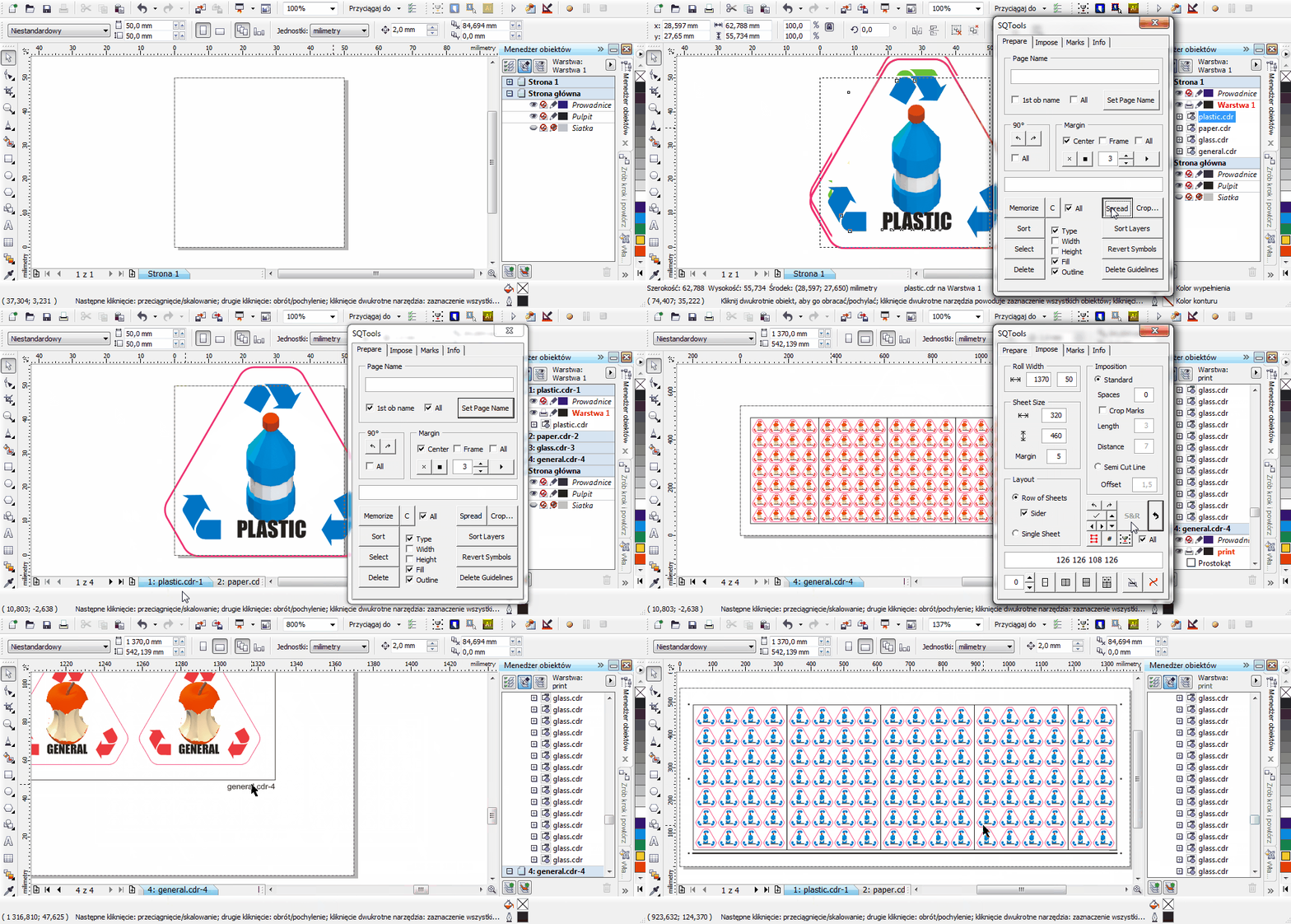
Combine or duplicate your pages keeping print and cut layers separated
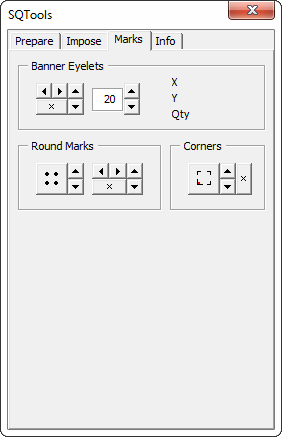
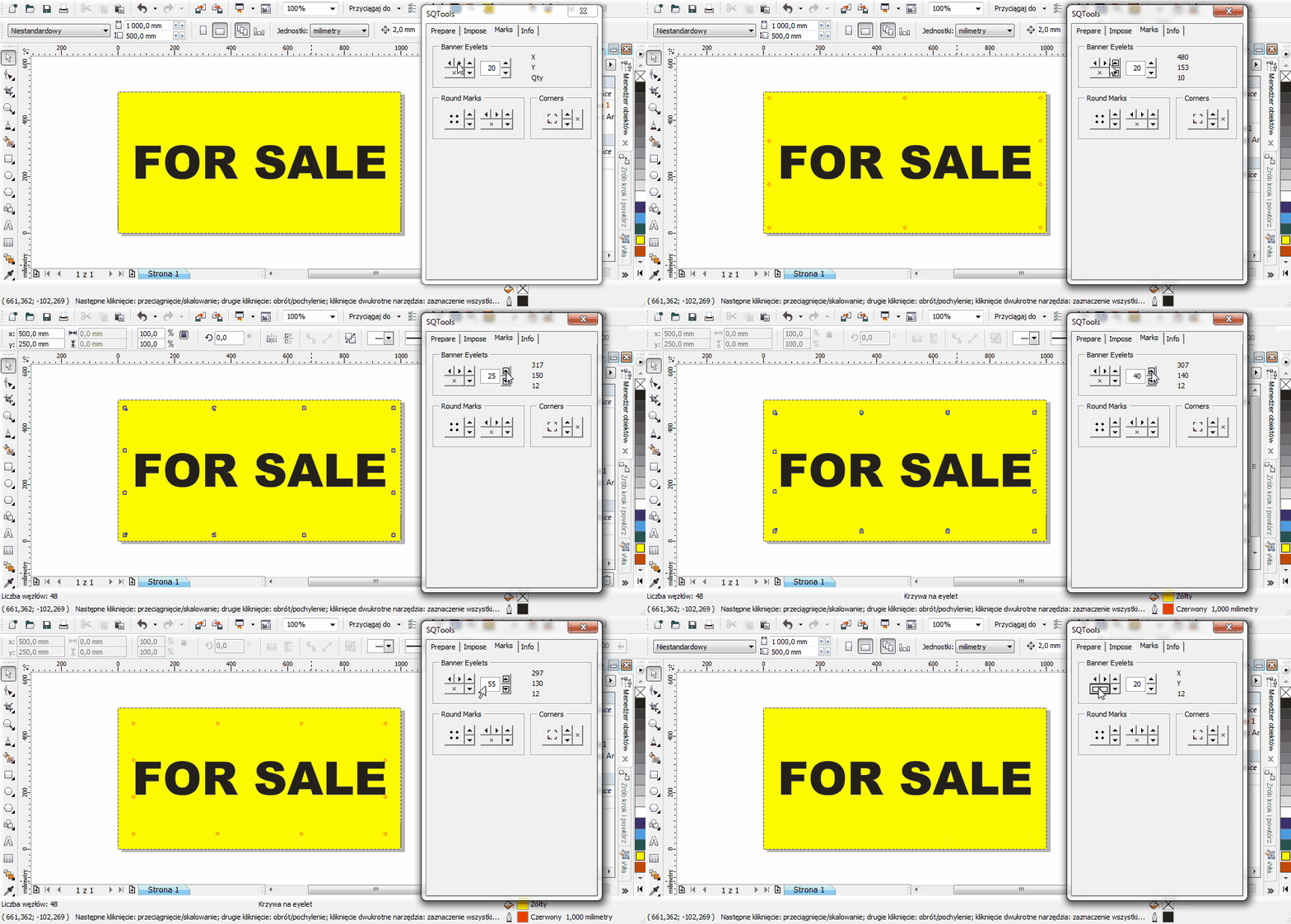
Crop marks | banner eyelets | summa opos markers | round markers | etc.
Use custom text (eg. order number), imported objects names and pages indexes to create labels - very usefull to identify your jobs after printing
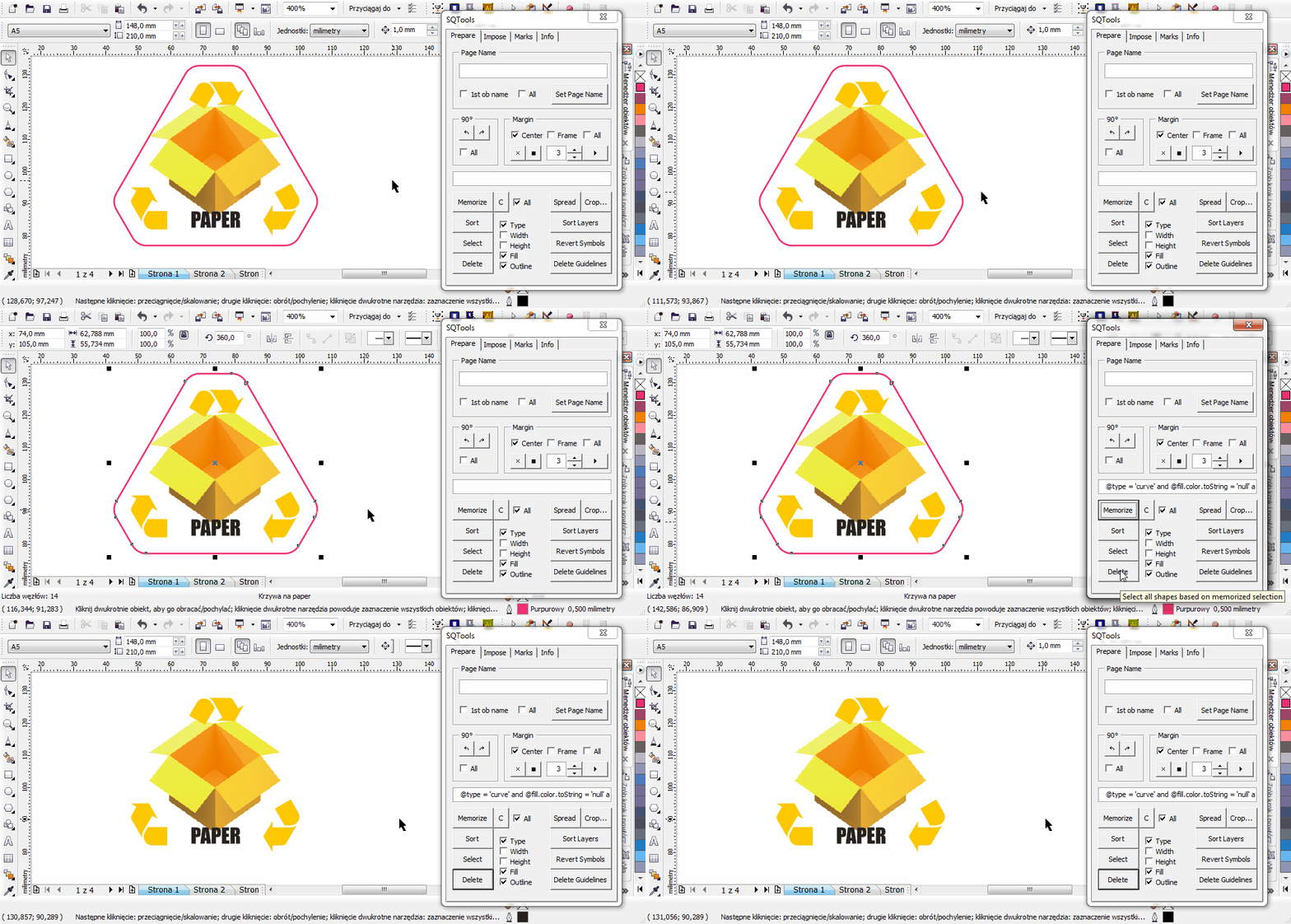
Sort/select/delete specified objects on multiple pages depending on their type, fill & outline colors, width & height
CorelDRAW with Visual Basic for Applications (VBA) support.
Hint: Run CorelDRAW, go to Tools > Macros - if options there are available that means VBA is enabled.
CorelDRAW Special Editions do not support VBA.
- Download SQT.gms and sqt_ico.bmp from repository.
- Locate the CorelDraw GMS directory under following path:
C:\Users\username\AppData\Roaming\Corel\CorelDRAW Graphics Suite XX\Draw\GMS
(Show hidden files, folders, and drives checkbox in folder options must be enabled).
Hint: type %appdata% in your explorer path field to get to AppData\Roaming directory. - Place downloaded SQT.gms file into the GMS folder.
- Run CorelDRAW.
- Show Options window CTRL+J, goto Customization > Commands > select Macros from dropdown list.
- Find sqTools.run and drag'n'drop it on convenient place in your workspace.
- To set the Toolbar icon for your SQTools button, go to Appearence tab > Import dropdown list > File and select downloaded sqt_ico.bmp
Hover your mouse over any button to see a description of how it works.