Creating Signed APK in Wercker
Generating a signed APK is never difficult in Android Studio. But you need to do a few extra steps to build an APK from Wercker since you are using a signing key, which you do not want to share with public. This page tells you how to use an encrypted signing key to build and generate signed APKS.
You have to create a signing keystore to create release APK. The easiest way to do this is, go to Build > Generate Signed APK. In the pop-up, click Next. Here you have an option to provide an existing keystore path or to create a new one:
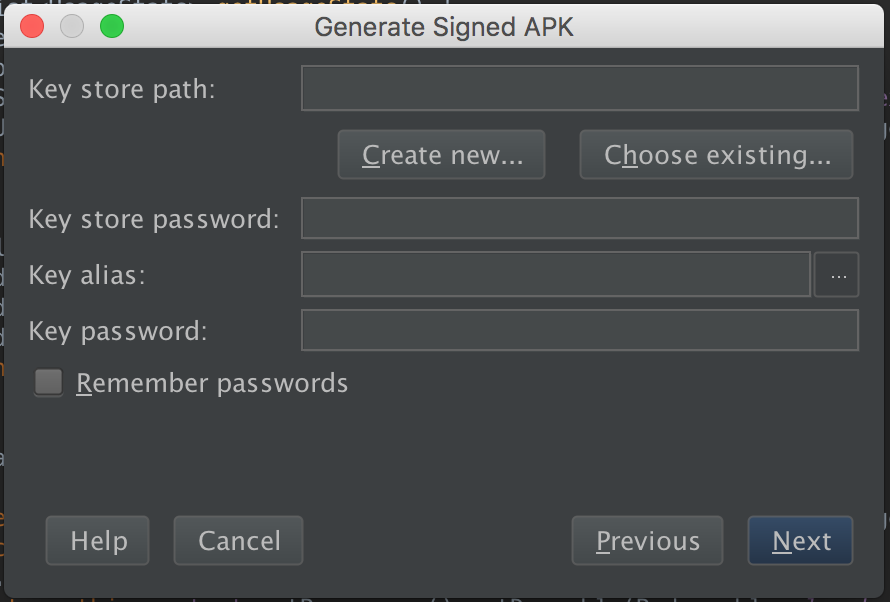
If you do not already have one, click on Create New... option and fill in the required data:
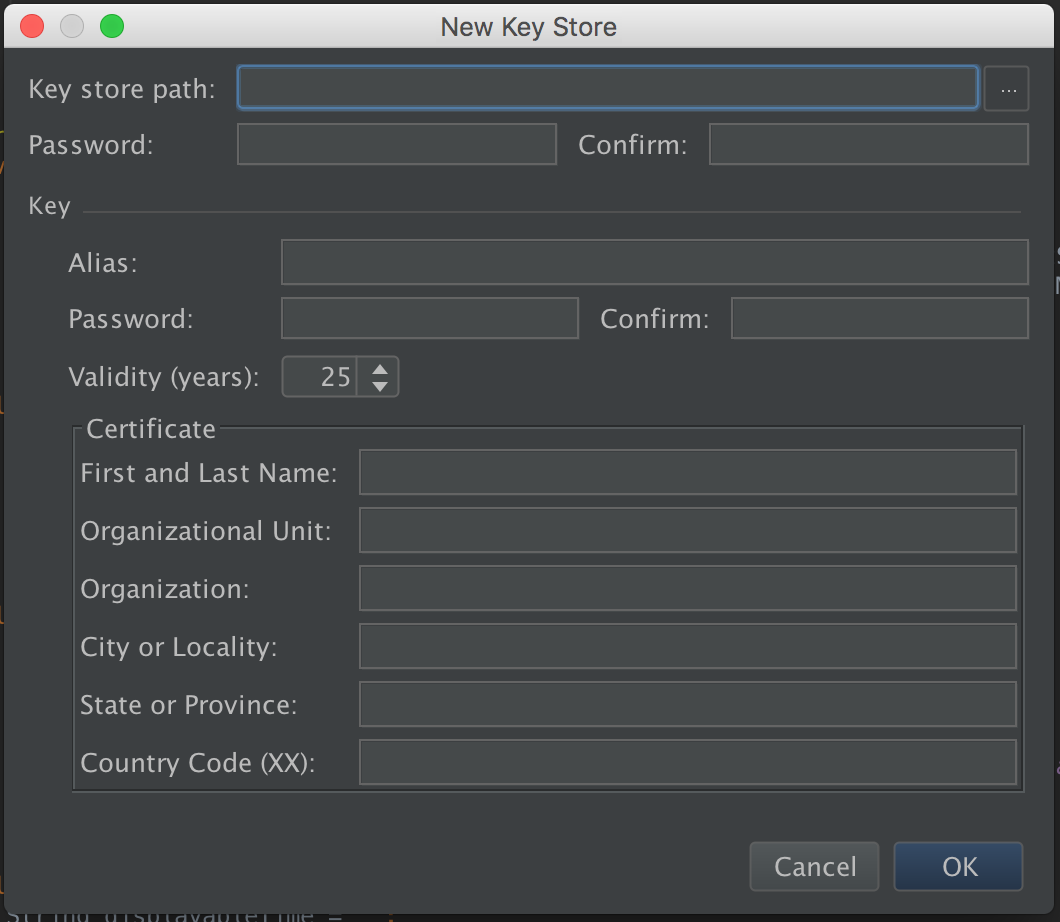
You can also create keystore using keytool command. Read more about it here: Generate Keys.
First, you need to encrypt the keystore file. You can use openssl (sudo apt-get install openssl) to encrypt the file as follows:
openssl enc -in app/androidsample.jks -out app/androidsample.enc -e -aes256 -k "<key>"assuming that the key file name is androidsample.jks and it resides in your app directory. Move the key file (app/androidsample.jks) out of the repository and commit only the encrypted file (app/androidsample.enc).
Add the signing configuration to app/build.gradle:
signingConfigs {
  release {
    try {
      storeFile file(System.getenv("SAMPLE_KEY_FILE"))
    }
    catch (Exception ex) {}
    keyAlias System.getenv("SAMPLE_KEY_ALIAS")
    storePassword System.getenv("SAMPLE_STORE_PASSWORD")
    keyPassword System.getenv("SAMPLE_KEY_PASSWORD")
  }
}

buildTypes {
  release {
    ...
    signingConfig signingConfigs.release
  }
}
Make sure to give all the values as environment variables, so that they are not exposed in the repository.
Now, add the key decryption step in wercker.yml:
- script:
  name: decrypt key
  code: openssl enc -in app/androidsample.enc -out app/androidsample.jks -d -aes256 -k $DECRYPTION_KEY
Don't forget to add all the required environment variables in wecker settings of your project.