Are you working from home more often in these unprecedented times? Maybe it would be nice to give your housemates an indication that you're on a video or audio call. OnAir will monitor the state of your audio/video input devices, then change the color of a light! Here's an animated gif of it doing the thing:
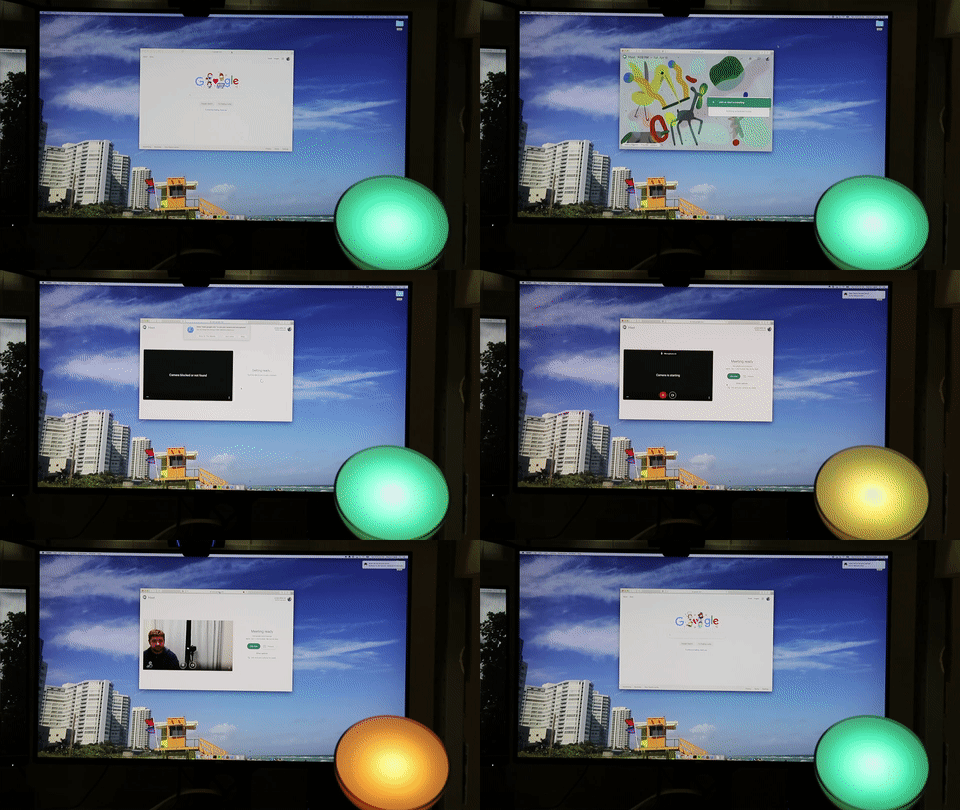
OnAir will either directly access your Hue system, or it can invoke IFTTT webhooks. You can use these to drive lots of different activities.
You'll need the following to get started:
- Familiarity with the macOS command line interface.
- If using the Hue light
- A Philips Hue Bridge.
- Some form of light to use with it - perhaps a Philips Hue Go portable accent light
- Alternatively, you need an IFTTT account and some device that you can drive from IFTTT
There's a signed package available under the releases page here.
Perhaps you'd prefer to build OnAir. That's cool. If you've never built any Go things before, you can use homebrew to install golang and get going pretty quickly:
brew install golang
mkdir ~/gostuff
export GOPATH=$HOME/gostuff
export PATH=$GOPATH/bin:$PATH
go get github.com/patcable/onair
go install github.com/patcable/onair
You can put your $GOPATH wherever you want, and you'll likely want to toss those export lines in your shell profile. If you want to modify any of the code, you can find that in $GOPATH/src/github.com/patcable/onair.
Once you have the onair binary, you'll need to set OnAir up so that it can talk to the Hue bridge. To do this, run onair hue init, walk over to the Hue bridge and press the button. This authenticates OnAir to the Hue bridge. If successful, you should see this output:
Head on over to your HUE Bridge and push the button to create a new user.
Waiting 15 seconds - you can set this longer by passing --timeout to 'onair init'.
   Username: wrheWt05IVRdftSh76Af8fAUcX0o4Olwi-YvNYIO
Save this value, you'll need it for the config file.
Now, create a file at $HOME/.onair.yml with this in it:
---
hueuid: wrheWt05IVRdftSh76Af8fAUcX0o4Olwi-YvNYIO
Once the hueuid value is in place, you can run onair hue lights which will display information about the lights connected to the bridge. The output should look like:
Your Hue bridge knows about these lights:
 -> Meeting Orb:
      ID:         5
      Color Mode: xy
      Brightness: 70
      Hue:        34758
      Saturation: 212
      Color Temp: 153
      XY:         [0.1988 0.4146]
The name of the light is to the right of the arrow. Take note of the ID number. Then, figure out what color you want to use to indicate that your camera or microphone is active. Use the Hue application on your phone to change the color, then run onair hue lights to look at the new settings.
I use an orange, something like 0.5153,0.4146 for an active call, and a mint green - 0.1989,0.4146 for an inactive call. You can use different brightnesses too, from 1 to 254. I use 70.
Now that you've figured out what colors you want to use, update your YAML file:
---
system: hue
hueuid: wrheWt05IVRdftSh76Af8fAUcX0o4Olwi-YvNYIO
huelight: 5
huebrightness: 70
hueactive: 0.5153,0.4146
hueinactive: 0.1989,0.4146
Type onair run then hit enter.
The lack of output is normal. Find an application that enables the microphone or camera, and watch your light change color! It should change color back to the inactive color once you close the application. This works across any application on macOS! It's very satisfying.
Create two webhooks in IFTTT - one for the action when a zoom call is started, and one for when it stops.
Now, create a file at $HOME/.onair.yml with this in it:
---
system: ifttt
ifttt-key: YOUR IFTTT WEBHOOK KEY
ifttt-onair: IFTTT Maker Event to invoke when you go on the air
ifttt-oftair: IFTTT Maker Event to invoke when you go off the air.
Then, run the watcher as in the previous section
If onair run works well for you, you can make it run in the background automatically.
First, symlink /usr/local/bin/onair to $GOPATH/bin/onair, then toss the launch agent plist in ~/Library/LaunchAgents/net.pcable.onair.plist. You can find that plist file in this repository.
Load the launch configuration with launchctl load ~/Library/LaunchAgents/net.pcable.onair.plist and it'll start immediately.
PRs are welcome! I'm happy to look at those as time allows. As you can tell by the commit history, I dont really do much for this app.
If you're interested in adding bits to OnAir this section will be helpful.
onair.gohas the CLI skeleton, and all the configuration options. If you want to add a config option or change a default that isn't in the config file, this is where you'd do it. Any command that has aBeforeattribute that references thealtsrcpackage can be pulled in from the YAML file referenced in theconfigCLI String Flag.watcher.gohas the main run function of the application. This is the part of the app that actually polls the OS, configures the parser for that file, sets up the lighting options based on configured system and type, etc.hue.gohas the functions specific to the hue lighting setup. Notably, ahueConfigstruct that gets used inwatcher.goto actually set stuff for the lights.
If you'd like to add a different lighting system, you should check to see if it has a golang library first. If not, step one may be: write a library for your lighting system. Once that's done, to get that into OnAir, you'll need to:
- Add some commands/subcommands to get information about your lights in
onair.go. Config values should be named[SYSTEM]thing(ie.lifxlightif you were adding in lifx support) - Write those functions in
[SYSTEMNAME].go - Update
configureLightSystemandsetLightfunctions
- Probably better error handling or flow. Using logrus or having some sort of debug mode beyond just what the CoreMediaIO binding provides
antonfisher/go-media-devices-state was a huge help to modernizing this project. A forked version that has some symbol name updates and a verbosity toggle is available at patcable/go-media-devices-state.