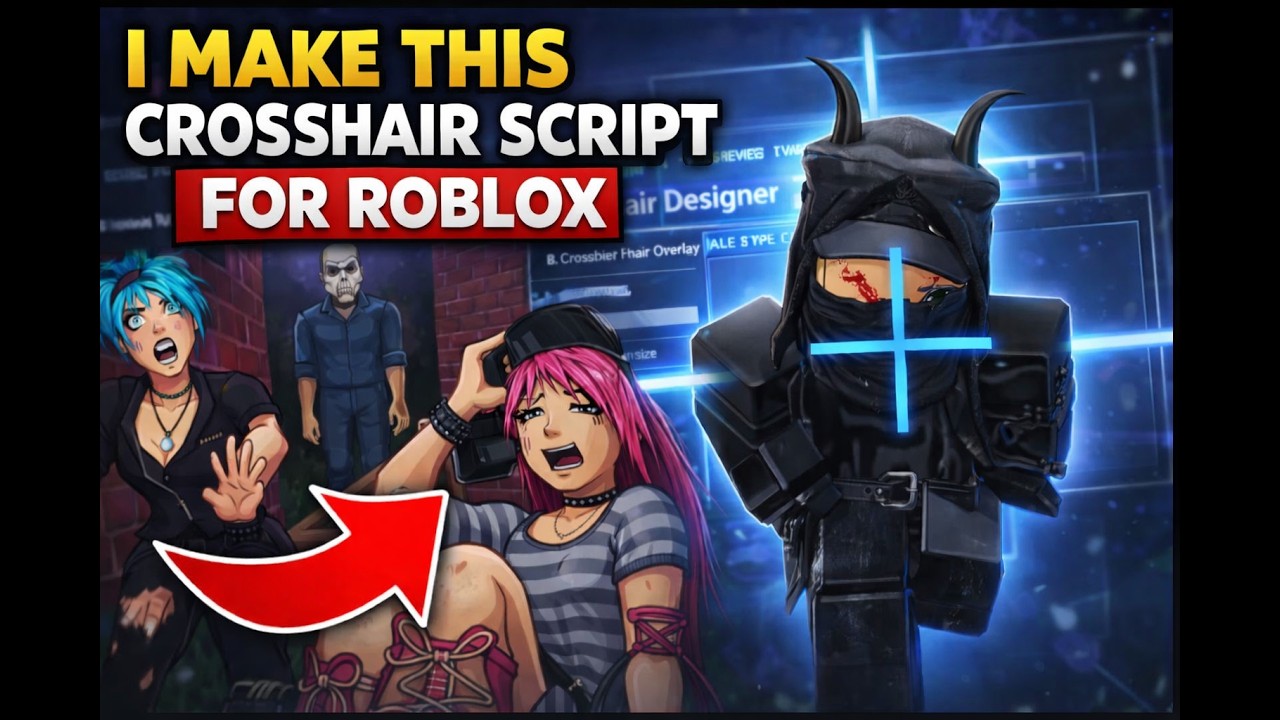
This repository contains Crosshair Studio Pro — a WinForms toolkit that helps you design crosshairs, preview them, save/load presets and optionally run simple system optimizations (FPS / network tweaks). It's a GUI application targeting .NET 10.
Use this tool only on systems you own or where you have explicit permission to run diagnostics/tweaks.
- Create and preview crosshair types (plus, cross, dot, circle, etc.)
- Live overlay that draws a crosshair on-screen
- Save / load presets (JSON
.cspfiles) and import/export configurations - Color palette + custom color picker
- Basic FPS and network helper options (process priority, DNS flush, TCP settings)
- Tray icon with minimize-to-tray support
- Requirements: .NET 10 SDK
- Open solution in Visual Studio or run from command line:
dotnet build
dotnet run --project Roblox
After build the executable is in bin/Debug/net10.0-windows (or Release).
- Launch the application (
Roblox.exe). - Use the left navigation to switch between
Crosshair,Colors,Settings,Presets, and utility panels. - In
Crosshair:- Enable the overlay and choose a crosshair type and size.
- Click
Apply Changesto update the overlay.
- In
Colorsyou can pick a preset color or choose a custom color. - Save presets in
Presetsand load them later.

Notes:
- Presets are stored under
%APPDATA%/CrosshairStudioas.cspJSON files. - Some FPS/network operations require administrator rights (the app will not attempt to elevate automatically).
- Preset format: JSON with fields
Type,Size,ColorArgb. - Exported configurations use the same JSON format.
- If the app won't build, ensure no running instance is locking
Roblox.exe(close app or stop debugging). - On multi-monitor setups the overlay uses primary screen center by default.
This tool is provided for educational and personal use only. The author is not responsible for misuse, damage, or illegal activity resulting from running this software. Always obtain permission before modifying system settings or testing on computers you do not own.
If you want screenshots, badges, or a CONTRIBUTING section added, tell me what to include and I'll update the README.