Simulate Mode
(This tutorial assumes you are using the default state machine that finsm starts with)
Alright, you think you've got the perfect state machine, now it's time to test it! When you switch over to the Simulate mode, new features appear at the bottom of the screen. It's time to take a look at them.
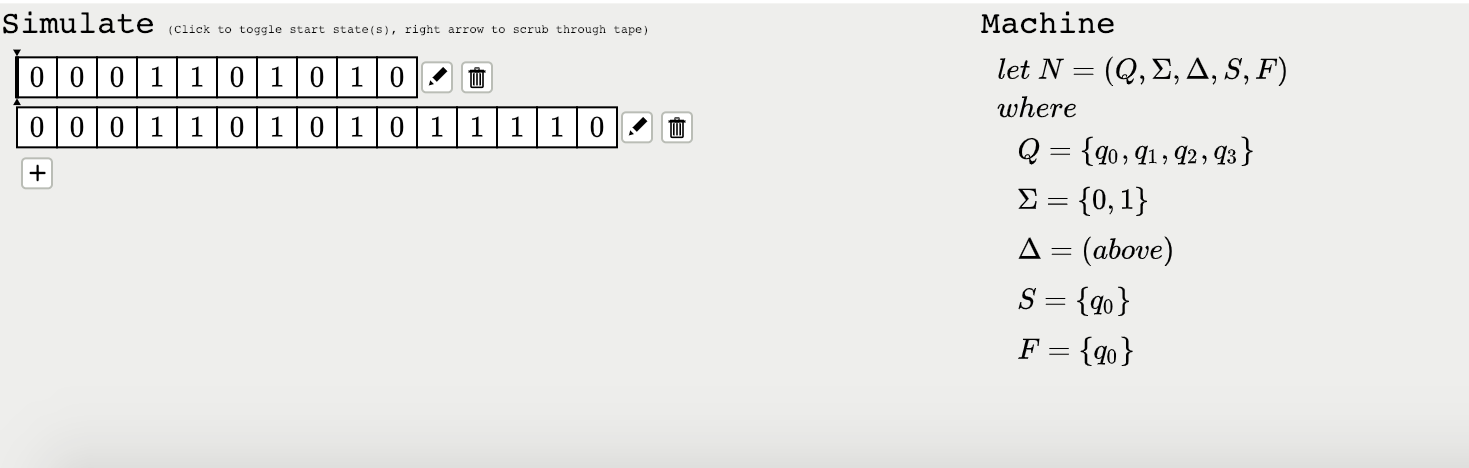
At the bottom left, we see what looks like some array of characters. These are what we call "tapes", which will be used as the test input to your state machine. For now, we will explore how to work with these tapes.
If you take a closer look of the tapes, we see one of them has a special bolded line at the start of the tape. This serves two purposes: it tells you which tape you are currently working with, and which position of the simulation you are at.
It's time to run a simulation with the selected tape. Press the
RIGHT-ARROW key on your keyboard. Now you will notice two things: The
states highlighted in bold above has changed, and the vertical
bar on the current tape has advanced its position:

You've successfully simulated a character input from the tape! To scrub through the entire tape and complete the test, continue pressing the RIGHT-ARROW key until the vertical bar reaches the end.
We can add additional tapes to test with. To create a new tape, click the + icon at the bottom of the tapes. You will see a new line created, with two icons, but no tape input.
To edit tapes, click the pencil icon. This will replace the current
menu with a keyboard, and the current tape you are editing:
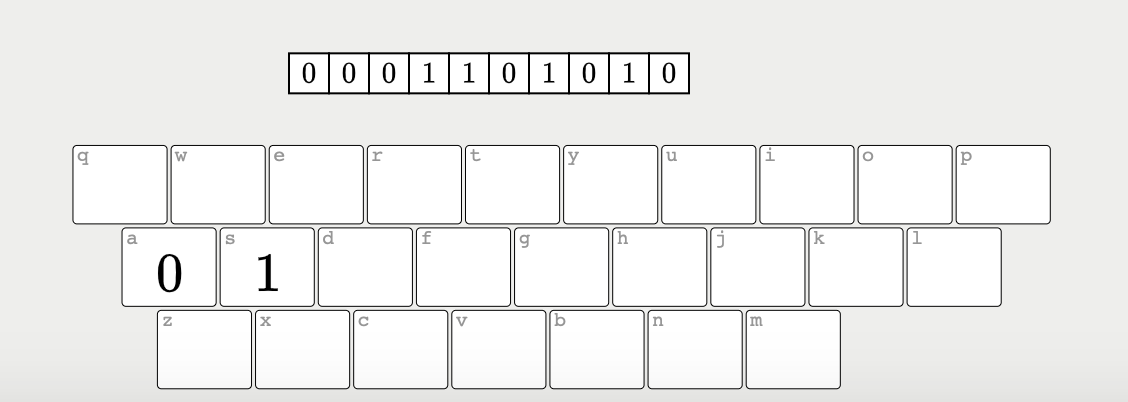
The keyboard lists all available transitions that you can enter on your tape. Hit the corresponding key on your keyboard to insert the character you want. For example, if I want to insert a '0' from the picture above, I will press 'A' on my keyboard. To delete the rightmost character on the tape, hit BACKSPACE.
Once you are happy with your tape, press ENTER to exit back to the previous menu.
If you want to delete a tape, just click the trash icon. Note that you can always Ctrl-Z to undo if you accidentally deleted tapes.
To the right of the tapes, you will see a mathematical description of your state machine. Notice that if you make edits to your machine and look at this part again, the notation adjusts to your changes accordingly. I think that's kinda cool.
While Simulate Mode has no editing capabilities on your machine, one thing you can do to states is to mark which states you are starting your machine with, i.e. the start states. Clicking on any state toggles whether they are start states or not. Start states are indicated with a bold outline.
In addition to switching between modes in finsm, we can simulate different machines. More specifically, we get to select between DFAs and NFAs from the top-left of the screen:

Select the type of machine according to what you need. Note that depending on which machine type is selected, the mathematical description below will show the corresponding definition of the machine.
finsm will also report on errors in your machine if any has been made in Build mode. For example, if you've missed a transition in your DFA, you will see an error report indicating the type of error, and the problematic state:
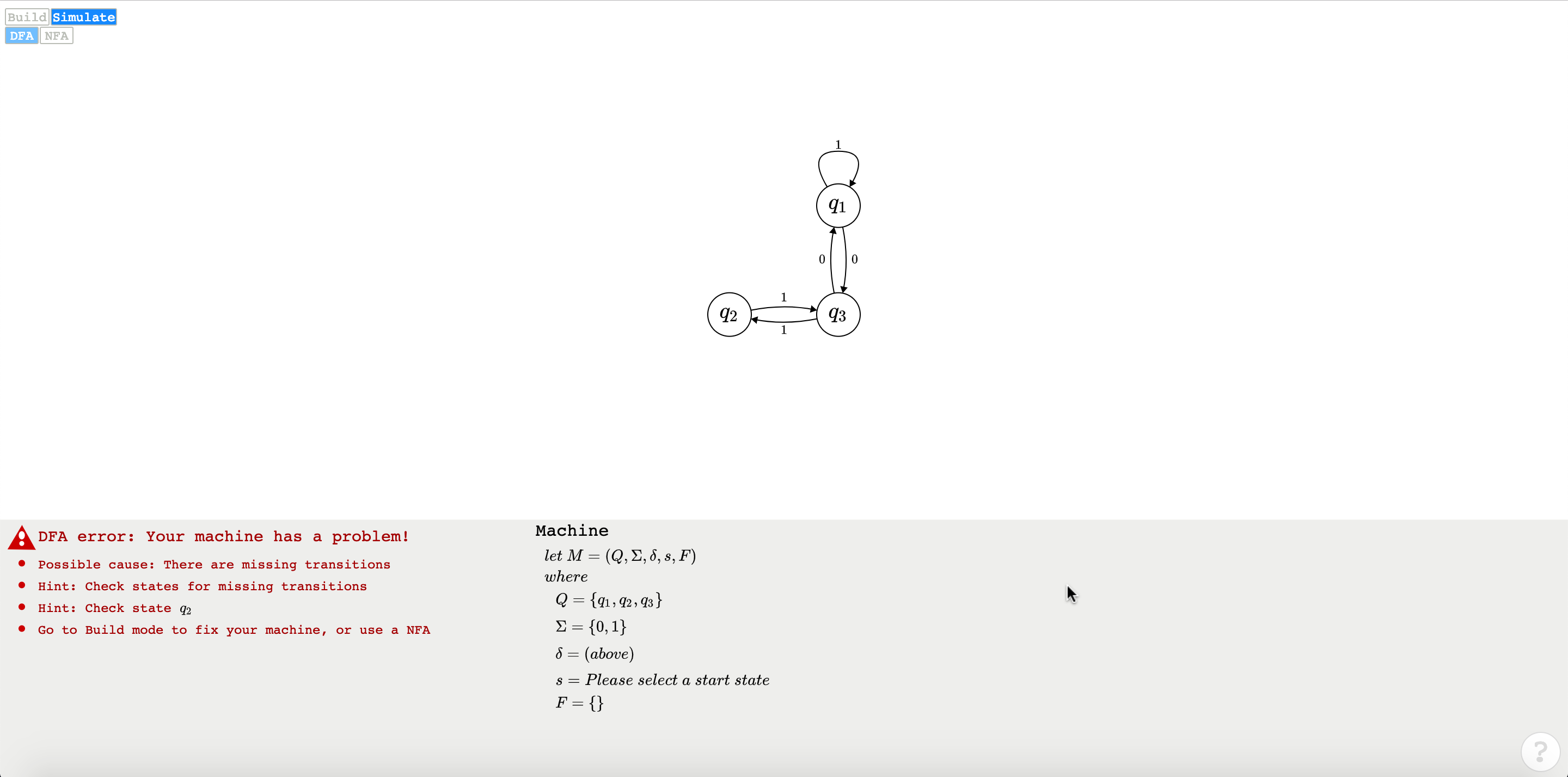
We see that we forgot to add a transition for 0 in state q2. The error report tells us that we've missed a transition, and to check state q2. Neat!